
I took the exact same site, started with a lightweight theme, and did a complete WordPress speed optimization experiment to cut its load time from about 4.5 seconds to under 1 second. I changed seven things, but here’s the thing that surprised me… the last change (switching my WordPress hosting to GreenGeeks) made the first six fixes work 10x better.
That’s why so much advice on how to speed up your site feels underwhelming. You compress a few images, install a plugin or two, and maybe trim a little bloat, but your site still drags.
The fix isn’t doing more random tweaks. It’s fixing the right bottlenecks in the right order. For many, the final step involves moving to a proper WordPress hosting provider that unlocks the true potential of your site’s speed optimization foundation. Here’s my full guide:
Disclosure: Please note that some of the links below are affiliate links and at no additional cost to you, I’ll earn a commission. Know that I only recommend products and services I’ve personally used and stand behind. When you use one of my affiliate links, the company compensates me, which helps me run this blog and keep my in-depth content free of charge for readers (like you).
Key Takeaways for WordPress Speed Optimization
- Most WordPress speed optimization gains come from fixing problems in the right sequence, rather than simply installing more plugins.
- Start by establishing a performance baseline in PageSpeed Insights or GTmetrix, so you know exactly what is slowing down your site before you change anything.
- Easy wins for many sites include image optimization, removing old plugins, clearing post revisions, and performing database optimization to remove junk files.
- Caching, deferred scripts, and a CDN can make your pages feel much faster, but these efforts only work up to a certain point.
- Hosting sets the ultimate ceiling for your site, and if your server is weak, every other fix will have less room to provide a meaningful impact.
Improve Your WordPress Performance with GreenGeeks

Many WordPress speed issues are caused by limitations at the server level. GreenGeeks gives your site a faster foundation with LiteSpeed, NVMe storage, and free site migration.
Why Your WordPress Speed Has a Ceiling
A slow WordPress site is not always slow because of one bad plugin or a few oversized images. Sometimes the bigger issue is the foundation underneath everything. If your server is weak, crowded, or underpowered, every request takes longer than it should, even after you have done the right optimizations.
The easiest way to picture it is this: think of site speed like stacking boxes in a room. Image compression, caching, lazy loading, script cleanup, and database cleanup all help you stack higher. But your host is the ceiling.
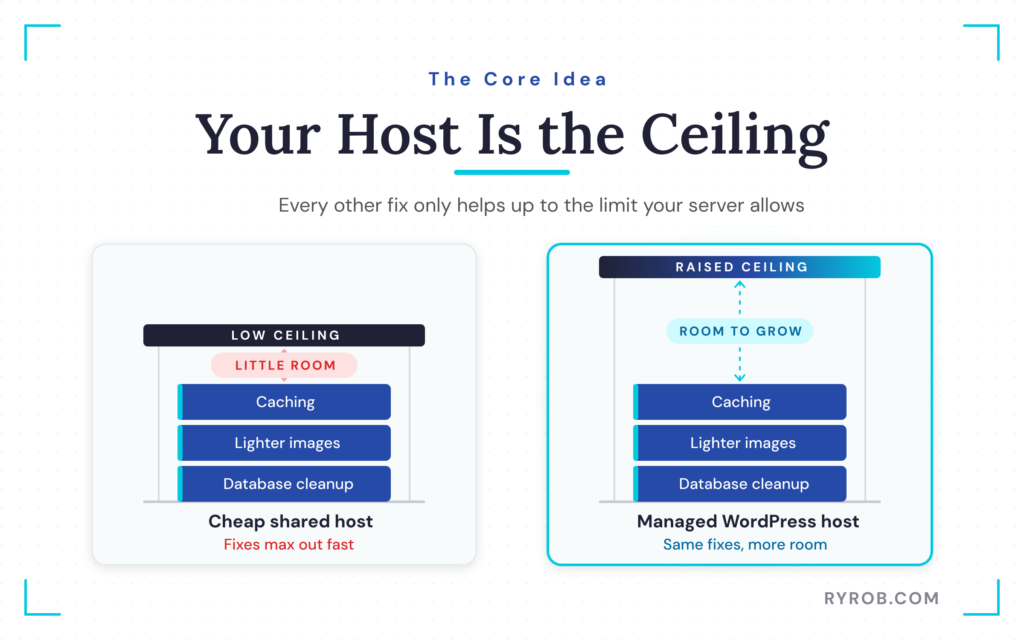
Once you hit that ceiling, the little improvements stop producing big results. You can raise it significantly by switching to managed WordPress hosting, which provides a more robust infrastructure designed specifically for high performance.
That is why two sites can use the same theme, plugins, and content yet feel completely different. One is standing on a better server. The other is stuck on a cheap shared plan that cannot keep up.
If hosting is the bottleneck, every other tweak is working under a low ceiling.
Why Better Hosting Can Multiply Every Other Improvement
A faster server does not replace the rest of your optimization work. It makes that work count more.
Let us say you have already resized your images, trimmed old plugins, and turned on caching. Good. But if the server still takes too long to respond, the issue of poor server response time remains.
You will often see this in performance reports as a high Time to First Byte (TTFB). This metric highlights the delay before the browser receives any data from your site.
When you move that exact site onto better hosting, those same optimizations hit harder. Cached pages are served faster. Database queries finish sooner. PHP runs quicker. Static assets get pushed out with less lag.
That is the whole point.
It is also why some people spend a full weekend tweaking plugins and still end up disappointed. They were not fixing the hardest limit.
Start With a Baseline Before You Change Anything
Before touching a single setting, measure the site. This part is not glamorous, but it saves a lot of wasted effort later.
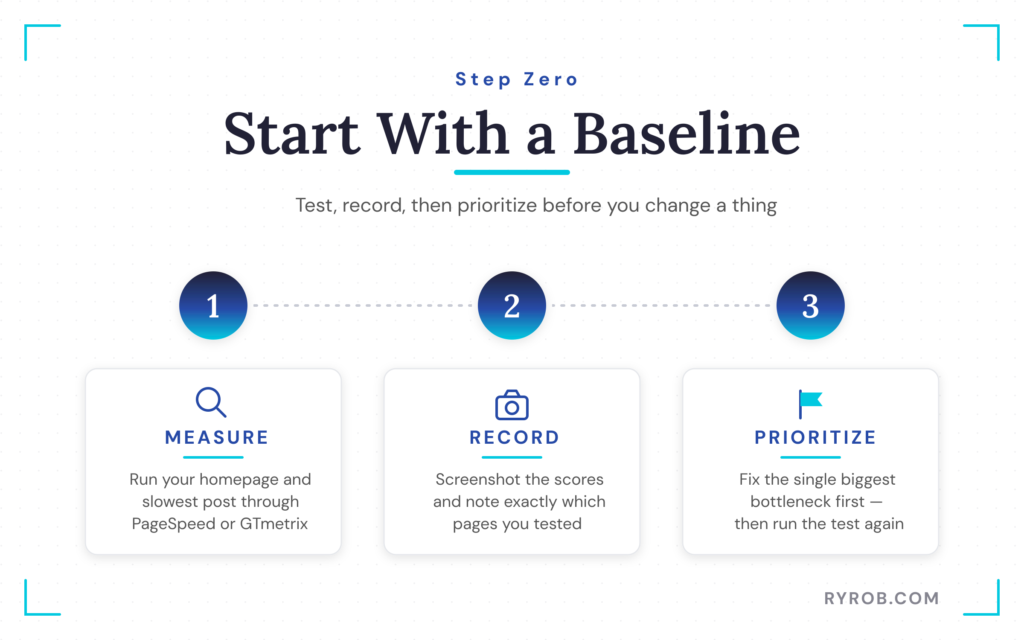
Run your homepage through PageSpeed Insights or GTmetrix. Then test at least one content-heavy post, ideally the slowest page you can find. It is also vital to check your mobile site speed, as this is how the majority of your visitors will experience your content.
If you want a deeper walkthrough of how to read those reports, my Google PageSpeed optimization guide breaks down what each score means and what to fix first.
You are looking for patterns, not perfection.
Ask questions such as:
- Which pages are slowest?
- Are images too heavy?
- Is JavaScript blocking the page?
- Is server response still high even after cleanup?
Those answers matter a lot more than obsessing over one number.
What Largest Contentful Paint, Interaction to Next Paint, and Cumulative Layout Shift Mean
Google groups a few of the most important speed signals under Core Web Vitals. If the technical acronyms make your eyes glaze over, here is the simple version of how these metrics work.
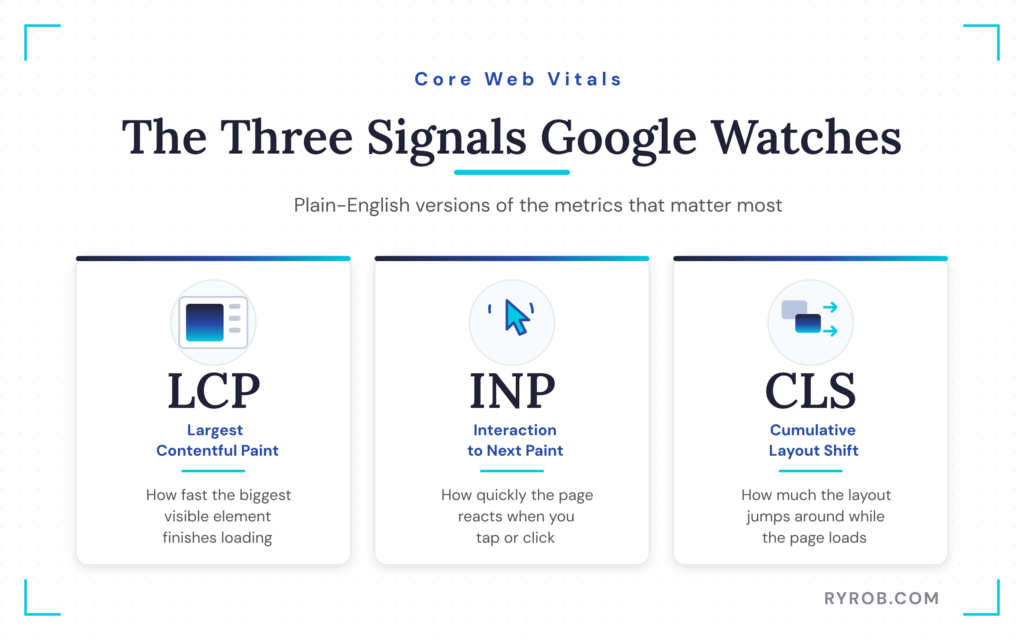
- Largest Contentful Paint (LCP) is how long it takes the biggest visible piece of the page to show up. That is often your hero image, featured image, or a large block of content. If this is slow, the page feels slow.
- Interaction to Next Paint (INP) measures how quickly the page reacts when someone clicks, taps, or types. On some testing tools, you will also see TBT, or Total Blocking Time, which is a useful lab signal when scripts are getting in the way.
- Cumulative Layout Shift (CLS) is the annoying effect where a button, ad, or image moves while the page is loading and you end up clicking the wrong thing.
Google’s Core Web Vitals documentation is helpful if you want the official definitions. web.dev’s Web Vitals overview also provides a good plain-English breakdown.
How to Find the Slowest Page on Your Site
Do not test one random page and call it done. That is how bad performance hides.
Start with your homepage because it is often the front door to your site and one of the heaviest templates. Then test a long blog post with plenty of images, embeds, or custom elements. That is usually where the problems show up first.
If a single post is dragging badly, it is often because that page exposes everything at once, such as bloated images, too many scripts, slow fonts, and cluttered layout files.
That is good news because fixing the worst page tends to reveal the biggest wins.
Why Screenshots and Notes Matter
Take screenshots of your scores before you change anything. Write down the pages you tested too.
That turns the whole process into a clean before-and-after comparison. Without that baseline, it is easy to make changes, forget what improved, and end up guessing.
I have seen this a lot with site owners who change ten settings in one sitting, then cannot tell which one helped and which one broke the layout. A few screenshots up front save a lot of backtracking later.
Fix Images, Plugin Bloat, and Other Easy Wins First
On most blogs, images are the heaviest element on the page. They are often the primary reason a site feels sluggish, making effective image optimization essential for improving your Core Web Vitals.
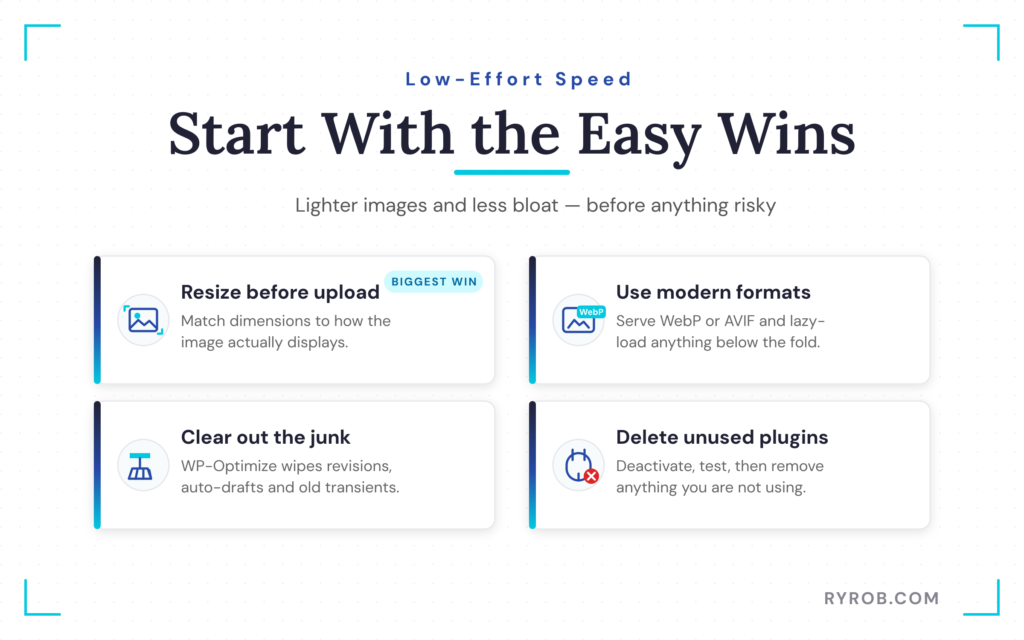
Then there are the usual WordPress leftovers: old post revisions, auto-drafts, expired transients, and the plugin bloat that builds up from extensions you installed years ago and subsequently forgot.
WordPress does not clean that up for you. It keeps collecting until you take action. This is the section where you can usually pick up some solid wins without changing hosts or doing anything risky.
Resize Images Before You Upload Them
If your content area is 800 pixels wide, uploading a 4,000-pixel image is wasted weight. The browser still has to deal with that oversized file, even if it only displays a smaller version.
Resize images before you upload them. Match the dimensions to how they will actually appear on the page. That simple habit cuts file size fast and keeps your media library cleaner.
It is one of those basic fixes people skip because it feels too obvious. Do not skip it. On a lot of sites, this is low-effort speed.
Use Modern Formats and Lazy Loading
The WebP format and AVIF are much lighter image types than old-school JPEGs and PNGs in many cases. If your site is still serving heavy originals, you are making pages work harder than they need to.
A plugin like WebP Express can bulk-convert existing images, which is useful if you have a large archive. For new uploads, plenty of tools and workflows now support modern formats by default.
Implementing lazy loading helps too. Images below the fold wait until the visitor scrolls closer to them. That means the page can show useful content faster instead of loading every image at once.
Current WordPress versions handle much of this by default, which is one more reason to keep WordPress updated in your admin area.
Remove Old Revisions and Unused Plugins
Over time, WordPress can start to feel like a garage full of items you meant to sort out later. Old revisions, auto-saves, expired transients, and plugins that were meant to be temporary three redesigns ago.
Run a database optimization with a tool like WP-Optimize. That can clear out a surprising amount of junk in one pass.
Then audit your plugins and be ruthless.
Every active plugin can add:
- Scripts
- Styles
- Database queries
If you are not using it, deactivate it, test the site, and if nothing breaks, delete it. Deactivated is not the same as deleted.
If you want a wider shortlist of useful tools beyond speed fixes, here are my best WordPress plugins.
Set Up Caching and Remove Render-Blocking Resources
Many tutorials suggest that you simply install a caching plugin, but that advice is as vague as telling someone to eat better. It is true, but it lacks the necessary direction to get results.
Caching works by answering user requests early. Instead of forcing the server to rebuild the page from scratch every time, a cached version is served immediately. That is faster for the visitor and reduces the load on your server.
Then there is the issue of render-blocking resources. This includes CSS, JavaScript, and fonts that force the browser to pause before displaying the page.
If you have ever loaded a site that sat blank for a second before suddenly popping into place, you have seen this performance bottleneck in action.
Choose One Good Caching Plugin
Start with one solid caching plugin, not three.
LiteSpeed Cache is a powerful option, especially if you are using LiteSpeed hosting. WP Super Cache is another reliable choice supported by the team behind WordPress.com, and if you want the fastest setup you can even connect WordPress to Claude to handle these speed fixes in a simple chat. Regardless of your choice, enable page caching and browser caching first, then test your site again.
Page caching stores a ready-made version of your page. Browser caching instructs a visitor’s browser to keep certain files locally instead of re-downloading them on every visit.
Both methods are easy wins for performance. The most important rule is to avoid stacking multiple plugins that might conflict with each other.
Tame CSS, JavaScript, and Fonts
Most high-quality plugins include specific toggles to help you manage your assets more effectively.
Common optimization settings include:
- Minification to strip unnecessary whitespace from CSS and JavaScript files
- Deferring JavaScript so non-essential scripts load after visible content
- Critical CSS to help page styles load faster
- Font swapping settings to keep text readable while custom fonts load
These adjustments help optimize JavaScript execution and improve the overall user experience. The page feels snappier, which is what users notice most.
Always test one setting at a time. If you apply every optimization at once and the layout breaks, you will not know which one caused the problem.
Change one setting, test it, then move on.
Use a CDN for Readers Far From Your Server
Your server is located in one place, but your readers are spread across the globe.
If your host is in the United States and someone visits your site from Australia, every image, stylesheet, and font must travel a long distance. This creates real latency and noticeable slowdowns.
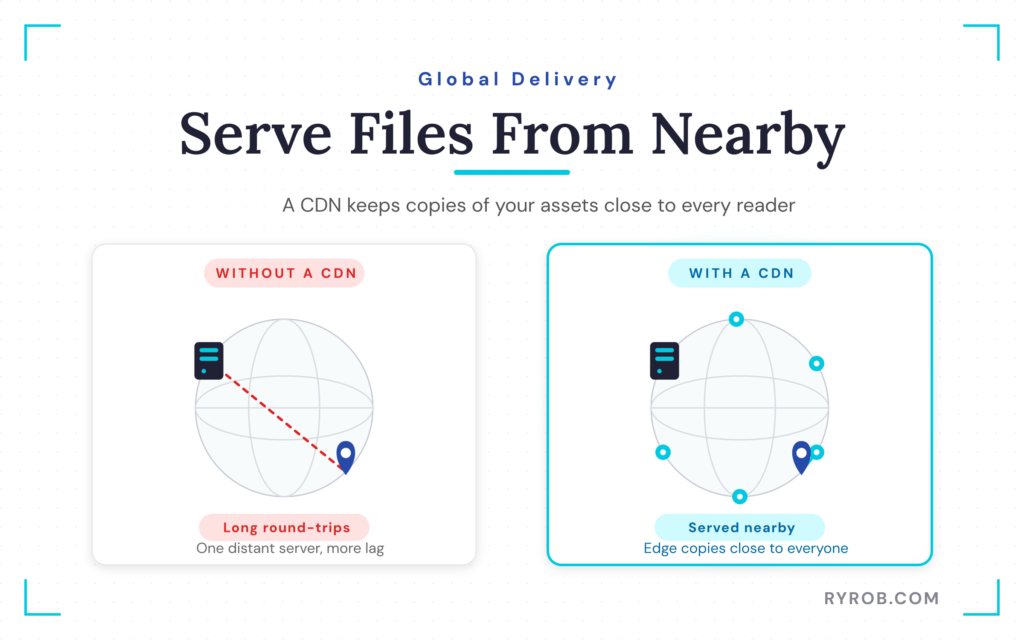
A Content Delivery Network (CDN) keeps copies of your static files on servers around the world. Your visitor receives assets from a location closer to them, which cuts delay and makes international traffic feel much smoother.
Many hosting providers include easy integration for these services, and the free plan from Cloudflare is sufficient for many sites. If you have readers outside of one local area, using this setup is well worth the effort.
Raise the Hosting Ceiling With a Faster Foundation
This is where the whole thing comes together.
You can clean up images, prune plugins, enable caching, defer scripts, and add a CDN. All good moves. But if your site still sits on an oversold, bargain-bin shared host, there is a limit to how much those changes can do for your WordPress speed optimization.
In my test, moving the site to performance-optimized WordPress hosting with GreenGeeks was the change that unlocked the biggest performance gains.
Why LiteSpeed and Server-Level Cache Matter
The biggest piece is LiteSpeed.
With LiteSpeed hosting, page caching happens at the server level with LSCache. This is far more effective than trying to replicate the same functionality through a plugin alone.
Because the server-level cache is closer to the metal, the server response time is significantly improved, allowing requests to be answered with far less overhead.
GreenGeeks also utilizes:
- NVMe storage
- The most current PHP version
- Object caching
These technologies help the server read, write, and process data much faster. They also reduce repetitive database queries, leading to a snappier experience for your visitors.
You do not need to be a server expert to benefit from these specs. You simply notice that your site loads quicker.
This is the part most people feel but cannot name. Same website, same content, same optimizations, but a much better foundation.
Why Reliable Uptime Matters as Traffic Grows
Speed is not only about quiet days.
A host can feel fine when traffic is low, then fall apart the second one of your posts gets picked up somewhere and visits spike. That is when weak hosting shows its hand.
Pages slow down, errors pop up, and the admin dashboard gets sluggish. Everything starts feeling fragile.
Reliable hosting matters because a fast site that cannot stay fast under pressure is not that useful. If your blog is growing, this becomes a business decision rather than a minor technical preference.
That was part of the appeal here, too. The stack was not only faster on paper, it was built to hold up when real traffic shows up.
What to Expect From a Free Site Migration
If you are already on WordPress, the idea of moving hosts can feel like a headache. That is fair, as manual migrations are a pain if you have done them before.
GreenGeeks offers free site migration, which takes a lot of that friction out. Instead of rebuilding the site or exporting everything by hand, their team handles the move for you.
If you are starting from scratch, they also have an AI website builder that puts a new site on this same faster foundation from day one. Plus, if the sustainability piece matters to you, their platform runs on renewable energy too.
Three Speed Mistakes That Waste Time
A lot of WordPress speed work goes sideways for the same reasons. It is not because the tools are bad, but because the order is wrong or the settings get out of hand.
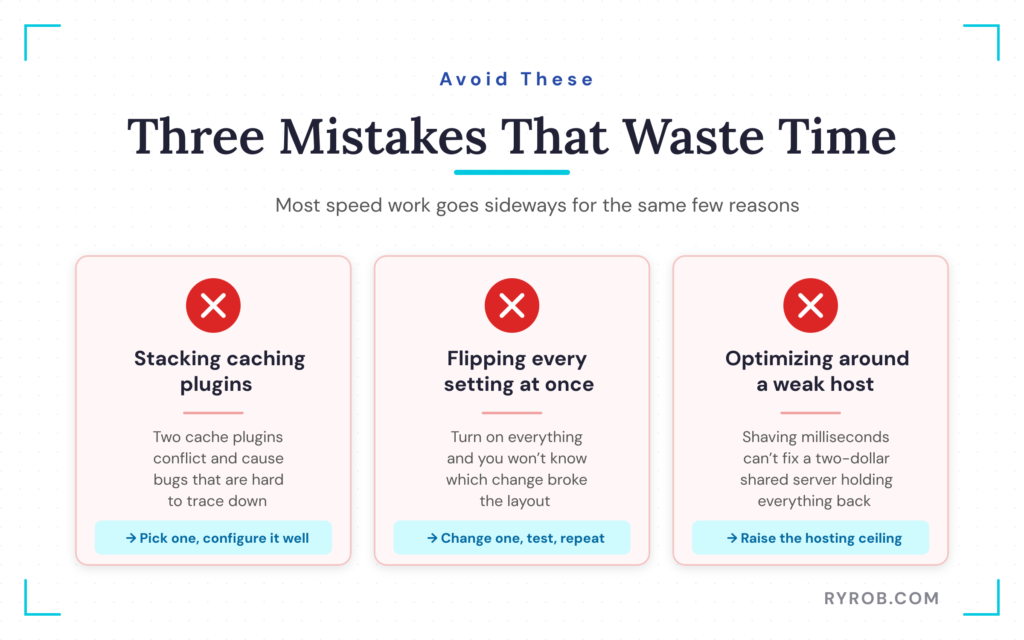
These are the three mistakes I see most often.
1. Don’t Stack Multiple Caching Plugins
More is not always better when it comes to site performance. Installing more than one caching plugin does not mean more speed.
In fact, multiple plugins can conflict with each other, duplicate settings, and cause odd bugs that are difficult to track down. Choose one reliable caching plugin and set it up properly. Simple beats messy here every time.
2. Don’t Flip Every Setting at Once
It is tempting to go full cleanup mode and turn on every optimization toggle you can find. However, that is the quickest way to break your site. If you blindly enable settings related to JavaScript execution without testing, you are likely to trigger errors that ruin the user experience.
Change one thing, test the page, and check mobile performance as well. Then move to the next change. This slower, more boring process is the only one that gets you stable speed gains without wrecking your layout.
3. Don’t Optimize Around a Weak Host
If you are spending hours shaving milliseconds off page load times while dealing with plugin bloat, but you are still hosted on a two-dollar per month server, you are working around the wrong problem.
This does not mean hosting is always the first fix. It means hosting acts as a hard limit once the easy wins are completed, which is why the usual WordPress hosting mistakes are worth ruling out first.
If your server response time stays stubbornly slow after a thorough cleanup, it is time to stop polishing the furniture and start looking at the foundation of your house.
FAQs About WordPress Speed Optimization
Below are additional questions you might ask.
What’s the fastest win for most WordPress sites?
For a lot of WordPress sites, image optimization is the fastest win. Oversized uploads and old file formats add weight fast, and resizing plus converting to modern formats can make a visible difference without much risk.
Plugin cleanup is another easy one. A few unused plugins and some database junk can drag more than people expect.
Do I need a caching plugin if my host already has server-level caching?
Yes, a caching plugin can still be useful even if your host already provides server-level caching. If your host provides strong server-level caching, that may handle the heaviest lifting already.
A plugin can still help with browser caching, minification, defer settings, database cleanup, and other front-end tweaks. You just do not want overlapping cache systems fighting each other.
Can plugins alone get a WordPress site under 1 second?
Yes, plugins alone can sometimes get a WordPress site under 1 second, but not reliably. If the host is already solid, plugins and site cleanup can get you a long way.
If the host is the slow part, plugins can only do so much. The host is responsible for your Time to First Byte, which sets the foundation for your entire loading experience. That is why the same site can feel dramatically faster after a hosting upgrade, even before you change anything else.
How often should I test my site speed?
You should test your site speed before making changes, right after making changes, and any time you add something heavy like a new plugin, video embed, or redesign.
It is also smart to re-test after big WordPress updates or hosting changes. You should also pay close attention to your mobile site speed regularly, as performance can slip over time, especially on sites that publish often.
Final Thoughts on Optimizing WordPress Speed
Going from 4.5 seconds to under 1 second wasn’t about finding one magic plugin. It was about getting honest about the bottleneck, fixing the page-level issues first, and then improving the foundation underneath the site.
That’s the part worth remembering. Images, caching, deferred scripts, and CDNs all matter. They just matter more when the server is not holding everything back.
By following this logical approach to WordPress speed optimization, you put your site in the best position to consistently pass Core Web Vitals assessments, deliver a faster experience for visitors, and improve your visibility in AI search results.
Run the test, save the screenshot, and fix the biggest problem first. That’s how you stop guessing and start building a high-performance foundation that makes your site feel fast for every visitor.
And when you’re ready to raise your ceiling by upgrading your WordPress speed optimization from the hosting level, join me over on GreenGeeks where your site automatically gets a speedy foundation & you’re hosting with a true eco-friendly provider.
Improve Your WordPress Performance with GreenGeeks
Many WordPress speed issues are caused by limitations at the server level. GreenGeeks gives your site a faster foundation with LiteSpeed, NVMe storage, and free site migration.
