
Your WordPress site can look perfectly fine on the surface while your hosting provider quietly chips away at your speed, traffic, uptime, and revenue behind the scenes. I’ve made most of these WordPress hosting mistakes myself, and they show up most often once a blog has outgrown the cheap plan it started on.
When you choose the wrong hosting provider, it drags down your website performance, slows your loading speed, and pushes up your bounce rates.
Hosting isn’t the whole SEO story, and faster load times alone won’t guarantee rankings. But a slow or unreliable server puts an unnecessary ceiling on all the work you’re already doing to publish great content and grow your audience.
Key Takeaways
- Watch out for hidden WordPress hosting mistakes like teaser rates. Check the renewal price instead of falling for the cheapest hosting option advertised on the sales page.
- Move on from shared hosting before traffic spikes overwhelm your server resources and cause unexpected downtime.
- Compare uptime guarantees and responsive customer support before committing to any new hosting provider.
- Evaluate your hosting provider thoroughly, and consider upgrading to managed WordPress hosting to keep website performance optimal during high traffic events.
- Fix the server bottleneck first, add a CDN second, then tighten up shared hosting limits, backups, and monitoring.
Fix Your Hosting Mistakes With Cloudways
Most of the mistakes in this post trace back to the server itself, and that’s exactly what Cloudways fixed for me. You get real server resources, fast response times, and the freedom to scale up the moment your traffic grows, no downtime and no scary migration. Use code RYROB30 for 30% off your first three months on any plan👇
WordPress Hosting Mistakes That Slow Your Site Down
A few of these WordPress hosting mistakes do their damage quietly, dragging down your speed before you ever think to blame the server. Here’s where they usually start.
1. Ignoring TTFB, or Time to First Byte
TTFB stands for Time to First Byte. It’s how long it takes for a visitor’s browser to receive the first bit of data from your site after making a request.
It’s one of the few major performance metrics your hosting provider has direct control over. When your provider struggles, overall website performance suffers, which quickly drives up bounce rates and increases the risk of server downtime during traffic spikes. Your theme, plugins, images, and caching setup all matter too, but they come after your server has had a chance to respond.
A healthy TTFB is often under 200 milliseconds. Once you’re regularly above 500 milliseconds, it’s time to investigate. Results in the 800 to 1,500 millisecond range are common on crowded, low-cost shared hosting plans, especially when the server is busy.
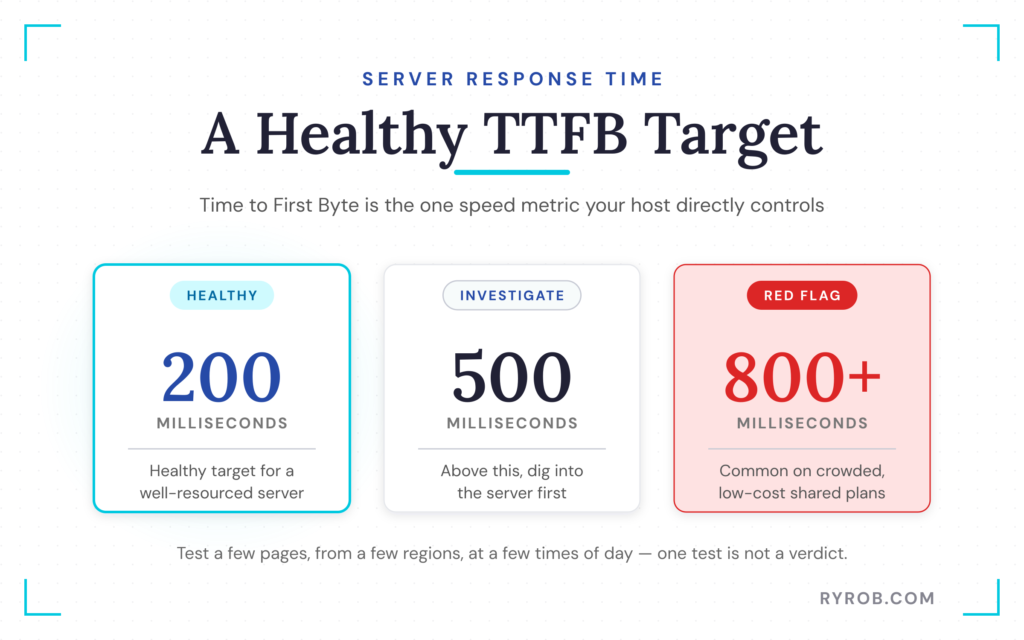
Don’t treat one speed test like a final verdict. Test a few key pages, including your homepage and a long blog post.
Then look at the pattern. Is the initial server response consistently slow, or is it only happening on one bloated page? If the server is slow before your page even starts loading, optimizing a few images won’t solve the root issue.
Server location plays a big role here, too. Hosting your site near your readers reduces the distance requests have to travel, which is why choosing a data center close to visitors is often one of the first hosting changes worth considering.
2. Hosting Your Site in the Wrong Data Center
Physical distance still matters on the internet.
Say most of your readers are in the United States, but your hosting provider placed your site in Amsterdam, London, or Frankfurt when you signed up. Every request has farther to travel before your server can begin responding. That extra distance can add noticeable delay, even if your WordPress setup is otherwise in good shape.
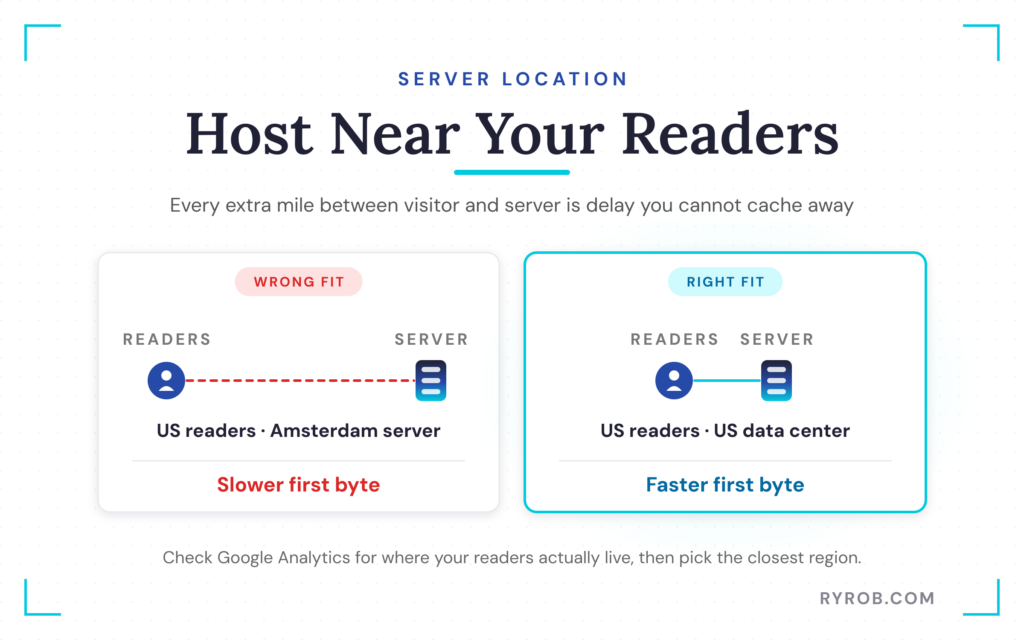
The fix starts with data you already have. Open Google Analytics and look at where your readers live.
If 80% of your audience is in the US, choose a US data center. If your readership is concentrated in the UK, a London server location might make more sense. The right server location keeps your loading speed optimal for your core audience.
Your target market matters here, too. A blogger serving US readers shouldn’t pick a European data center just because it happened to be the default option. Choose based on where your actual audience is now, then revisit the decision if that audience changes.
Upgrading to Cloudways WordPress hosting, cloud hosting, or VPS hosting gives you more flexibility. This is because providers may offer regions through infrastructure companies like DigitalOcean, AWS, Vultr, or Google Cloud. These platforms also help protect against server downtime when traffic spikes occur.
That doesn’t mean you should switch locations every month. It means you aren’t stuck with a poor choice forever.
3. Skipping a CDN Because Your Host Seems Fast
A content delivery network, or CDN, stores cached copies of your site’s static files across servers in different locations. That includes things like images, CSS files, JavaScript, and fonts.
Without a CDN, a reader in Tokyo may need to pull every image and script directly from your server in Chicago. With one in place, those static files can be delivered from a location much closer to them, improving global loading speed.
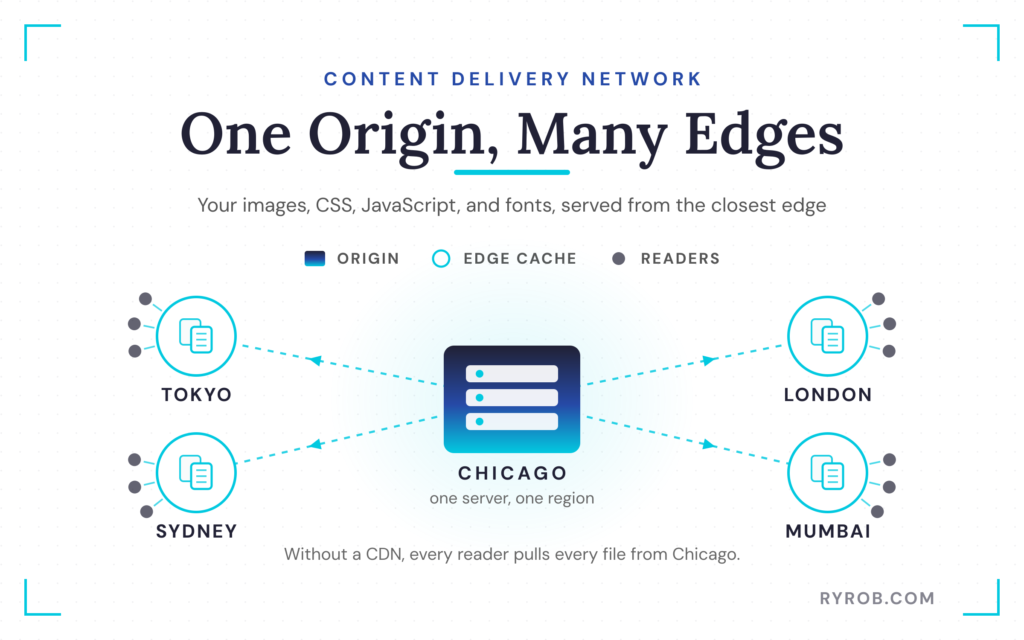
Less distance, less delay, and less work for your origin server. Many CDNs also include valuable features like built-in DDoS protection and web application firewall security.
Cloudflare’s free plan is a strong starting point for many WordPress sites. It won’t fix a painfully slow server or a poorly built site, but it can make delivery faster for readers outside your server’s home region while adding reliable DDoS protection.
Don’t expect every benchmark to behave exactly the same after adding a CDN. Caching configuration, test locations, and the way your site handles dynamic pages all affect the results.
Some site owners have even reported different initial response times after changing settings. Test your own site before and after changes rather than assuming a switch is automatically perfect.
4. Only Testing Your Site Speed From Your Own City
This one gets people all the time.
You’re in San Francisco. Your server is in San Francisco. You run a speed test and get a result that looks great.
Meanwhile, readers in London, Sydney, or Mumbai are having a very different experience. They watch loading speed crawl while high bounce rates quietly hurt your business.
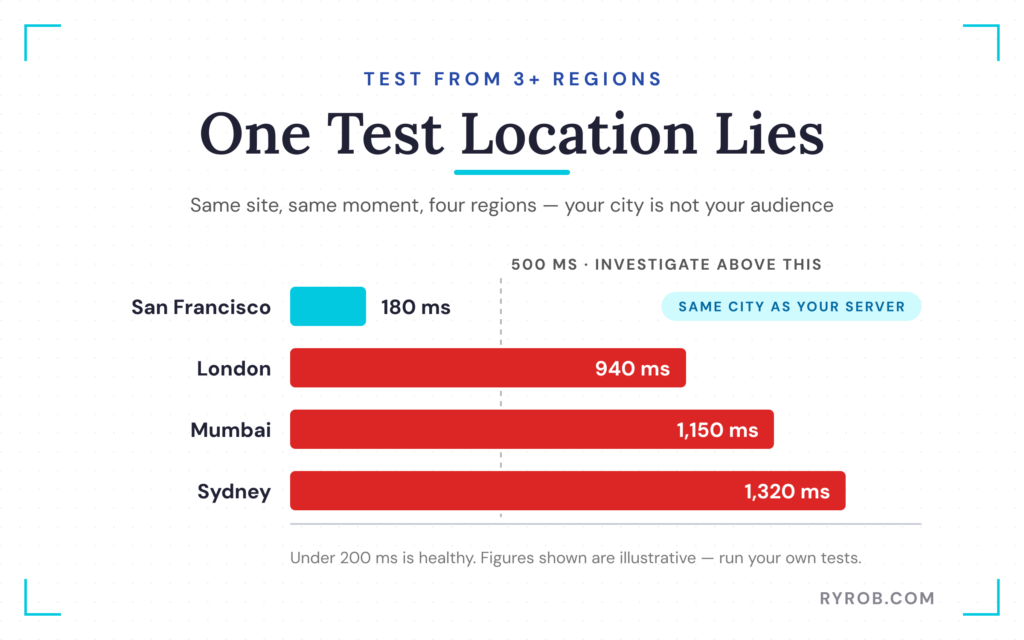
A single test location doesn’t represent your audience. It represents one visitor, from one place, at one moment.
Run speed tests from at least three locations where your real readers live. Look for major gaps in TTFB and overall website performance. If North American results are strong but European or Australian tests fall apart, you probably need a CDN, a better server location, or both.
Also test at different times of day. A hosting provider that looks great at 6 a.m. might struggle during traffic spikes, or when another site on the same shared server is consuming too many resources.
WordPress Hosting Mistakes That Cost You Money
Not every hosting mistake shows up in your speed scores. Some of them just quietly drain your wallet, and this next batch is where the real money leaks out.
5. Falling for the Cheapest Hosting Option
I get the appeal. You see your hosting provider advertise a plan for $2.95 per month, you’re starting a blog, and that price feels like an easy yes.
The problem is that the cheapest hosting option on the sales page is often an introductory rate. It may require a 36-month commitment, and the renewal price can jump to $12, $15, or even $20 per month.
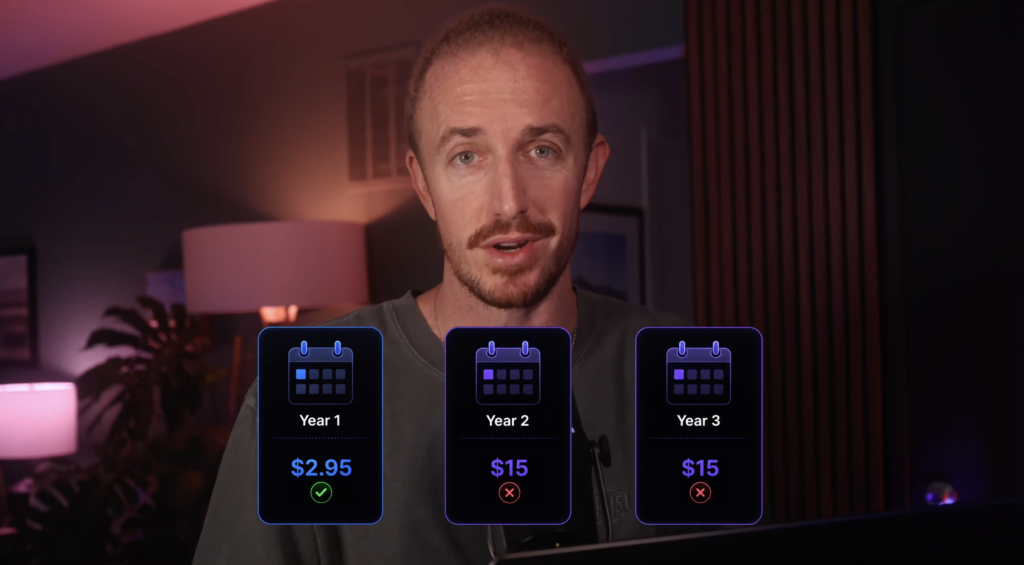
Suddenly, the plan that looked like a $100 decision becomes a much bigger three-year expense. When you factor in the sudden increase, subpar customer support, and slow technical support from your hosting provider, the savings quickly disappear.
Before buying, find the renewal price and do the boring math. Multiply it by the number of months you’ll likely use the plan after the first term ends. That gives you a far more honest number to compare.
Choosing shared hosting can be a reasonable place to begin. The mistake is staying there solely because the cheapest hosting option once looked cheap, even after slowdowns, poor customer support, and renewal costs start piling up.
If your site is earning money or building a real audience, compare what you’re paying against the performance and support you’re getting back. This breakdown of managed WordPress hosting plans can help you compare options built for sites that need more room to grow.
6. Relying on Your Host’s Default Backups Alone
“Daily backups included” sounds reassuring. It’s not the same thing as having a proper backup strategy.
Many hosts retain backups for only seven days. Some keep them longer, but you should never assume a copy will be available, intact, and old enough to help when something goes wrong with your hosting provider.
Imagine your site gets hacked on a Monday, but you don’t notice until the next Monday. If your host overwrites regular backups after a week, the only backup left may already contain the problem. The same risk applies if your hosting account is suspended, a database fails, or your own site changes break something you don’t catch right away.
Use a two-layered backup strategy.
- Keep your host’s automatic regular backups turned on.
- Create a separate backup through a tool like UpdraftPlus or BlogVault. Then send those copies to storage you control, such as Google Drive, Dropbox, or Amazon S3.
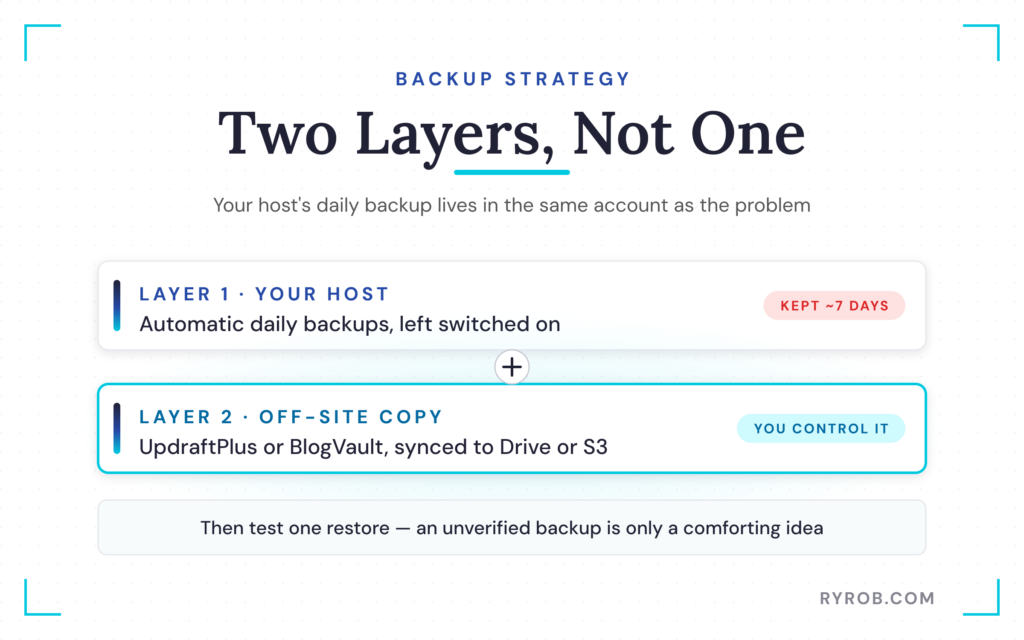
The second copy matters because it lives outside your hosting account. If the hosting provider has a bad day, your content, database, images, and years of work aren’t trapped in the same place as the problem.
Test the restore process at least once. A backup strategy that relies on unverified backups is only a comforting idea.
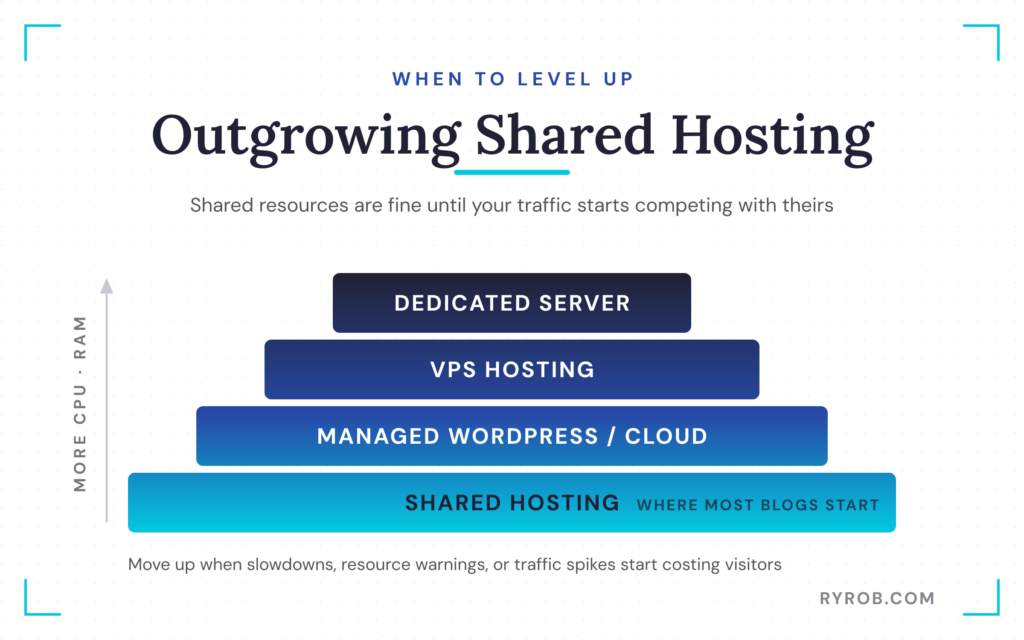
7. Staying on Shared Hosting After You’ve Outgrown It
Shared hosting is built around shared resources. Your site lives on a server alongside other sites, and all of you compete for CPU, RAM, and processing power.
That arrangement is fine when traffic is low. It gets less fun when your blog reaches 10,000 or 20,000 monthly visitors, a post takes off, or a promotion sends sudden traffic spikes your way. You quickly hit the resource limits on your server, and your site starts to crawl.
The warning signs of exceeding your resource limits are usually obvious.
- Your site slows down at random times.
- Traffic spikes lead to error pages or downtime.
- Your hosting provider tells you you’re using too many server resources.
- Technical support pushes you toward a migration, VPS hosting, or dedicated hosting.
The frustrating part is that many site owners stay put because migrating feels risky. Moving WordPress files, databases, DNS records, email settings, and plugins can feel like doing surgery on a site that’s already working.
That doesn’t mean you should ignore the issue. It means you should choose a hosting provider that gives you scalability options and better technical support without turning every upgrade into a full-blown project.
Cloudways is one option worth considering for established WordPress sites, because it runs on cloud infrastructure and offers vertical scaling. When your site needs more CPU or RAM, you can increase server resources right in the dashboard rather than starting a separate migration.
You can even move to VPS hosting, managed WordPress hosting, or dedicated hosting if needed. The code RYROB30 gives you 30% off your first three months on eligible plans.
For a closer look at the tradeoffs between beginner shared hosting and a managed cloud setup, see this Cloudways, Bluehost, and SiteGround comparison.
How to Audit Your WordPress Hosting and Fix It First
Don’t try to solve all seven problems in one afternoon. That’s how a quick hosting audit turns into a pile of browser tabs and half-finished changes.
Start with the issue that has the biggest impact on website performance. Check your TTFB from multiple regions, look at your server location, and evaluate whether your current hosting provider is actually meeting your needs.
Pay attention to whether your site slows down during busy periods, or if your uptime guarantees are falling short. If the server is the bottleneck causing server downtime, fix that before spending hours chasing minor theme tweaks.
Next, add or review your CDN. A free Cloudflare setup beats leaving every visitor to pull static files from one distant server. If you already use a CDN, test it from the regions that matter to your audience.
Then look at risk. Confirm how long your host keeps regular backups, and make sure your disaster recovery plan includes a reliable backup strategy. Know how to restore your site before you need to do it under pressure.
At the same time, audit your website security. Check that your host includes protections like automatic updates and proactive malware scanning, and look for advanced security features if you want an extra layer. If your site lacks these protections, or your support is too slow to help when incidents hit, your brand is exposed.
Finally, pull up your next renewal date and pricing. A hosting bill shouldn’t be a surprise. If the price is jumping dramatically, or you’re considering an upgrade to managed WordPress hosting, that gives you time to compare options before you’re locked into another long term.
FAQs
A few quick answers to the questions I hear most often about WordPress hosting mistakes.
What Is a Good TTFB for a WordPress Site?
A TTFB under 200 milliseconds is a strong target. A result above 500 milliseconds is worth investigating, especially when slow server performance leads to server downtime and higher bounce rates that frustrate your visitors.
Don’t judge your site based on one test. Check it at different times and from regions where your readers live.
Do I Need a CDN if Most of My Readers Are in One Country?
Usually, yes. A CDN can still reduce load on your main server and speed up delivery of static files while improving overall website performance. It’s particularly useful if your readers are spread across a large country like the US.
A CDN doesn’t replace proper website security, like an active SSL certificate and reliable DDoS protection at the origin layer. If your origin server is overloaded, fix that first.
How Often Should I Back Up My WordPress Site?
Daily backups are a sensible baseline for most active blogs. If you publish often, run an ecommerce store, or collect frequent form submissions, you may need more frequent backups.
Relying on regular backups and automatic updates helps prevent data loss, while routine regular backups and automatic updates protect your database. The important part is keeping at least one copy outside your host’s system.
When Should I Leave Shared Hosting?
Consider moving when your site has frequent slowdowns, resource limit warnings, or traffic related outages. Choosing the cheapest hosting option often limits your growth.
Many growing sites move from shared hosting to managed WordPress hosting, VPS hosting, or dedicated hosting for better scalability options, while advanced projects upgrade to managed WordPress hosting, VPS hosting, or dedicated hosting to unlock superior scalability options.
A small site with a heavy theme and lots of plugins can outgrow shared hosting sooner than a larger, well-optimized blog.
Can Better Hosting Improve SEO?
Better hosting can improve server response times, uptime guarantees, and visitor experience. Those are all worthwhile outcomes. Stronger infrastructure also lets you:
- Test changes in a staging environment and run malware scanning without slowing the site
- Lean on 24/7 technical support and customer support when issues arise
Your content quality, search intent, internal links, backlinks, technical setup, and many other factors still matter. Hosting removes a performance problem. It doesn’t replace the rest of your SEO work.
Final Thoughts About WordPress Hosting Mistakes
The biggest of all WordPress hosting mistakes isn’t choosing a cheap plan when you’re brand new. It’s staying with a setup that no longer fits because changing it feels like a headache, especially when evaluating your hosting provider for website security and overall website performance.
Start by addressing any WordPress hosting mistakes tied to server performance and location. When evaluating your hosting provider, consider upgrading to managed WordPress hosting, adding a CDN, keeping an independent backup, and ensuring you have access to 24/7 customer support.
These steps help prevent server downtime during unexpected traffic spikes. Then test your site from the places your readers live, not only from the desk where you built it.
One measured hosting improvement today beats waiting for a renewal bill, an outage, or traffic spikes to force the decision.
Fix Your Hosting Mistakes With Cloudways
Most of the mistakes in this post trace back to the server itself, and that’s exactly what Cloudways fixed for me. You get real server resources, fast response times, and the freedom to scale up the moment your traffic grows, no downtime and no scary migration. Use code RYROB30 for 30% off your first three months on any plan👇

The point about fixing the server bottleneck before piling on optimization plugins is easy to overlook. On larger content sites, hosting limits and slow origin response can undo a lot of front-end work. Testing performance from the regions where readers actually live is also much more useful than relying on a single local test.