
Good news… I’m officially done hunting through a dozen WordPress performance settings, now that I can rely on Claude + WP Rocket MCP to make my site faster in a simple chat conversation. That’s the massive shift you get when you connect WordPress to Claude and let it work from your real performance data, rather than trying to optimize things with a generic checklist.
That’s the idea behind WP Rocket’s new MCP connector. It connects with Claude Desktop so the AI can read your site’s real settings and performance data, then suggest fixes you approve. Instead of guessing, it’s working from your actual site.
Key Takeaways for Connecting WordPress with WP Rocket MCP to Claude
- The connector links you directly through the Model Context Protocol. WP Rocket’s MCP connector connects WordPress to Claude securely, turning generic tips into precise recommendations on what to fix first.
- You stay behind an approval step. Claude can read settings and performance data, but any change that writes to your live WordPress setup waits for you to review it and approve it first.
- Developers can test changes safely first. Power users on Claude Code or Model Context Protocol tools often vet updates in a staging sandbox before touching a production domain.
- A high score can still hide problems. Claude found lazy loading off and a misconfigured CDN on a site already scoring 99 out of 100. Enabling lazy loading cut an image-heavy article’s page weight by more than 57% and lifted the score to 100.
- The agency payoff is one conversation. Freelancers and agencies can check a whole group of client sites at once, asking where performance work matters most instead of opening each dashboard one by one.
How I Keep All My Sites Running Fast: WP Rocket

I’ve tried a lot of performance plugins over the years, but WP Rocket is the one I keep coming back to. What sold me was the MCP connector, since I can just ask Claude what’s slow and approve the fix. It’s included in every paid license, and I secured you 10% off any new plan with code ryan10 so you can try it yourself 👇
What WP Rocket’s MCP Connector Does for WordPress Speed
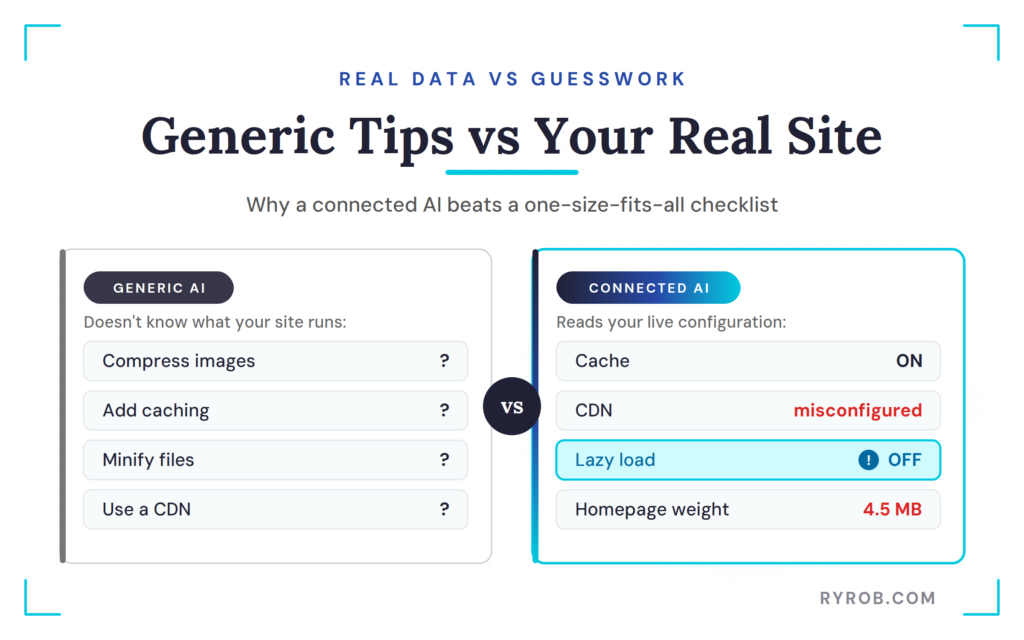
Normally, an AI assistant has no clue what your WordPress site is running behind the scenes.
Ask Claude, ChatGPT, or any other AI tool how to speed up a site, and you’ll usually get reasonable but generic advice. Compress images. Add caching. Minify files. Use a CDN.
But generic advice has one major problem. It doesn’t know whether you’ve already done those things, whether your cache is switched on, or whether your actual bottleneck is coming from somewhere else.
The WP Rocket MCP connector gives Claude a direct line into the information that matters by acting as a managed WordPress MCP server. It relies on the Model Context Protocol to securely pass data, using the WordPress REST API and the WordPress Abilities API to let Claude inspect your configuration, look at active performance plugins, and review Rocket Insights.
That means you’re not asking an AI to guess. You’re asking it to look at your actual setup.
Why Real Site Data Beats Generic AI Recommendations
Think of it like taking your car to a mechanic. A generic AI answer is someone shouting to check the tires from across a parking lot, while a connected AI can look under the hood, point to the actual issue, and tell you what needs attention.
If you want to test these capabilities safely without risking live data, you can mirror your environment using InstaWP before attaching a WordPress MCP server.
In the walkthrough, Claude was asked a simple question using natural-language commands. “What’s my current WP Rocket setup, and is there anything slowing me down?” It reviewed the live configuration and performance data rather than replying with a canned speed-optimization list.
Tools like Claude Code take it further, reading performance benchmarks through the underlying Model Context Protocol and helping manage plugins.
The site was already in good shape, with a 99 out of 100 score across monitored pages and an A-minus GTmetrix grade. If you caught my recent breakdown of whether website speed tests are even accurate, you know a high score doesn’t always match what real visitors feel.
But Claude still spotted a meaningful issue. The homepage weighed 4.5 MB, much of it coming from images, and lazy loading wasn’t enabled.
That distinction matters. A good overall score can hide page-level problems, especially on posts with large image files, embedded media, or a lot of visual content. Check the pages your readers actually visit, especially image-heavy posts, landing pages, and high-traffic pages.
Connect Claude to WordPress With WP Rocket
If WP Rocket is already installed and active on your WordPress site, there isn’t another plugin to install for this connection.
The setup happens inside the Claude Desktop app using a secure MCP connector and a smooth OAuth authorization flow. You will need the API endpoint URL for your own site, which follows the format supplied by WP Rocket with your domain in place.
Alternative workflows might rely on a local Node.js server connection, a custom plugin, or the official WordPress Claude Connector, but the WP Rocket approach keeps things streamlined for performance optimization.
Here’s how the basic setup works:
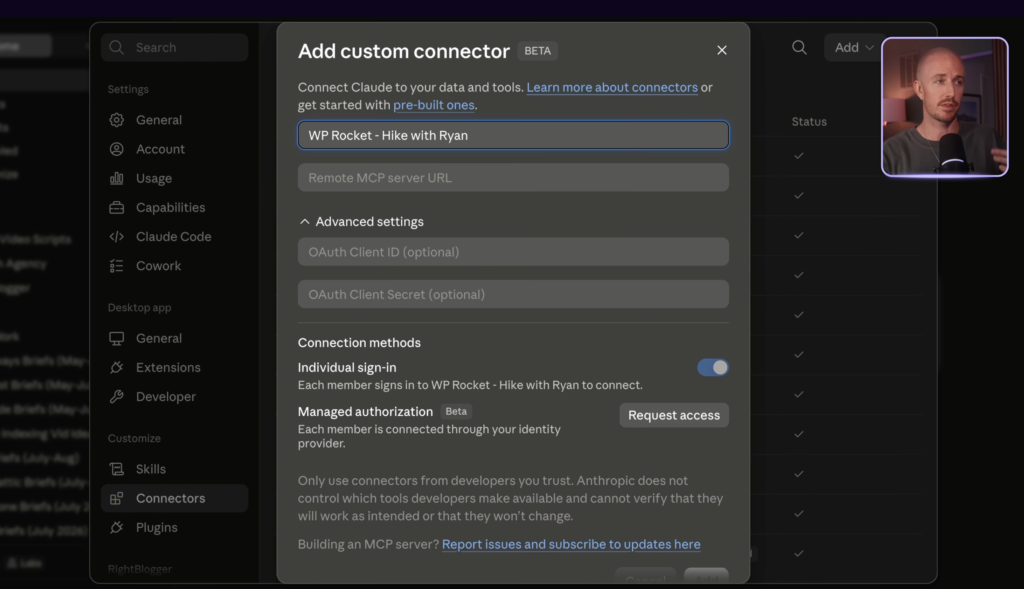
- Open the Claude Desktop app, then go to Settings and Connectors.
- Add a new custom connector and give it a name that makes sense for the site you’re connecting.
- Paste in your site’s API endpoint URL.
- Select Connect, then approve the authorization request.
- Review the available permissions before you start asking Claude to inspect or change anything.
Behind the scenes, this leverages the Model Context Protocol to bridge your site with the AI assistant. Depending on your configuration, you may need to supply an authentication token, generate Application Passwords, or use WP-CLI alongside the WordPress REST API and the WordPress Abilities API to establish a stable communication bridge.
If you are developing locally or testing updates safely, you can run these connection steps on a staging environment or sandbox first. That way you’re not touching your live production server until you’re ready. Once the connection is valid, Claude Code and the active WordPress MCP server can begin working with WP Rocket on that site.
If you manage multiple sites, name each connector clearly. “Client Site One” is not going to be very helpful three months from now when you have a dozen WordPress installs connected and you are trying to remember which one is which.
Set Read-Only and Write Permissions Carefully
This is the part you should not rush through.
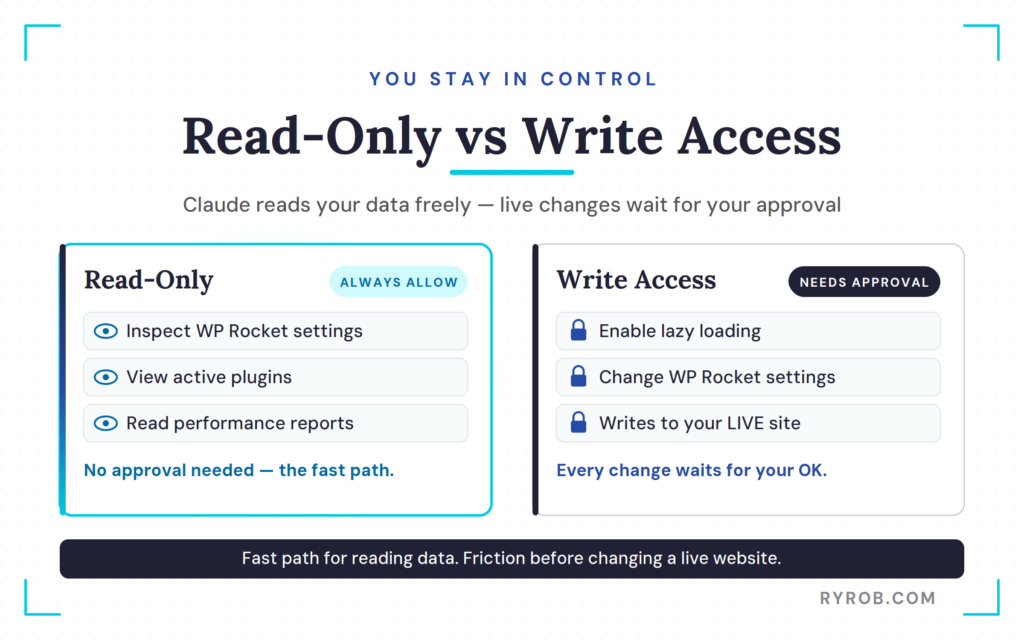
Read-only access lets Claude inspect settings, plugins, and performance reports without changing your site. Those are generally the permissions you will use most often when you are diagnosing a problem or checking the health of a site.
Write permissions are different. They allow Claude to make an actual change, such as enabling lazy loading or adjusting a WP Rocket setting.
In my video walkthrough, read-only tools were set to always allow, so performance reports could run without repetitive approval requests. Tools that could change live site settings were left on needs approval.
That is the right default for most people. You want the fast path for reading data, and you want friction before changing a live website.
Confirm That Claude Can See the Correct Site
Before asking Claude to optimize anything, run a simple test. Ask which performance plugins are active on the site. If Claude returns an answer based on your actual self-hosted WordPress setup, rather than a broad explanation of popular plugins, the connection is working.
This first check also gives you a chance to verify that you are connected to the right site. That is especially important if you run multiple blogs, client sites, staging environments, or old projects you have not touched in a while.
Do not skip this step. It is the digital equivalent of checking you are in the right house before you start rearranging furniture.
Ask Claude to Find the WordPress Settings Slowing You Down
Once the connection is live, open the prompt interface inside Claude Desktop and start with a question that gives Claude room to investigate without asking it to change anything. You can use plain-language prompts to explore active caching settings, image optimization opportunities, CDN configuration, or the pages with your weakest recent performance data. Your site management assistant does the heavy lifting.
Claude can pull together several pieces of information that normally live in separate tabs. Here’s what it gathers in one place:
- Your WP Rocket settings
- Active performance-related plugins
- Rocket Insights performance results
- Page-level issues worth prioritizing
The output becomes a prioritized list based on what your site is doing right now, not a vague collection of tips copied from a speed-optimization article. That saves time, but it also helps you avoid messing with settings that aren’t broken. More toggles don’t automatically make a site faster.
In some cases, stacking overlapping optimization plugins or blindly turning on aggressive file optimizations creates a new problem that didn’t exist before. That’s why an intelligent automation workflow powered by Claude Code helps surface underlying issues without changing live settings blindly.
Look Beyond the Overall Speed Score
A site can score well in a test and still be carrying unnecessary weight.

In the example, the monitored pages scored 99 out of 100, but the homepage was loading 4.5 MB, mostly because of imagery. Lazy loading was disabled too. That meant off-screen images and embeds loaded upfront instead of waiting until a visitor scrolled down.
That can be a real issue for readers on slower connections, or for visitors reaching your content from another part of the world. A score from one test location doesn’t capture how every visitor actually experiences your site.
This is why page weight, Largest Contentful Paint (LCP), and Time to First Byte (TTFB) matter alongside the headline score. Use them to spot a clear issue, make one measured change, and check whether that metric improves.
For a broader breakdown of what to inspect beyond a single score, check out these WordPress speed optimization fixes. The goal isn’t to win a dashboard screenshot. It’s to make pages load quickly for real people.
Review, Approve, and Verify the Speed Fixes
The most useful part of this setup is that Claude doesn’t have to stop at diagnosis.
After Claude identifies a problem, you can ask it to apply the recommended fix. But it doesn’t immediately start rewriting settings across your site. It shows what it wants to change and waits for approval.
Claude proposed turning on lazy loading for images. The proposed setting was presented for review, then applied after approval. Within seconds, off-screen images and embeds were set to load as a visitor scrolls, rather than all arriving at once.
That’s a much better workflow than handing broad admin access to an AI and hoping for the best.
Test One Change Before Applying a Full Plan
Don’t tell Claude to “fix everything” in a single prompt. When you first connect Claude to WordPress, run your initial tests in a staging environment powered by a managed MCP workflow. It’s safer to do that before you grant read-write access to live sites.
Start with the clearest, lowest-risk issue. In this case, image lazy loading was a clean first test because the problem was visible in the data and the proposed fix was easy to understand.
After you’ve confirmed the change works as expected, move to the next recommendation. Maybe that’s CDN configuration, a closer look at oversized images, or a caching setting that needs attention.
Small, reviewable changes are easier to validate and easier to reverse. They also help you learn what is affecting your site’s performance instead of turning optimization into a black box.
Check the Before-and-After With the Same Test
The diagnosis and the verification should use the same source of performance data.
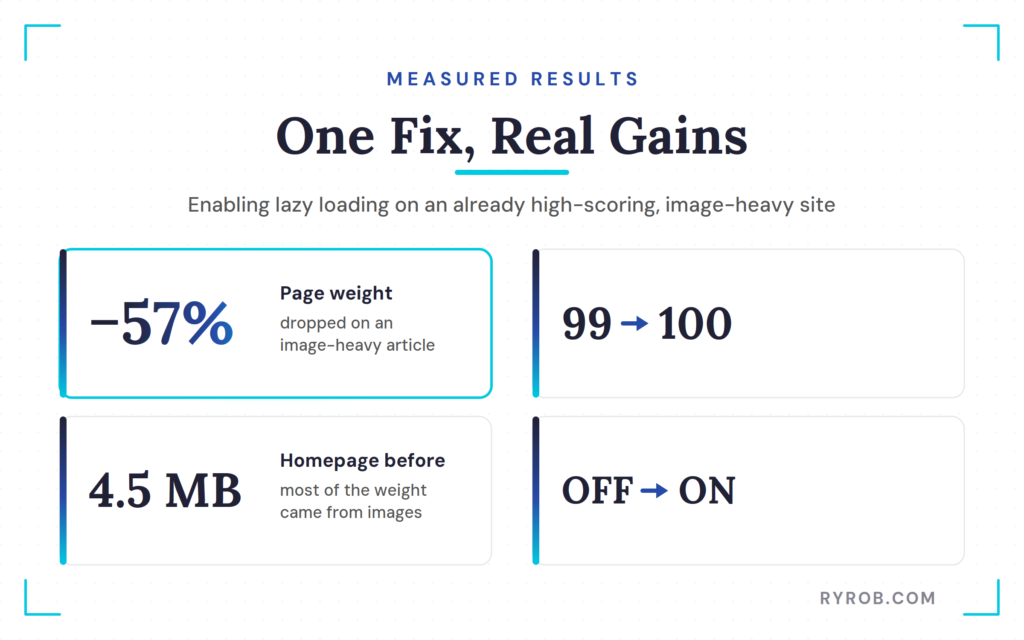
After enabling lazy loading, the site in the walkthrough was checked again through Rocket Insights. With the fix in place, the score climbed from 99 to 100, and an image-heavy article reduced its page weight by more than 57%. The homepage improved, too.
Those results are compelling because they connect a specific fix to a measured outcome.
Don’t fall into the habit of testing a page in one tool before a change, then using a different tool, location, or device after the change and calling it a win. Keep the comparison as consistent as possible.
Performance reports are a scorecard, not the strategy. Use them to confirm whether a real fix worked, not to chase meaningless score changes all day.
Revert a Change If the Result Isn’t Right
You’re not stuck with an AI-approved decision. If a setting causes an unexpected problem, you can ask Claude to revert it in the same conversation. You can also switch the setting back off inside WP Rocket yourself.
That’s one more reason to make changes in small batches. If something breaks, you’ll know which change likely caused it, instead of digging through 15 at once trying to find the culprit.
Manage Multiple Client Sites in One Conversation
This is where the connector gets especially interesting for freelancers, consultants, and agencies.
When you are managing a portfolio of WordPress sites, speed work can turn into a tedious cycle. You open Site A to check caching, then Site B for images, then Site C to run another report, and repeat until your afternoon has disappeared.
With each site connected through a Model Context Protocol setup, you can ask Claude to review the portfolio and tell you where performance work should start. By leveraging a WordPress MCP server during your workflow, you can handle routine plugin management and content generation alongside site speed audits.
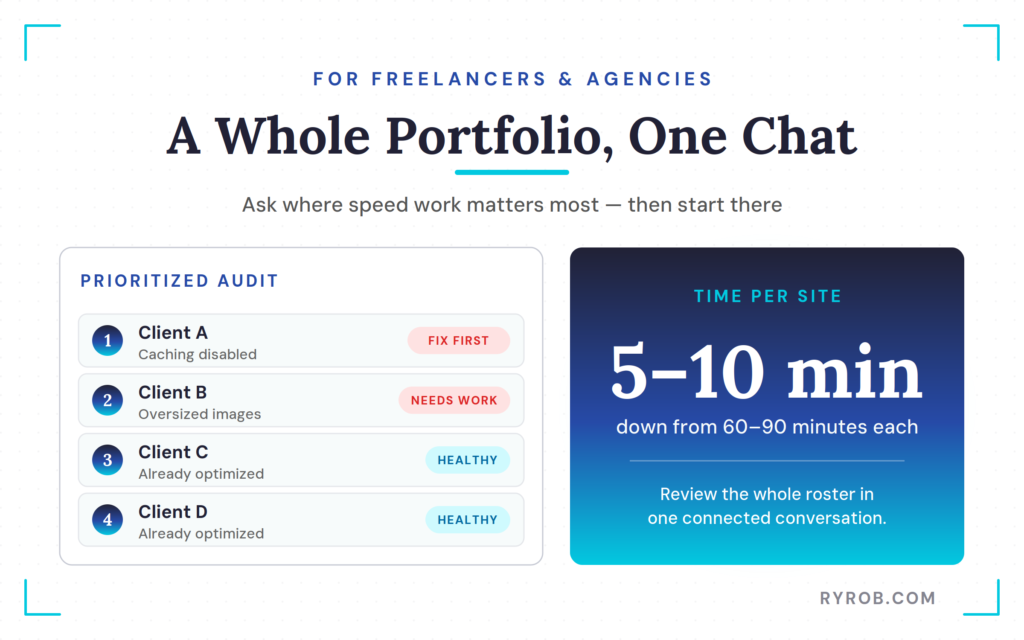
It can return a ranked view of sites that need attention, such as one with caching disabled, another overloaded with huge image files, and several that are already healthy.
That does not remove the need for judgment. A client site’s weird setup, custom code, or business priorities still matter. But it gives you a much faster way to decide where to spend your time.
Build a Repeatable WordPress Speed Service
A solid speed service is not about throwing a random report at a client once and disappearing.
You can use an automation workflow to review the site, identify the most practical improvements, get approval, apply targeted fixes, and send a clear before and after performance report. That is work clients can understand.
WP Rocket says portfolio level work that once took 60 to 90 minutes per site can take closer to 5 to 10 minutes with this kind of connected workflow.
If you want to scale this further, you can pair a WordPress MCP server with tools like WP-CLI, or use Claude Code for terminal-based site tasks. By executing natural-language commands, you can streamline content generation and routine tasks across multiple environments.
Your mileage will vary based on how messy the sites are, but the direction is obvious. Less time clicking around, more time making decisions.
You can also use settings that work well on one site as a reference point for similar sites. Still, do not blindly copy configurations across a client roster. Different themes, plugins, hosting environments, and custom functionality can change what makes sense for each site.
Security, Privacy, and Limits Before You Connect Claude
Connecting an AI to your WordPress site calls for a little caution.
Claude can only act within the permissions you grant, but write access still means it can change settings on a live site after you approve the request. When setting up your AI client connection, authenticating via Application Passwords or a custom plugin helps secure the data flow. You can also route requests through a local Node.js server or interact via the WordPress REST API for tighter control.
Only connect an AI tool you trust, and only give it the access you feel comfortable reviewing. Be particularly careful about granting full write access to a WordPress MCP server, a WordPress Claude Connector, or powerful terminal tools like Claude Code and WP-CLI.
Treat it like handing over keys to your car. You might let someone check the dashboard and tell you what is wrong. You probably don’t let them drive off without asking first.
Privacy matters, too. The way an AI company handles your data can depend on the product and plan you are using, especially when using content generation features. The setup shown here used Claude’s Team plan, which does not use performance data for model training.
Even if you’re testing changes safely in an isolated environment, you still need to check the current data policy for your own plan before connecting live site information.
When AI Shouldn’t Make the Final Call
AI is good at summarizing settings, spotting patterns, and handling straightforward configuration changes. It is not a substitute for human judgment when you are dealing with complex custom code, plugin conflicts, revenue-critical checkout pages, or a site that is already behaving strangely.
If a recommendation does not make sense to you, don’t approve it.
The same goes for performance improvements that come with a tradeoff. Deferring a script might improve a metric but break a feature your readers use, and aggressive file optimization can sometimes clash with a theme or plugin. Faster isn’t better if the site stops doing what visitors came there to do.
Also, don’t expect a plugin, a WordPress MCP server, or an AI connector to overcome bad infrastructure. Hosting puts a ceiling on what your WordPress site can do. If your server is slow, it is worth comparing managed WordPress hosting plans before spending weeks chasing tiny plugin-level tweaks.
FAQs About Connecting WordPress to Claude
A few questions come up again and again when people first wire Claude into their site.
Does Claude Automatically Change My WP Rocket Settings?
No. Claude can read your site settings and performance data through the Model Context Protocol, but write actions can be configured to require your approval. Review the proposed change before allowing anything to update on your live site.
Can I Undo a WP Rocket Change Made Through Claude?
Yes. You can ask Claude to revert the change within the same conversation, or you can switch the setting off manually in WP Rocket. This is why it is smart to test one change at a time instead of applying a long list of changes at once.
Is a 100 Speed Score the Only Goal?
No. A 100 score looks nice, but your real goal is a site that loads quickly and works properly for visitors. Look at page weight, LCP, TTFB, and how important pages behave on real devices, and don’t break useful site features to chase a perfect score.
Can Agencies Use One Claude Conversation for Multiple WordPress Sites?
Yes, if each site is connected through its own secure MCP connector that manages read-write access permissions safely. Whether you use Claude Desktop or command-line workflows like Claude Code, the tool can help review connected sites, identify the worst-performing ones, and help you prioritize client work.
Each site should still be reviewed on its own terms before you apply changes. You can even spin up test environments with InstaWP or run local WP-CLI tests to check updates safely. A valid authentication token or Application Passwords keep your setup protected.
Do I Need to Know WordPress Performance Settings to Use This?
You don’t need to be a WordPress performance expert to ask Claude questions and review its explanations. You do need to understand the basic purpose of any setting before approving a live change. The AI can speed up the work, but the site owner remains responsible for the result, especially when using the MCP connector.
Final Thoughts on Connecting WordPress to Claude
Learning how to connect WordPress to Claude using the Model Context Protocol changes performance work from generic advice into a reviewable process based on your real site data.
Start with read-only access on disposable test sites, like those built with InstaWP. Ask Claude what it sees, approve one small fix, and then compare the same metrics before and after. That approach gives you a clear record of what worked without handing your website over to an AI autopilot.
Once you test the MCP connector or a custom plugin on staging, you can safely embed these steps into your daily performance automation workflow. A faster site still comes back to the basics, including solid hosting, lighter pages, sensible plugin choices, and human oversight when changes affect your visitors.
How I Keep All My Sites Running Fast: WP Rocket
I’ve tried a lot of performance plugins over the years, but WP Rocket is the one I keep coming back to. What sold me was the MCP connector, since I can just ask Claude what’s slow and approve the fix. It’s included in every paid license, and I secured you 10% off any new plan with code ryan10 so you can try it yourself 👇

Excellent article, Ryan! I especially liked the point that AI visibility isn’t just about publishing great content anymore—technical performance plays a huge role too.
As a TYPO3 and WordPress developer, I’ve seen similar results. Optimizing Core Web Vitals, reducing unnecessary JavaScript, and improving server response times doesn’t just create a better user experience, it also makes content much easier for search engines and AI crawlers to process.
Thanks for sharing such a practical guide. It’s great to see more attention being given to the technical side of AI discoverability.