
I built an app with Claude Code to help creators figure out what to charge for sponsored content, but I never set it up to send emails from Claude Code. The signup form worked. The dashboard worked.
Then I signed up as its very first user, checked my inbox for a confirmation link, and found nothing… That’s where a lot of AI-built apps stall out. The app looks finished, but it can’t talk to the people using it.
By the end of this walkthrough, the same app sent a signup confirmation, a password reset, a receipt, and a WhatsApp verification code, all from my own domain, with Claude Code doing most of the setup. There’s one step I insisted on doing by hand, though.
If you’ve followed my other guides on how to build an app with AI or how to build a website with Claude Code, this is the piece that turns a working demo into something that feels like a real product. Here’s the full walkthrough.
Key Takeaways on How to Send Emails From Claude Code
- Transactional emails are the detail that separates a real app from something that looks thrown together, and a fresh Claude Code app usually can’t send a single one.
- Claude Code connects to an email platform like MailerSend through an MCP connector, so the AI can work inside your account while you build.
- The sending domain gets verified with DNS records, and Claude Code can pull those records and even add them to your DNS provider for you.
- Creating the API key is the one step worth doing by hand, so the key never lands in your chat history.
- One clear prompt got all three core emails built, a signup confirmation, a password reset, and a receipt.
Send Every App Email From Your Own Domain With MailerSend
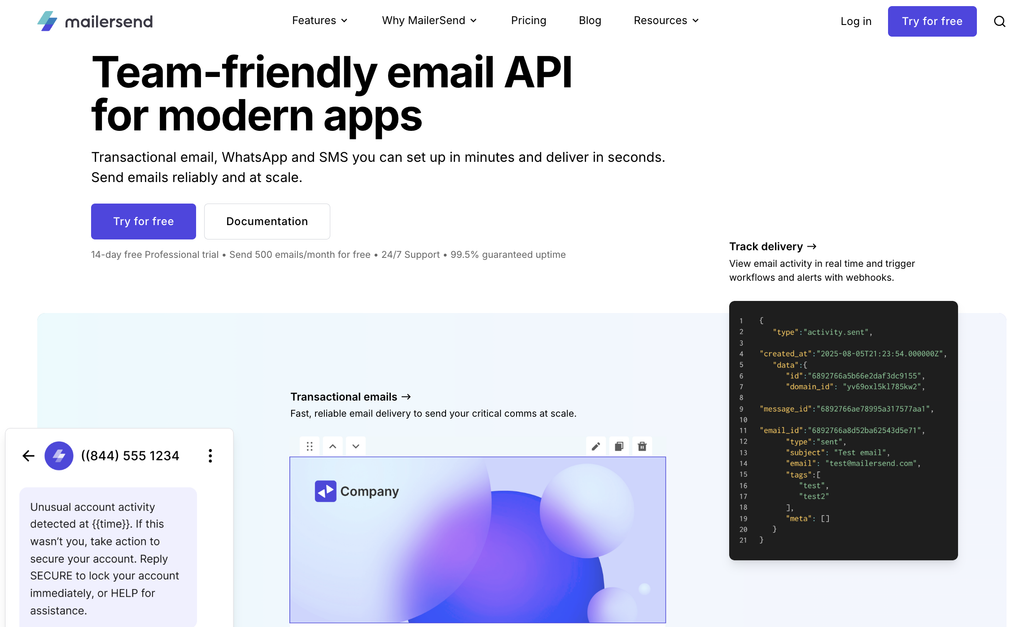
MailerSend is what turned my vibe-coded app into something that actually emails its users. The official MCP lets Claude Code set up your domain and emails right inside your account, and the free plan even includes the WhatsApp sandbox. When you’re ready to upgrade, code RYROBMS10 takes 10% off a paid plan!
Why Your App Needs to Send Emails From Claude Code
Here’s the problem I ran into. I signed up for my own app, and the instructions said to check my inbox for a confirmation link. Nothing was there, because the app had no way to send email yet.
Missing emails are the kind of thing users notice the second they happen. A signup that silently goes nowhere leaves people unsure whether the app even worked.
As the co-founder of a software company with more than 50,000 users, I can tell you these are the messages customers miss immediately when they go missing or look funky. That’s true for every app, including the ones from my walkthrough on how to build an app with AI.
The fix isn’t complicated, but it does involve two separate connections. Mixing them up is where people get into trouble with vibe-coded apps.
Which Emails Your App Needs Before Launch
Every real app needs three core emails, whether it’s a rate card tool like mine or a booking app built with AI. Here’s the short list.
- A signup confirmation with a confirmation link when someone creates an account
- A password reset link when someone asks for one
- A receipt with the order details after checkout
None of these are newsletters or campaigns, which is a separate job I covered when I let Claude run my email marketing. Each message stands on its own.
Then there’s one more channel, a one-time verification code sent over WhatsApp. That one tees up the ability to communicate with your customers on that channel, too.
1. Connect Claude Code to MailerSend With MCP
The connection between Claude and an email platform runs on the Model Context Protocol, or MCP. An MCP connector is basically a bridge that lets AI agents read what’s in your account and work inside it on your behalf.
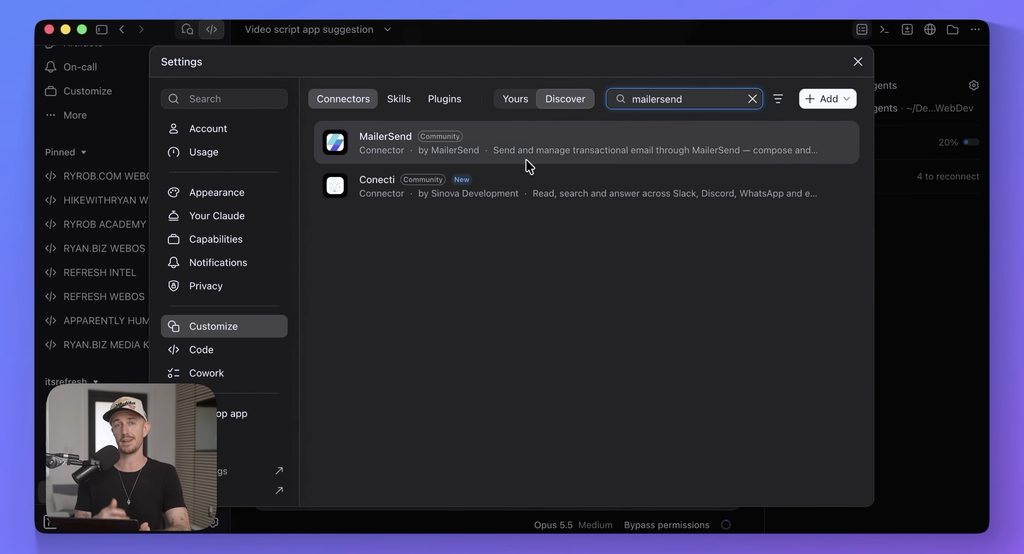
Setup took minutes. I opened settings in Claude Code, went to connectors, found MailerSend in the discover tab, and connected through their MCP server.
I added MailerSend for my organization and authenticated the installation, which opened my browser so I could sign in, choose my account, and approve access. To check that it worked, I asked Claude Code directly if we were connected to MailerSend. We were.
If you’re using Cursor or another AI coding tool, MailerSend’s setup guide covers those too, and this approach should work the same way. The guide walks through each tool one by one.
Anyone who’s followed my guide to building a website with Claude Code will find this step familiar. This time, you’re pointing Claude Code at your email account instead of your site.
API or SMTP: Two Ways Your App Sends
Once the connection is live, your app still needs its own path for sending once real people use it. I used MailerSend’s Email API, which makes it easy to automate email delivery and tracking, with clean documentation.
If you’d rather skip API calls entirely, there’s MailerSend’s SMTP relay, built for outbound email at scale without managing your own mail server. And if you don’t want to touch code at all, sending can also run through integrations like Zapier, Make, or Pipedream, useful if you want signups flowing into your CRM without writing code.
Why the API Key Stays Out of Claude Code
Here are the two connections in this setup, because confusing them causes problems. The MCP connection is for me. It lets Claude Code work inside my MailerSend account on my behalf while I build.
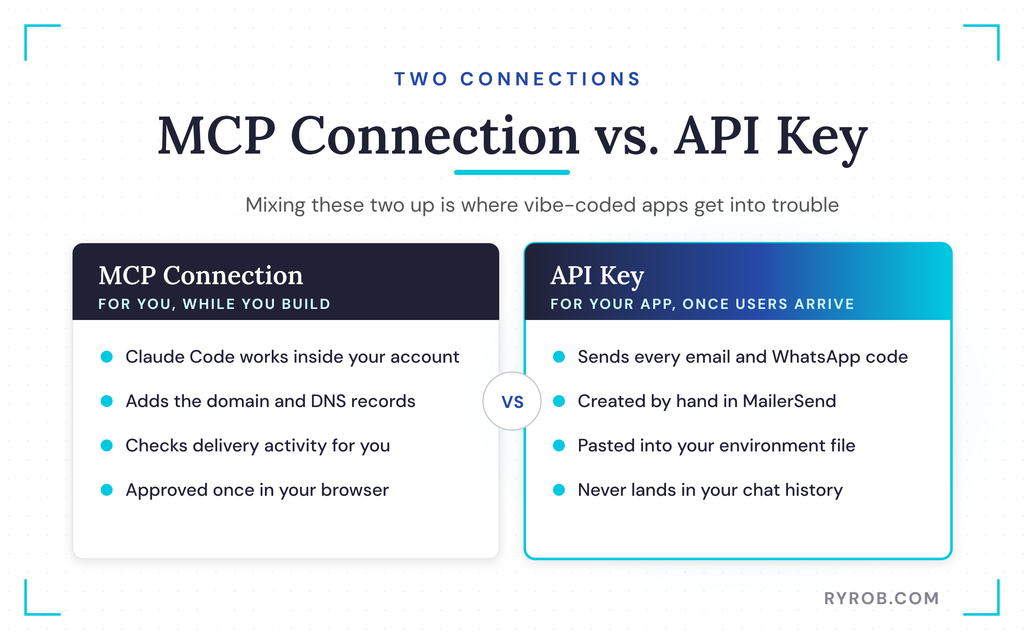
The API key is for the app, and that’s what the app uses to send emails once real people are using it. Keeping those two separate is the whole point.
Claude Code could technically create an API key through the MCP server connection. But then that key would be exposed right there inside my chat history, which isn’t the most secure way of doing things.
So I made this one myself in MailerSend’s API tokens page, with access to email and WhatsApp. I asked Claude to set up the environment file for me, pasted the key in where it belongs, and added it directly to my host, Cloudflare, so it never passed through Claude.
Claude walked me through that step by step. Afterward, we confirmed both the deployment and the key looked good.
2. Verify a Sending Domain So Emails Come From Your Own Brand
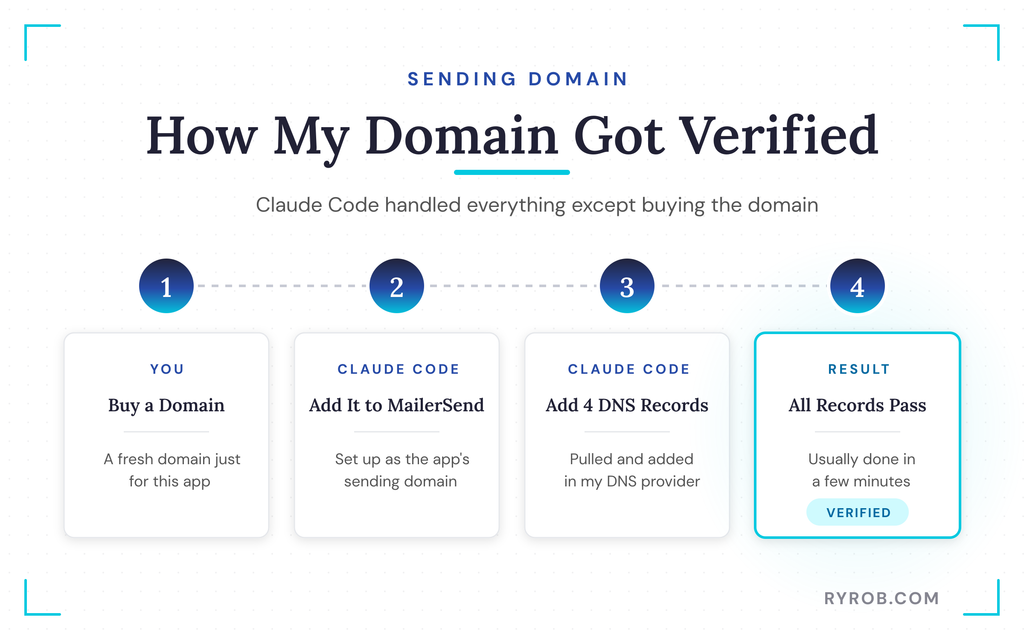
Next, the emails need to come from my app instead of a Gmail or a shared test address. I bought a fresh domain just for this app, ratecardapp.com.
Then I asked Claude Code to add my app’s domain as a sending domain in MailerSend and give me the DNS records I needed to verify it. Claude handed me four DNS records right away. I could have added them to my DNS provider myself, but I asked Claude to do it, and it opened up my DNS area and handled the whole thing for me.
Verification usually takes a few minutes, though it can run longer depending on your provider. In my case, every record we needed passed.
What Each DNS Record Does
Each of these records does a specific job, and none of them are hard to understand.
- SPF is basically a permission slip saying your email platform is allowed to send emails from your domain, and Google and other mailbox providers check it on every incoming message.
- DKIM is a signature on every email, so inboxes like Gmail can check that the message really came from you and wasn’t changed along the way.
- The return path record tells bounced emails where to go.
You don’t need to memorize any of this. But knowing what each record does is useful when you come back to tinker with your DNS settings later.
This SPF, DKIM, and DMARC setup guide goes deeper on all three. It’s a solid bookmark for later.
One note if you’re following along. If your domain still says pending at this stage, don’t panic. DNS can be slow on some providers, so give it a few minutes and check again.
3. Build All Three App Emails With One Clear Prompt
Now the fun part. I described the emails and let Claude Code wire them into my account. Here’s the prompt I used.
“Using MailerSend’s email API and the API key in my environment, send three emails from my app’s domain. A signup confirmation with the confirmation link when someone signs up, a password reset link when someone asks for one, and a receipt with the order details after checkout. Keep the design simple and don’t expose the API key in the code.”
Specificity is one of the skills that matters most when you’re working with an AI tool. The clearer the prompt, the better your results, and a little prompt engineering goes a long way.
Claude got to work right away and created all three email templates inside my MailerSend account, then wired them directly into my app after I deployed. MailerSend acted as the delivery tool in this setup.
That smooth handoff is a big reason I teamed up with MailerSend for this build. You can try MailerSend free and follow along, and code RYROBMS10 takes 10% off if you move to a paid plan.
You have another option, too. You can build templates inside MailerSend itself, starting from ready-made email drafts, a drag-and-drop editor, rich text, or your own HTML.
There are ready-made templates based on your type of business and the emails you want to send, including a solid set under onboarding emails, plus previews for both mobile and tablet. For this walkthrough, though, Claude built the emails, so I headed straight to testing.
4. Test Every Email and Track Delivery in MailerSend
I went through the account creation process in my app and hit create account. Moment of truth. An email landed right at the top of my inbox from my own domain, asking me to confirm my account.
It looked clean, the confirmation link was right there, and clicking it confirmed the account and took me to the dashboard. This confirmation email came from my own domain, and that’s the detail that sets your vibe-coded app apart from someone throwing slop together and hitting deploy.
Two more tests. I logged out, hit forgot password, and clicked send reset link. The reset email was already sitting in my inbox from my sending domain, and I could choose a new password from there.
Then I ran a test order on the paid rate card feature with test credit card data. The app confirmed it had sent a receipt, and it arrived immediately with everything broken down, including the order number and the date of purchase.
Creating and managing these transactional emails used to be really challenging. Now it’s super easy.
Check the Activity Feed Not Just Your Inbox
I didn’t want to trust my own inbox as the only proof. So I asked Claude Code to check MailerSend’s activity for the last three emails my app sent.
Right there in my Claude session, I got a table breaking down when each email was delivered, opened, and clicked. It works like a lightweight CRM feed of every message your app has sent, right inside your coding session.
The same data lives in MailerSend’s own activity view under the emails tab, with an activity feed of everything sent from the account. Click into any individual email and you’ll see the events broken down more granularly.
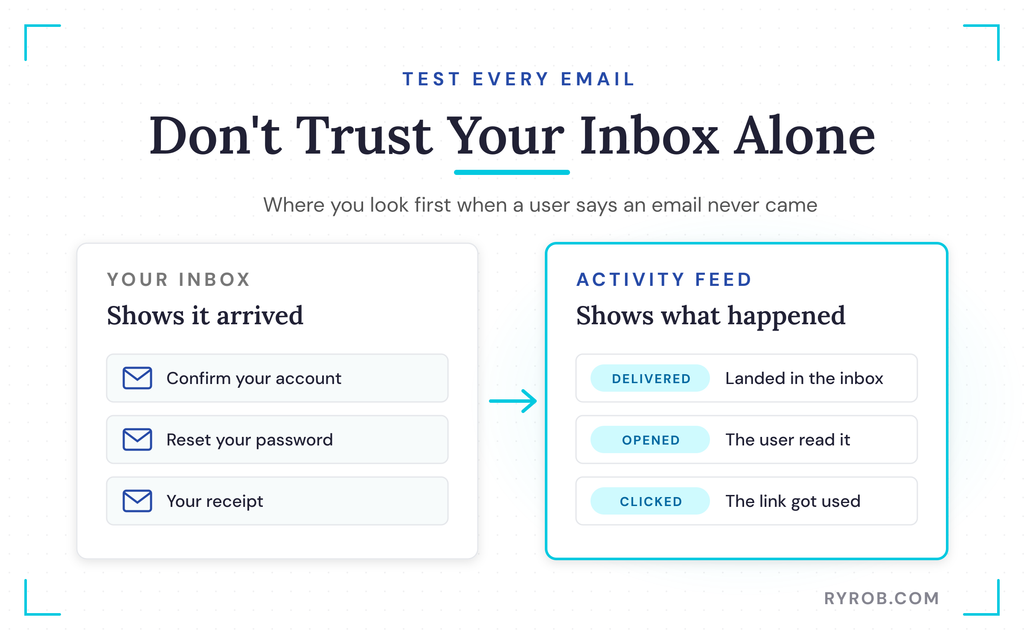
This is the piece I really want as an app owner. When a user says they never got their reset email or they’re missing a receipt, this is where you look first.
5. Add a WhatsApp Verification Code From the Same Account
A second communication channel turned out to take way less setup than I expected. MailerSend can send one-time verification codes over WhatsApp, and a sandbox environment lets you try it without a full WhatsApp business setup.
I opened WhatsApp and MailerSend, connected to the sandbox, scanned the code with my phone, and sent the pre-filled message. Verified in a second.
Then I grabbed the sandbox sender number and the ID of the ready-made verification code template. Back in Claude Code, here’s what I asked for.
“After someone signs up, ask for their phone number, generate a six-digit code, and send it over WhatsApp through the API, using the sandbox sender and that verification template with the code as the only variable.”
The test went exactly how you’d hope. I clicked to verify my phone inside the app, the code showed up on my phone, I typed it back in, and my number was verified.
Sandbox Limits Versus a Live WhatsApp Setup
Keep one thing straight here. The sandbox environment is built for testing, and it only works with the phone you connected to it.
- You can send up to 20 codes a day
- The connection needs renewing every hour
Going live means a paid setup with a connected WhatsApp Business account and approved templates, which is a more involved process on the WhatsApp side. On MailerSend, that’s the WhatsApp add-on starting on the Hobby plan, plus template approval from Meta that takes anywhere from a few minutes up to 48 hours.
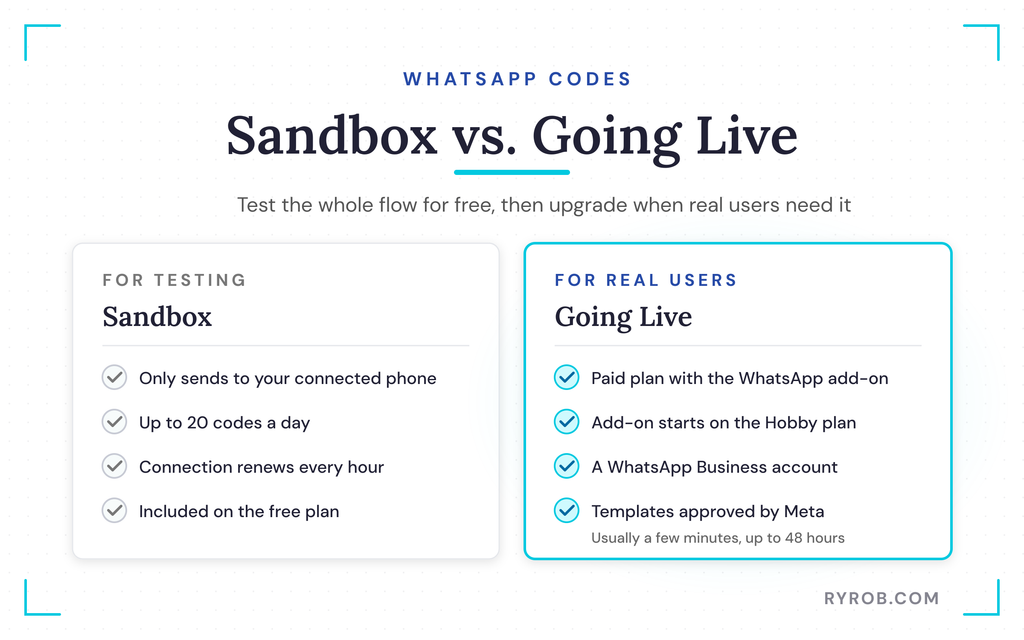
If you’re just validating your app, the sandbox covers everything you need to test the flow end to end. Upgrade once real users need it.
FAQs About Sending App Emails From Claude Code
These are the questions I’d expect if you’re setting this up yourself.
Does Claude Code send the emails itself?
Not in the way you might think. Claude Code wires up the templates, the domain, and the sending logic, but the emails go out through your email platform once the app is live. Signup confirmations, resets, and receipts fire automatically based on what users do in the app.
Do I need to know how to code for this?
No. The connection happens through a few clicks and an approval screen, the DNS records came from a plain-language request, and the emails came from a single described prompt. You do need to understand what you’re approving, especially around the API key and account access.
What does connecting Claude through MCP give it access to?
Connecting Claude through MCP gives it permission to access and manage your email account data, things like domains, API tokens, and email activity. That’s how integrations like this work, and it’s why the whole setup took minutes. Only connect tools you trust, from your email platform to your Google account, and keep an eye on what you’ve approved.
Is AI-written code ready for real users right away?
Not without a check. AI-written code still needs a human review before real users depend on it, and that activity check I ran made testing every email quick. It’s the same habit I bring to how I vibe code a website, letting the AI do the repetitive wiring, then verifying the result yourself.
What if my domain verification stays pending?
Wait a few minutes and check again. DNS propagation can be slow depending on your provider, and every record needs to pass before your sending domain is ready.
Do I need a paid MailerSend plan?
Not to get started. MailerSend’s free plan covers 100 daily API requests and even includes the WhatsApp sandbox, while bulk emailing and the WhatsApp add-on come with paid plans. Code RYROBMS10 takes 10% off when you’re ready to upgrade.
My account for this video was on a free trial, and I’d tell you the same thing I tell creators about any tool spend. Don’t spend a ton on tools until real users are getting value from your app.
If you outgrow a free plan, it’s usually because people are actually using it, which is a good thing. The same rule applies to any AI tools for your business.
Can I use a different email platform than MailerSend?
This walkthrough uses MailerSend, and I’d only recommend tools I actually use. The general pattern holds elsewhere, though. Connect your AI coding tool through MCP, verify a sending domain, create an API key securely, and describe the emails you need.
Final Thoughts on Sending Emails With Claude Code
The gap between a demo and a real app is often just a handful of transactional emails. I connected Claude Code to my email platform, verified a sending domain, and kept the API key out of the chat.
Then I described three emails in one prompt and confirmed every delivery in the activity feed. One verification code over WhatsApp rounded out the second channel.
To try the same flow, a MailerSend account is the place to start. It’s the platform behind every email in this walkthrough.
If your vibe-coded app can’t send email yet, this whole setup fits in an afternoon, and most of it happens inside one Claude Code session. The next step after this is putting the rest of your online presence on the same footing, which is where my guide to building a business website with AI picks up.
Once those confirmation emails start landing from your own domain, your app stops feeling like a prototype. It feels like something people can trust with their signup.
Send Every App Email From Your Own Domain With MailerSend
MailerSend is what turned my vibe-coded app into something that actually emails its users. The official MCP lets Claude Code set up your domain and emails right inside your account, and the free plan even includes the WhatsApp sandbox. When you’re ready to upgrade, code RYROBMS10 takes 10% off a paid plan!
