
This morning, the website for my book, I Am Not My Business, didn’t exist. Then I typed one prompt into an ai website generator, waited a couple of minutes… and had a full site staring back at me. Pages, layout, copy, all of it.
It looked great. But the builder I used came with a bold promise attached. AI builds it, you own it.
The promise is the whole reason I made this video. Because before you hit publish on a site like that, there’s a question almost nobody stops to ask. Do you actually own it, and could you take it with you if you ever left the platform? So I set out to test it, start to finish. Here’s the full video walkthrough of the whole build.
Key Takeaways on Building a Website With AI
- Five prompt ingredients beat a vague request. Tell the AI what the site is for, who it’s for, which pages you need, how it should look, and the one action you want visitors to take.
- Batch your AI edits. Each chat edit costs one AI credit and you get 20 per site each month, but chatting to plan things out is free.
- The ownership test checks three things. You want access to the real WordPress dashboard, the freedom to install any plugin, and backups that live with your host instead of inside a builder’s walled garden.
- Safe Updates protects your live site. It tests new updates on a staging copy first, runs a visual check for broken layouts, then rolls back anything that fails.
- The deal is worth grabbing. Code BFCM802 gets you 80% off two months through December 4th, 2026, plus free migrations.
Launch Your Site With AI and Keep It With Cloudways
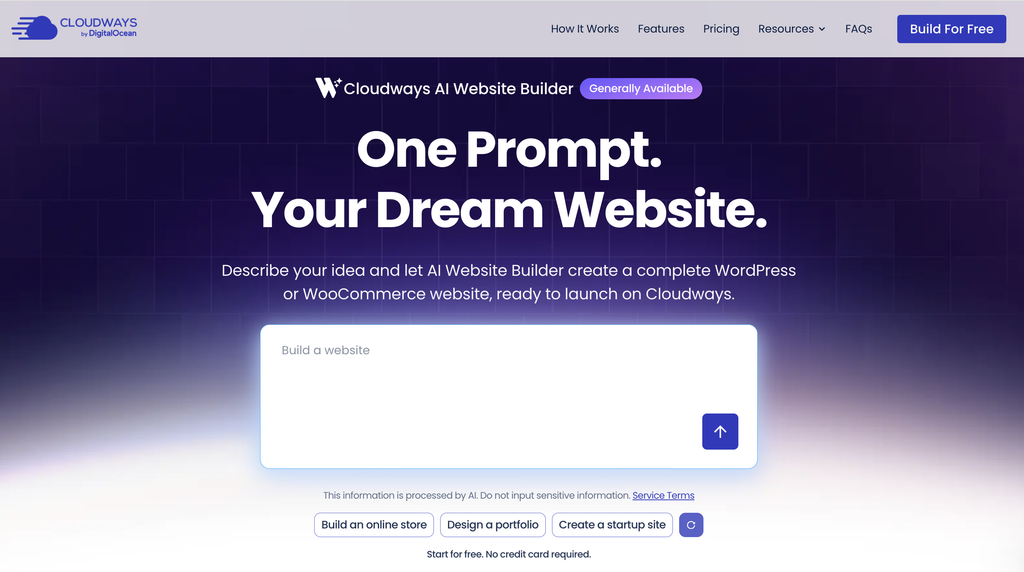
Cloudways is the one AI builder I tested that passed my whole ownership test. It pairs a one-prompt build with managed WordPress hosting, so you get speed without giving up control of your site. Use code BFCM802 for 80% off your first two months, plus free migrations through December 4th!
How to Build a Website With AI in Minutes
The game plan is simple. I’ll prompt Cloudways’ ai-powered website generator, tweak what it builds, and publish the new book site to a real server. Then I’ll run my ownership test, with three checks to see if the site is really mine.
After that, I’ll connect my own domain and set up a way to keep the site updated without it breaking.
One bonus worth mentioning first. Cloudways has an MCP feature, so you can manage everything about your websites directly inside your Claude, Cursor, or ChatGPT environment. Once the connection is set up, you can handle servers, apps, and workflows without clicking around the dashboard.
That’s super useful if you run more than one site. I’ve walked through similar AI-assisted WordPress builds in my full guide to building a website with AI.
The 5 Things Your AI Prompt Needs
AI website builders work best when you tell them five specific things.
- What the site is for
- Who it’s for
- Which pages you need
- How it should look
- The one thing you want your visitors to do when they land on the site
If you’re planning an ecommerce site, specify which products you’ll sell and what checkout needs you have. Skip the details, and the AI fills in the blanks with its best guess. A clear prompt helps you avoid a generic website template, so you don’t look like everybody else.
For my book site, I requested a homepage, an about the author page, a book page, and a contact page, with join the launch list as the main call to action. I opened the Cloudways AI website builder in the sidebar, selected the server I wanted to deploy to, and gave the website a name.
I chose the free plan for the free trial and held off on committing to paid plans until I’d tested the build. Cloudways says website generation takes about two to three minutes. Off to the races.
Reviewing the AI’s First Draft
The preview appeared on the right, with a chat panel on the left. For a one-shot build, the ai-generated layout was a solid start. It followed my instructions and made sound web design choices.
I liked the colors and text layout. It even added placeholders for reader testimonials, which I hadn’t thought about.
Two things needed fixing, though.
- The note from me about the book had a placeholder image, which was an easy swap.
- The form for the free chapter was way too lengthy.
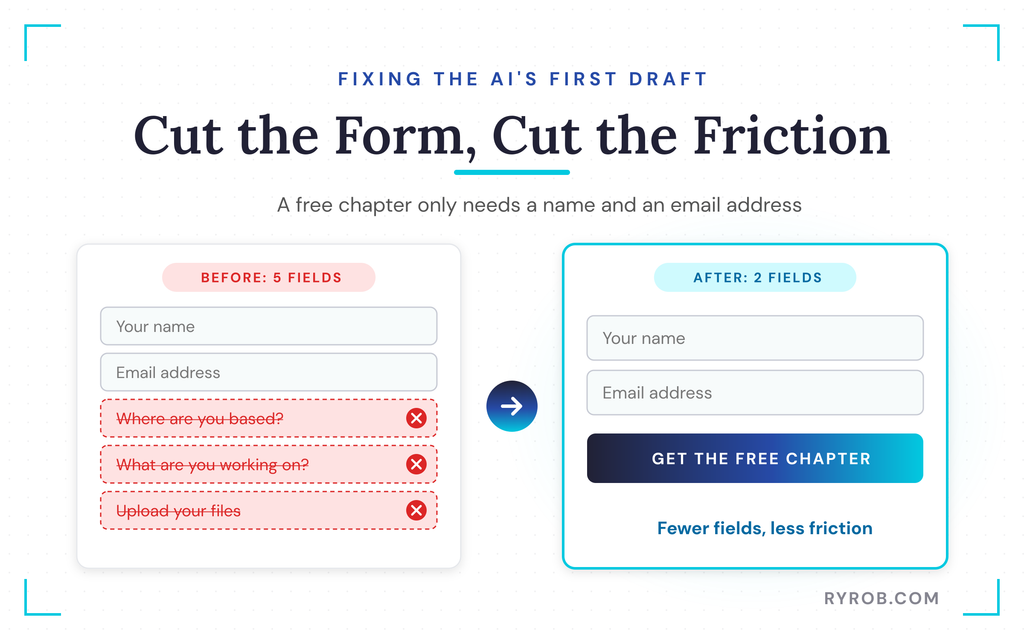
We don’t need to know where someone is based to send them a chapter, and they don’t need to tell us what they’re working on or upload files. For the book launch, I treated the site as a landing page builder, so I shortened the signup form to a name and email address. Fewer fields reduce friction and should improve conversion.
Cloudways advises reviewing the AI’s work before putting a site live, and I agree. The last thing you want is a site that looks like everyone else’s.
AI Chat vs. the Visual Editor
There are two ways to fix anything that needs adjusting, and knowing which one to use saves you credits.
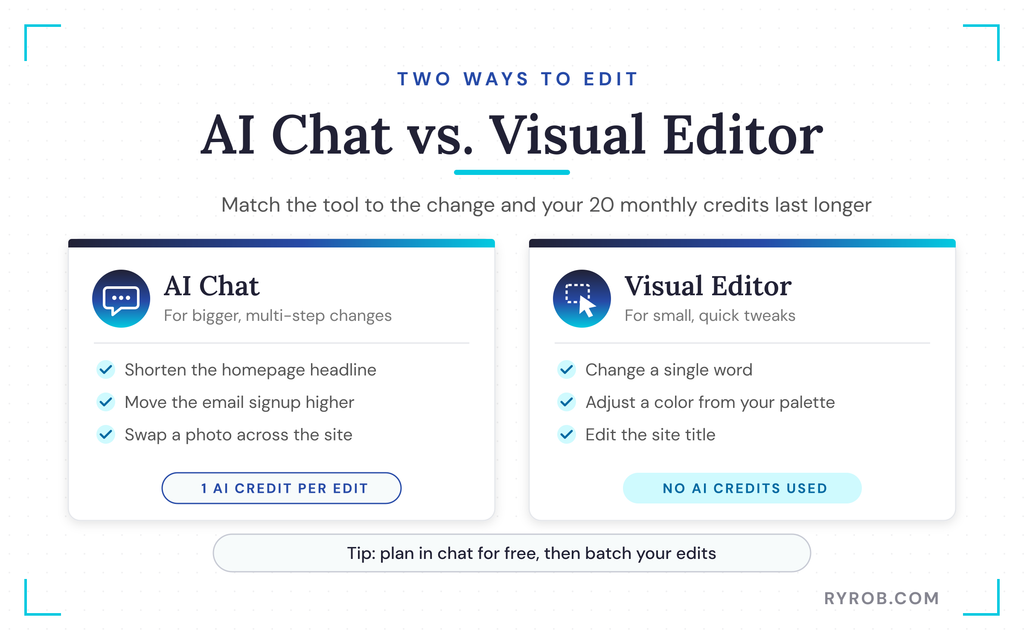
For changes like shorten the homepage headline or move the email signup higher, I ask directly in the chat. Each change uses one AI credit, while chatting to plan things out is free. I batch requests into one message when I’m ready to make changes.
I wanted the AI to replace the placeholder photo across the site, so I uploaded one of my photos in the chat and sent the full batch. I like that the builder gives status updates as it works through each task. It makes for a more interesting experience than most builders.
For small changes, like a word or color tweak, I use the visual editor and make them with no coding. Unlike a typical drag-and-drop editor, you select an element and adjust it directly. The color options come from your site’s palette, which keeps the design consistent.
The editor also has the familiar options you’d get with any WordPress site. I used it to change the title from my name to the book’s title, then saved my changes and checked the theme settings.
Because the builder uses WordPress, you can open the theme anytime to adjust color palettes, fonts, and visual styles across the site. You can also switch between dark and light mode with one click.
The mobile preview is one click away, too, and helps you check responsive design and catch broken layouts. A full-screen preview lets you see the site as visitors will.
Once I was happy with the look and feel, I clicked publish to my Cloudways server. The site no longer lived only inside the builder. It was now a WordPress-powered site on a managed Cloudways server, with security, automated backups, and 24/7 support.
The Ownership Test: Do You Really Own Your Site?
Now for the question I set out to answer. A site locked inside a builder’s walled garden isn’t really yours at the end of the day, no matter how nice it looks. So I ran three checks.
- Can I get into the real WordPress dashboard?
- Can I add whatever I want to this site without restrictions?
- Where do my backups actually live?
If any of these fail, it’s not really my site.
Getting Into the Real WordPress Dashboard
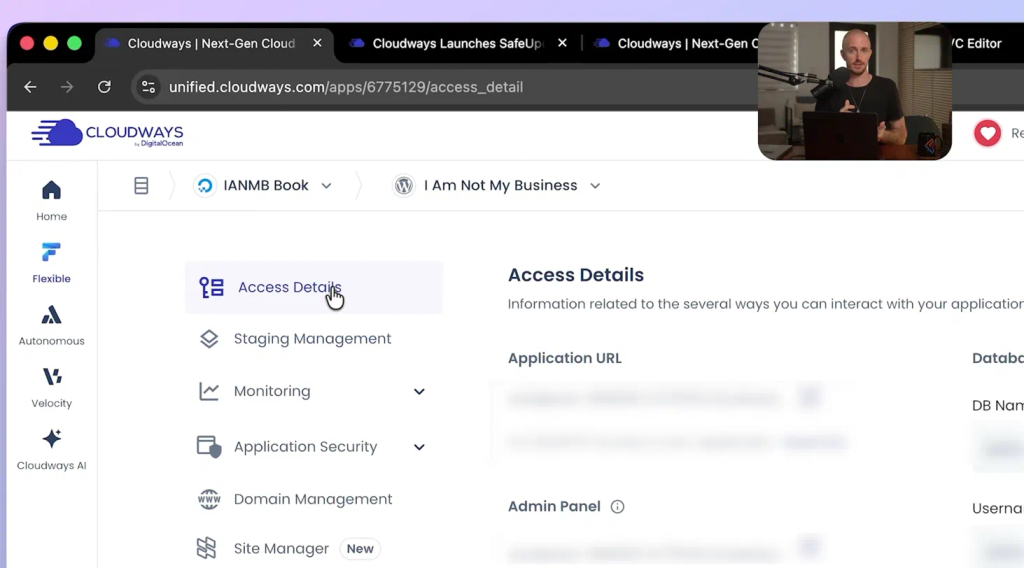
In Cloudways, I opened the application for the book website and clicked access details. There’s my WordPress admin URL, username, and password. The website builder also has a one-click link that takes me straight into WordPress.
Once logged in, I found the normal WordPress dashboard. The pages the AI built are right where I expected them. Even if I never open the AI builder again, I can still manage these page settings myself.
Pass.
Adding Any Plugin You Want
On to check two, plugins. I added a new plugin, installed Yoast SEO, clicked activate, and we’re done. There’s no approval step and no app store the plugin has to come from.
With Yoast SEO, I can manage seo settings and basic on-page seo optimization directly in WordPress. It’s my WordPress site, so it’s my call.
Pass.
Where Your Backups Actually Live
In Cloudways, I went to backup and restore, then took a backup. That creates a copy of my site’s files and database, stored by my host rather than locked inside a builder’s walled garden.
The backup is running. Three for three.
The site runs on standard WordPress hosting, and the builder generates native Gutenberg blocks on Cloudways Flexible, as MarTechCube reported at launch. I could hand the site to a developer or move it to another host without rebuilding it.
That’s the ownership test, and I’m happy with how it’s set up. If you’ve never set up WordPress yourself, my step-by-step guide to installing WordPress yourself shows what you can access here.
Taking Your Site Live on a Custom Domain
Two more quick things are left. Launching this site on my own domain, then the add-on most new site owners skip until the day an update breaks something and they go scrambling.
Quick aside before we go live. I teamed up with Cloudways on this build, so if you want to run the same three checks on a site of your own, you can grab the Cloudways deal with code BFCM802.
Connecting Your Own Domain
Going live on your own domain takes a few quick steps.
- Add the domain in your application
- Point it to your server
- Install a free SSL certificate
- Turn on HTTPS
Note that DNS changes and adding a domain can take a little while to kick in. Once they did, our AI-built site looked good and was live on my custom domain.
Turning On Safe Updates So Nothing Breaks
There’s a trade-off most people don’t realize they’re making when they build and manage their own site. Updates are now your job to do.
WordPress, the theme, and the plugins I just added will all get updated over time. Every so often, an update breaks a page or an element I’m using. That can knock your site offline, or make it so nobody can join your newsletter or purchase something, sometimes without you even knowing there’s a problem.
This is exactly what Cloudways’ Safe Updates feature is for. It backs up your site, makes a temporary staging copy, runs any new updates there first, and fully tests them, including a visual check for broken layouts. If everything passes, the updates go live on your real site. If something breaks, it rolls it back.
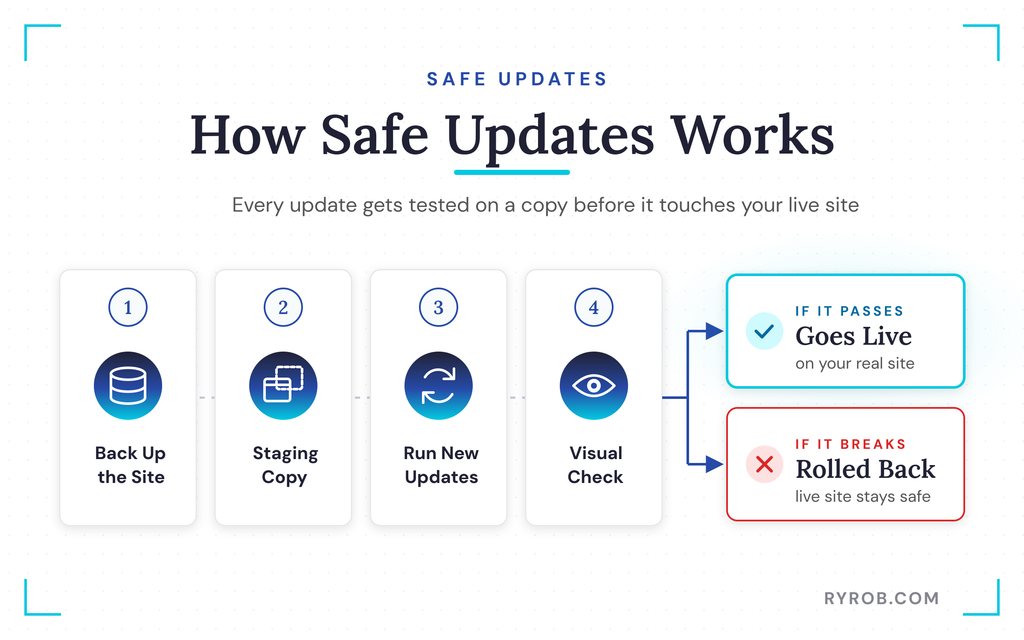
Setting it up is easy. Go to application management, click Safe Updates on the left, and hit activate. For a site I’m not planning to babysit, that’s way more peace of mind than hoping every update goes live.
Is the Cloudways AI Builder Worth It?
A few honest caveats before you try this.
- I tested the free AI website builder during a trial, so don’t assume there’s a permanently free tier. The free plan gave me trial access.
- The builder produced a strong first draft, not a finished site, so plan on a review pass. That’s still much faster than starting from a blank page.
- AI edits use 20 credits per site each month, but chatting and planning are free, so batching changes stretches them a long way.
On price, this is one of the more affordable AI builders I’ve found with high-performance hosting. Cloudways uses pay-as-you-go pricing with no long-term contracts, and lets you choose your cloud provider. I used DigitalOcean, while Vultr High Frequency is another option.
Check current pricing plans, then compare paid plans with your provider choice and the Safe Updates add-on.
There’s also a limit worth naming. AI gets you most of the way there, but it doesn’t know your voice, your real photos, or the judgment calls your site needs. That’s why plenty of business owners don’t want to hand off design, copy, and support entirely.
If you compare Cloudways with Wix ADI or Shopify, check ownership and portability as well as generation speed. This article tests Cloudways, so it makes no claims about those services. Use AI for the first draft, then put your own stamp on it.
If you want to build your site alongside this walkthrough, you can grab the best Cloudways offer with code BFCM802. The 80% off runs through December 4th, 2026, plus free migrations if you’ve got a site to move over.
FAQs About Building a Website With AI
Before the questions, here are the quick answers I get asked most about building a site this way.
Can AI really build a website in minutes?
Yes. Cloudways says most sites take about two to three minutes to generate, and mine came back complete with the four pages I requested, testimonial placeholders, and a working signup form.
Do I need coding skills to use an AI website builder?
No. You write the prompt, then make tweaks through AI chat or the visual editor. I changed headlines, swapped placeholder photos for real ones, adjusted colors from my site’s palette, and edited the browser title without touching a line of code.
You can use the same no-code workflow as a landing page builder for a focused campaign or signup page.
Do I actually own the website an AI builds?
That depends entirely on the platform, which is why I ran three checks. I confirmed access to the real WordPress dashboard, the ability to install any plugin like Yoast SEO with no approval step, and backups stored with my host instead of trapped inside the builder.
This build passed all three, so I can move it to another host or hand it to a developer without rebuilding.
Do I still need web hosting if I build my site with AI?
For this setup, yes, and it’s built in. The site publishes to a managed Cloudways server with real security, automated backups, and 24/7 support, rather than living only inside the builder.
If you’re starting from scratch, my free guide on how to make a website covers the full setup.
What happens if an update breaks my site?
With Safe Updates turned on, updates get tested on a temporary staging copy first, including a visual check for broken layouts. Clean updates go live on your real site, and anything that breaks gets rolled back. It costs about $2 to $3 a month, and I recommend it.
Final Thoughts on Building a Website With AI
That’s the whole build. I used an ai website generator to create a site, then tuned it, published it on my own domain, and configured Safe Updates.
The ai-assisted setup covered the prompt, my edits, and publishing, and the site passed my ownership test. I can move it whenever or wherever I want.
If you want to try the same build, you can claim 80% off with code BFCM802 through December 4th, 2026.
From there, my full guide on how to start a blog will take you to a site that earns. Otherwise, test ownership of the site you’re already using, and you might be surprised by what you find.
Launch Your Site With AI and Keep It With Cloudways
Cloudways is the one AI builder I tested that passed my whole ownership test. It pairs a one-prompt build with managed WordPress hosting, so you get speed without giving up control of your site. Use code BFCM802 for 80% off your first two months, plus free migrations through December 4th!
