
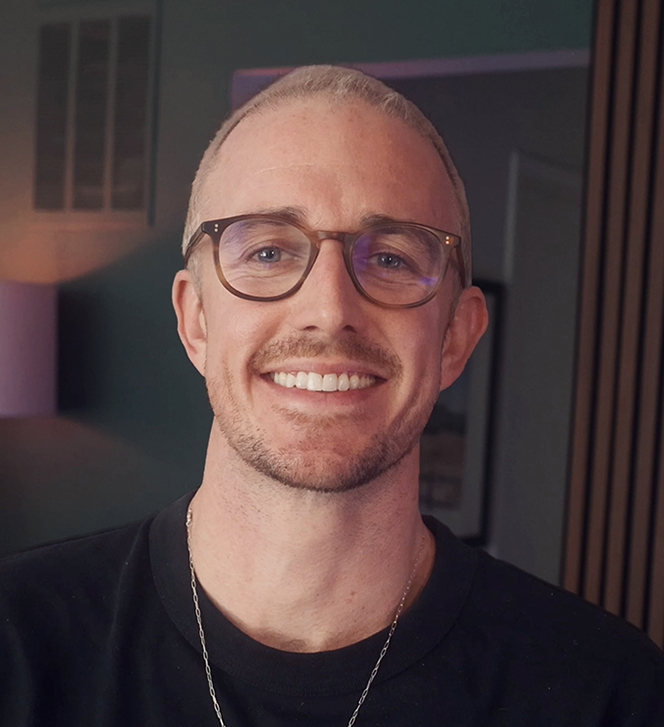
I described a web page in plain English, and minutes later it was live on my own domain for Little River Studios. I did the whole thing by learning to build a website with Claude Code, with no website builder, code editor, or hosting dashboard in sight.
Honestly… it still feels a little strange that this works.
There are three pieces to this setup. Claude Code is the builder, a Bluehost VPS is the server it deploys to, and an always-on Hermes AI agent keeps site operations running after I close my laptop.
I’ll be upfront, this path is more technical than a no-code builder and it isn’t for everyone. Here’s the full walkthrough I filmed while building and shipping this page from scratch.
Key Takeaways for Building a Website With Claude Code
- No website builder required. Instead of a hosted AI builder like Base44 or Claude Design boxing you into a template, one plain-English prompt to Claude Code ships the page straight to your own hosting from Bluehost.
- Claude Code comes preinstalled. A Bluehost VPS with the Claude Code option arrives with the coding agent already set up, so you can start talking to it within minutes.
- You’ll need an API key. It’s what taps into your Claude credits, though Bluehost offers AI credits as a simpler workaround if you’d rather skip that step.
- Editing is just chatting. Because the whole site lives on the VPS, you can change homepage copy, sections, or links by talking to Claude, and updates go live in seconds or minutes.
- Hermes works on a schedule. The always-on agent lives on your server, learns a task once so it becomes a reusable skill, and then runs on the schedule you set.
- This is a power user path. A VPS is self-managed, so you own the updates and upkeep, and a simple builder is the better fit if you want a site you rarely touch.
Get the Same Server I Built This On: Bluehost VPS
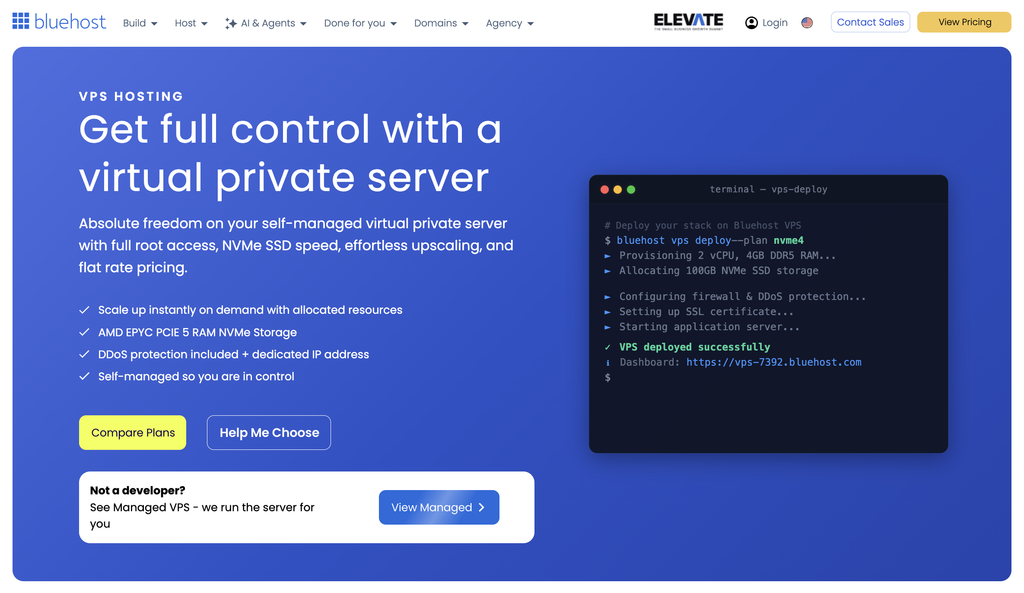
This is the exact hosting behind every page in this walkthrough, Claude Code and the Hermes agent included. I picked the Claude Code option so it came preinstalled and I was up and running in minutes. If you want the most flexible setup I’ve found, this is where I’d start.
How to Set Up Claude Code on a Bluehost VPS
The idea is simple. You describe what you want, and Claude Code, Anthropic’s agentic coding tool, builds it and deploys it to a server you control.
That covers brand new pages, extra pages on an existing site, and quick edits to something already live. Instead of a builder making every decision for you, Claude handles the build while you keep the flexibility of owning your own environment.
Why Claude Code Over a Template Builder
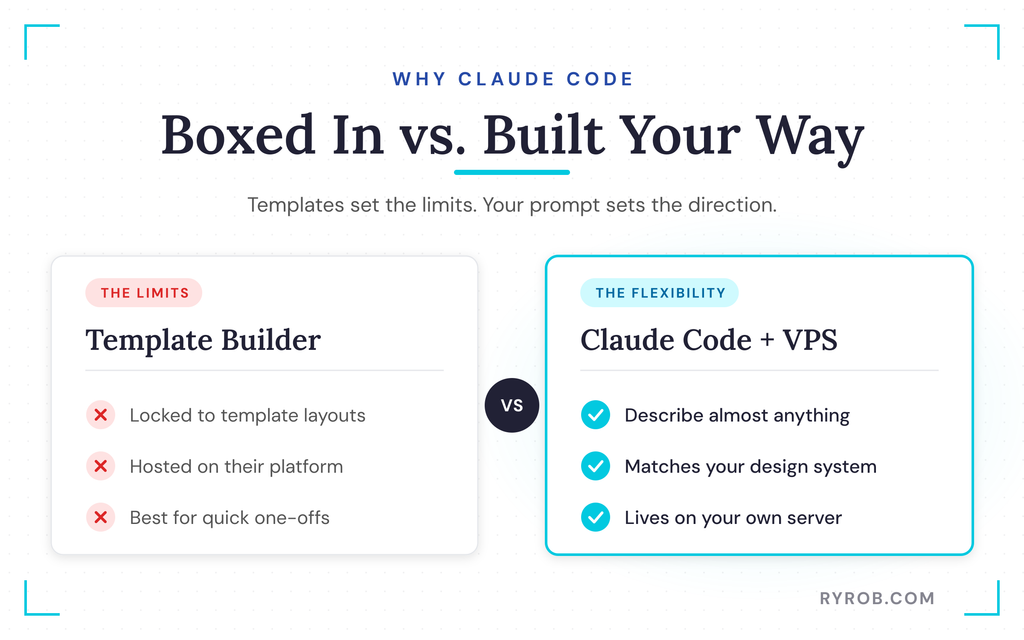
A template builder limits you to what the template allows. With Claude Code, you can describe almost anything and build it, and it’ll match your existing design system. That flexibility matters to me, since you’re not boxed in on new sites, extra pages, or edits.
Tools like Base44 and Claude Design handle quicker one-off builds, but neither gives you a site on your own server. There’s also a practical bonus. I’m already spending time in Claude and across other AI tools for my business, and I already have the subscription, so building there saves me from bouncing between apps.
For context, this is the third video in a series. The first two covered building a site with Bluehost’s no-code website builder and then opening an online store, which is the simplest path for a first website. This version is the most flexible option.
Spinning Up Your VPS
Setting this up starts on Bluehost, where I spin up a VPS, which is my own private server with dedicated resources. During setup, I pick the Claude Code option, so the coding agent comes preinstalled. About a minute later, I’ve got a server I can talk to Claude on.
Here’s how the setup went.
- I selected the 2-year option because it gives the biggest discount.
- Kept the preconfigured settings as Bluehost had them dialed in.
- For server location, I’m based in the US and so is most of my audience, so I kept the recommended server and hit continue.
On the hardware choice, I’m not doing anything complex and I’m not storing a ton of data, so I stuck with the NVMe 4 plan. That gives me two CPUs, 4 GB of RAM, and 100 GB of storage, which is more than enough for my purposes.
Next comes access. I created an SSH key, which gives me passwordless entry to my server, then set my password and logged into the browser terminal. Fair warning, we do get a little technical here, but it’s not too crazy. I pasted in that password, and the server was ready.
Adding Your Anthropic API Key
Claude Code is already installed on the server, but you need an Anthropic API key to use your Claude usage credits. This is the most technical step in the whole process, so I’ll keep it calm and clear.
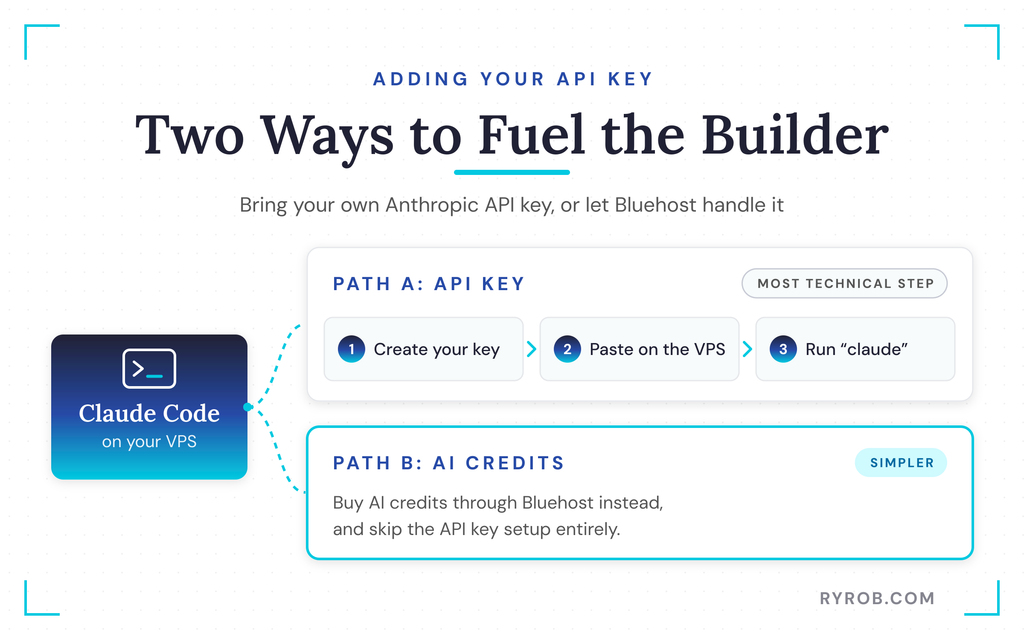
First, head to platform.claude.com. It’ll ask you to create an organization to get your key, or you can go the individual build route. New users may see free API credits offered as part of signup, but don’t treat that as a permanent promise.
You can skip adding a payment method for now, then grab your key from the API keys page using Anthropic’s guide to creating an API key. Bluehost does have a workaround here too. If you’d rather purchase AI credits through them instead, you can do so, and it’s a little easier because you avoid this setup step entirely.
If you go the API key route, Bluehost has a guide with all the commands you’ll need. I copied the prompt, added my key into the right piece of it, and submitted it to my server.
Once the key was in place, I started a session by running the command “claude,” it detected my key and asked to use it, showed a few disclaimers, and we were in business.
Building and Shipping a Page From a Single Prompt
Setup done, now the fun part. This is where you go from an empty server to a live page on your own domain, and the running example is my Little River Studios co-working space.
Creating a New Page
I opened Claude in my VPS and described what I wanted, which was a clean events page for Little River Studios that pulls in our upcoming sessions and matches the site’s existing design system. Right away, Claude ran through some permission requests to access the site so it could understand that design system before building.
Then it got to work. Claude Code built the page and deployed it straight to my Bluehost VPS. No copy-pasting code, no FTP, no GitHub pushes, no Vercel deployment, and no builder involved.
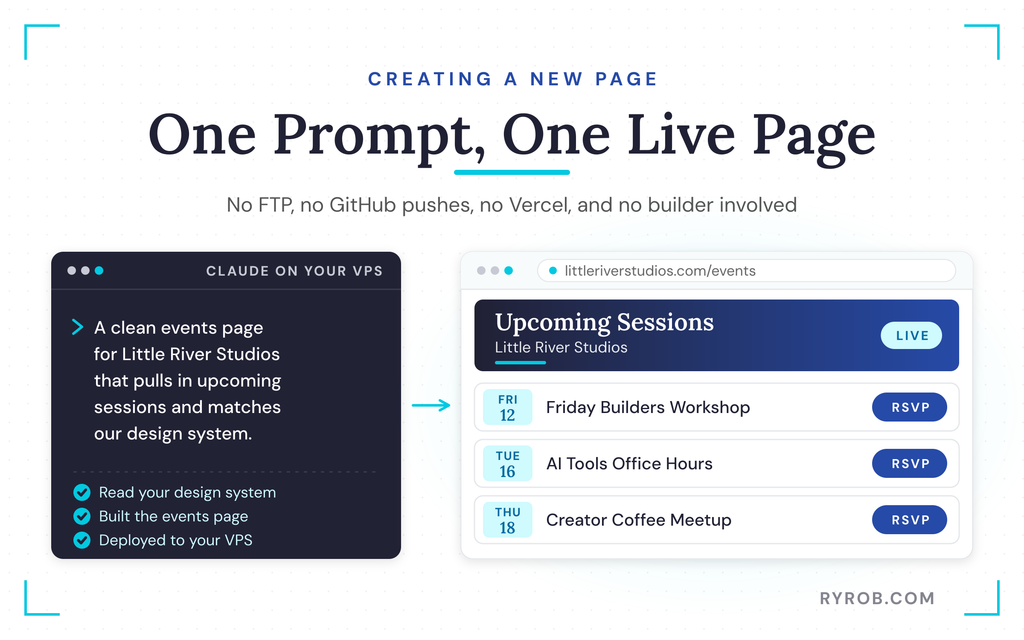
For a one-prompt page where I gave it almost no information, the result was honestly pretty good. It used placeholder upcoming events, but the imagery, on-theme branding, colors, and fonts all landed. It even wrote copy I genuinely liked.
It made smart, responsive layout decisions and even added RSVP buttons that pop up a nice little sign-up widget. That said, this was a strong starting point, not a finished page. I still had some small tweaks to make before setting it live on my site.
Editing an Existing Site
Here’s where the setup pays off beyond brand new pages. Because the whole website lives on this VPS server, I can have Claude make general tweaks to what’s already there.
I can update the homepage copy, swap out a section, or fix a link that changed, all just by chatting with Claude in the terminal. The flow is the same every time. I describe the change, Claude makes it, and it’s live usually in seconds or minutes.
That’s the same conversational loop I’ve used before when building a business site with AI, except here the site and the editing tool live on the same server, so there’s nothing to sync or export.
Pointing Your Domain Live
Once the page deploys to your VPS, the last step is pointing your domain at the server so it’s live as a real page. That’s all it takes to turn a Claude-built draft into a live page on your custom domain, which is exactly how this events page went live for Little River Studios.
Before you announce anything, review the copy and check that the page looks the way you want. There will almost always be a few small tweaks worth making between the first prompt draft and something you’re proud to share.
I teamed up with Bluehost on this build, and the VPS plan with the Claude Code option is exactly what I used here. You can spin up the same environment through my Bluehost VPS link, which costs you nothing extra and helps support these walkthroughs.
Meet Hermes: The Always-On AI Agent Running Your Site
Shipping and editing pages is only half of it. The bigger reason I set this whole thing up is the always-on AI agent paired with the site. On Bluehost, in one click, I spun up a Hermes agent for it.
Think of Hermes as an AI teammate that lives on your server and keeps working after you close your laptop. It’s an easier-to-use alternative to OpenClaw if you’re familiar with that tool.
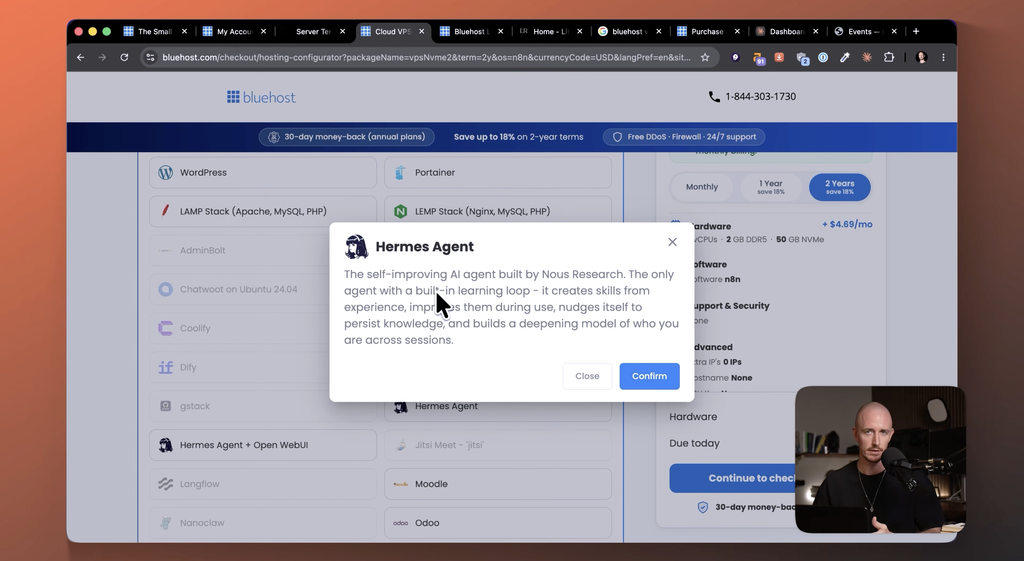
Hermes has a memory that sticks around, so it remembers how your business works. You teach it a task once and it turns that into a reusable skill you reference by name, and then it runs on its own day and night on a schedule you set.
One practical note on setup. A VPS can only run one application at a time, so while you can re-image your Bluehost VPS to use Hermes, I wanted both Claude Code and Hermes and spun up a second server.
When setting up the Hermes VPS, I selected Hermes as the software to install, since it’s the only agent with a built-in learning loop. Then I opened the terminal, ran the setup, and linked it with my existing ChatGPT subscription.
Teaching Hermes a Task Once So It Becomes a Skill
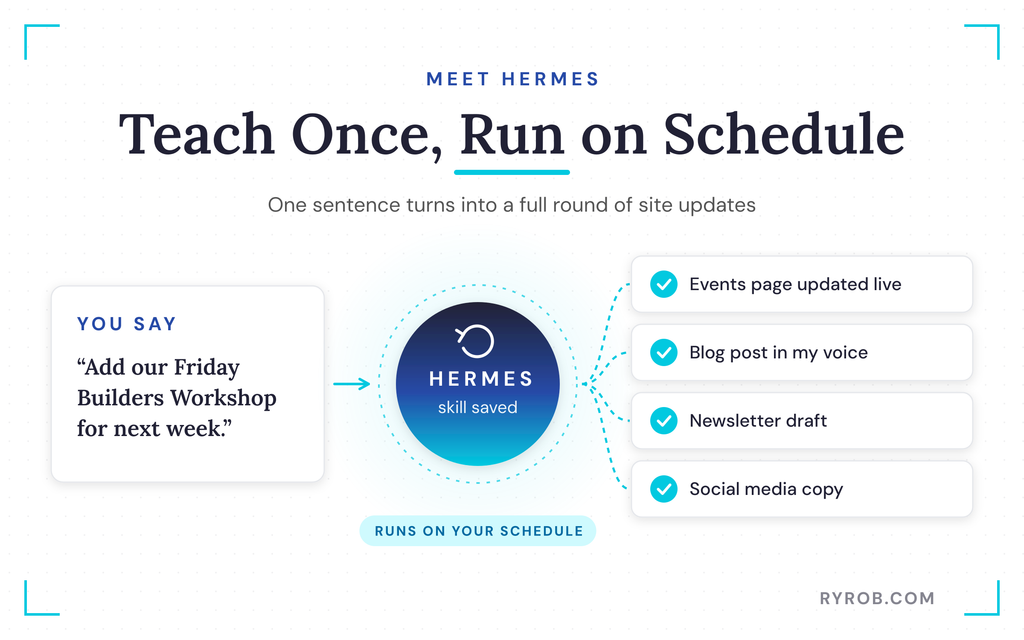
Hermes’s first job for my co-working studio had several parts. Whenever we announce a new live workshop session at Little River Studios, I wanted Hermes to add it to my events page and publish it. Then I wanted it to draft a blog post in my voice and style to announce the new event, along with a newsletter draft and social media copy to spread the word.
I gave it the job and it got to work. It inspected my website, understood how we like to talk about upcoming events, and developed a routine around those tasks.
Something I really like about Hermes is that it always asks questions to do the job better rather than assuming and hoping it gets things right.
I hooked it up with the answers it needed, and it built skills around repeating the whole workflow. Now the workflow is locked in. When I say “Add our Friday Builders Workshop for next week,” it updates the events page live and creates all the marketing collateral for me.
Every time we schedule a new event, the on-site changes and announcements happen automatically, which is going to save me a ton of time over the months and years ahead.
Putting the Agent on a Schedule for Events and Content
Because the agent can run on a schedule, it also keeps that events page fresh and up to date every week without me touching anything. When a new speaker takes over a session, I pop in with a quick note for Hermes and it updates the content for me.
This works especially well for repetitive tasks. Adding recurring events to my schedule is one. Researching trending topics in my industry and then drafting blog posts about what’s going on is another, and it pushes those updates directly to my site on the schedule I set.
What Hermes Can Automate Beyond Your Events Page
Honestly, the use cases here are pretty open-ended. Anything you do on a repetitive schedule is a candidate for the agent, from updating recurring pages to drafting announcements and keeping your content found in AI search. If it happens on a loop across your site and marketing, Hermes can handle it.
Two honest caveats, though. The agent needs clear instructions, which is why those question-asking moments early on matter so much. And you’ll still want to review what it produces, especially public-facing copy, before you let it represent your business.
Is This Claude Code Setup Right for You?
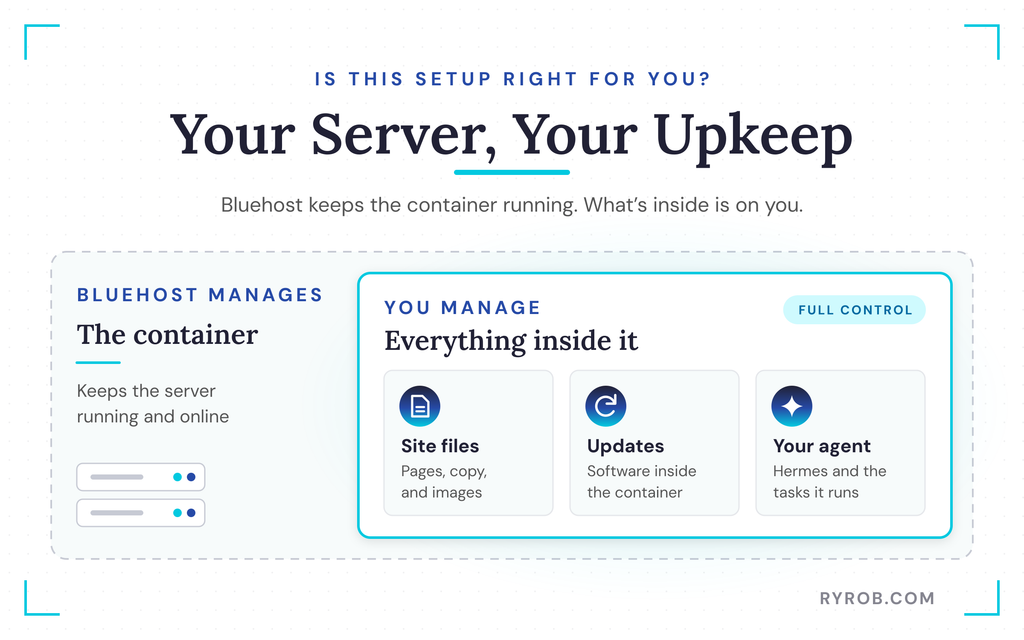
Let me be real with you. This path isn’t for everyone. A VPS is self-managed, which means you own the server, so you own the updates and the upkeep too.
Bluehost keeps the container running, but what’s inside it is on you to manage. It’s also a little more technical than the builder route.
If you just want a simple site you don’t plan to update or change often, use the builder instead. This setup earns its complexity when you want control and constant updates.
Costs and Upkeep of a Self-Managed VPS
On price, these VPS plans start in the single digits per month and renew higher after your initial term, so check the current numbers before you buy to get the best rate available.
Your cost picture also includes your Claude API key, or the Bluehost AI credits if you take that easier route. Since plans and credit pricing change, look at current numbers rather than anchoring to any total I could quote today.
The upkeep side matters just as much as the price. You’re managing what lives on the server, from the site files to the updates inside the container to the agent you’ve set loose on it. That’s the trade you make for this level of flexibility.
When to Use a No-Code Builder Instead
If someone wants a simple website, doesn’t plan to update it often, or has zero interest in managing a server, the no-code AI website building route is the better choice.
The builder handles more of the technical setup for you and gets a polished draft in minutes, which is exactly how I walked through it in the first video of this series.
Hosted options like Base44 and Claude Design sit somewhere between, and they’re worth a look if you want AI speed without server management. Choosing the simpler path is a fit decision, not a failure, and I used the builder route myself for parts of this same project.
But if you want the most control to build almost anything and leave an agent running the site for you, this is one of the most powerful setups I’ve found. It strikes a good balance between low effort and extreme flexibility, and it’s super fun once the environment is built and you see what’s possible.
FAQs About Building a Website With Claude Code
A few more questions I hear a lot about this setup.
Do I need coding skills to build a website with Claude Code?
You don’t write the code yourself, but you do run a few commands in a browser terminal, add an API key, and manage a server. It’s low-code rather than no-code, and the most technical part is the initial setup.
Can I use this setup to edit a website I already have?
Yes, and that’s one of the best parts. Because your entire site lives on the VPS, Claude can update homepage copy, swap out sections, or fix changed links whenever you ask, with changes going live in seconds or minutes.
Do I still need hosting and a domain?
Yes. Claude builds and deploys the site to your Bluehost VPS, and pointing your domain at that server is what puts the page live on your site. As I’ve covered in other guides, your site still needs hosting, a domain, SSL certificates, and DNS before anyone can reach it.
How much control do I keep over the site?
You own the server and the site files, so you keep full control over your design system, your content, and everything else, which is the whole appeal of this route over a template builder. That same ownership means you’re also responsible for updates and upkeep.
What happens if the agent makes a mistake?
Hermes asks clarifying questions before acting, which catches most problems up front, but it isn’t a set-it-and-forget-it guarantee. You’ll still want to review the pages and content it produces, and you can adjust its skills whenever the output drifts.
Final Thoughts About Building a Site With Claude
This setup gives you two things a template builder can’t. You get the freedom to build almost anything from a plain-English prompt, and an always-on agent that keeps your site working after you close your laptop. The trade is real, though, since you take on server upkeep and a more technical setup than the builder route asks of you.
Decide based on two questions about your own plans, which are how often you’ll update your site and how comfortable you are managing a server. If you want maximum control and updates on a schedule, spin up the VPS and try this on a small page first, like a single events page.
If you want simple, the no-code builder is still the best starting point, and either way, you’ll have a website live on your own domain. And whichever path you pick, my free marketing tools are there to help you research and create the content that fills it.
Get the Same Server I Built This On: Bluehost VPS
This is the exact hosting behind every page in this walkthrough, Claude Code and the Hermes agent included. I picked the Claude Code option so it came preinstalled and I was up and running in minutes. If you want the most flexible setup I’ve found, this is where I’d start.
