

My new business website is live, and AI helped me build the whole thing. It looks great, and I’m happy with how it turned out… but good-looking and actually fast are two very different things. So before I called it finished, I ran a full AI website speed test to see if it could really hold up.
A site can look totally done and still crawl on someone’s phone while they’re trying to learn about your business. That quietly costs you visitors and customers, and most people never think to check for it.
So I ran my site through the exact page speed tests the pros use, saw what got flagged, and fixed what I could. Here’s the video walkthrough I recorded, taking you from the very first test all the way to the final fix.
Key Takeaways for Running an AI Website Speed Test
- A good-looking design isn’t the finish line. A site can look finished and still load slowly on a real phone.
- Test with both GTmetrix and PageSpeed Insights. The two tools catch different things and sometimes disagree, so running both gives you the full picture.
- Compress oversized images first. That’s almost always the single biggest win you’ll find.
- Check your CDN, caching, and lazy loading. Make sure all three are actually switched on before you call the site done.
- Aim to stay in the 90s. Chasing a perfect 100 is a rabbit hole with marginal gains.
- Enter the giveaway. I’m giving away a free year of DreamHost Remixer to one reader, and entering takes just a minute.
Launch Your Own Fast AI Website With DreamHost Remixer
I keep coming back to Remixer because it builds genuinely fast sites out of the box, then lets me fix anything the speed tests flag just by describing it in plain English. No developer, no code, no messy setup on my end, and you can try it free for 30 days with no credit card.
Want it for free instead? I’m giving away a full year of Remixer to one reader, so drop your name in the giveaway, no purchase needed. Entries close 11:59 PM ET on November 5th, and I’ll draw the winner on the 6th!
Why Website Speed Matters More in the Age of AI Search
It’s easy to shrug off site speed if you don’t fully grasp how Google and AI assistants recommend websites to real people today. Tools like ChatGPT, Gemini, Claude, and Perplexity are all part of that mix now.
Here’s the short version. When a web page is slow, people leave.
Research from Google shows that 53% of mobile visits are likely to be abandoned if a page’s load time stretches past 3 seconds. Most of us won’t wait much more than a second or two, especially on our phones.
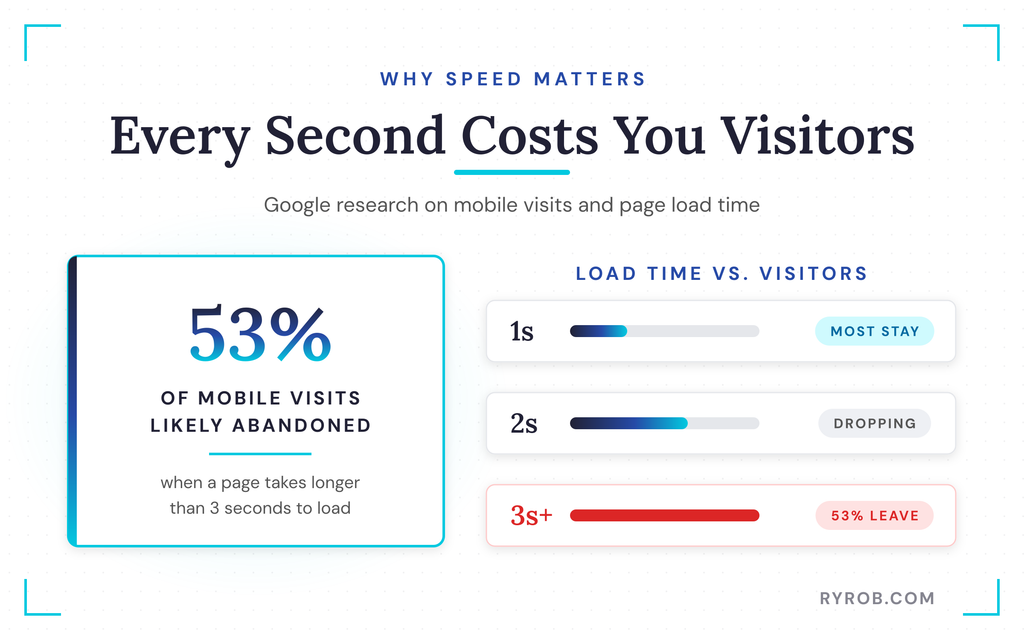
As load time climbs, the share of people who stick around falls off a cliff. Slow pages lose you visitors, cost you sales, and make it harder to show up in Google and in the AI tools people lean on for recommendations. There’s a newer twist, too. It’s also becoming clear that the crawlers behind these AI tools lean toward faster sites, so a slow page can quietly cost you those recommendations too.
A fast website isn’t a nice-to-have anymore. It’s the difference between a site that works for your business and one that just sits there looking pretty.
How to Run an AI Website Speed Test With Two Free Tools
Both tools are free, and both grade your site and hand you back a report card. I dropped my real site into each one with no cherry-picking, so we can read the actual scores together.
Digging Into Performance With GTmetrix
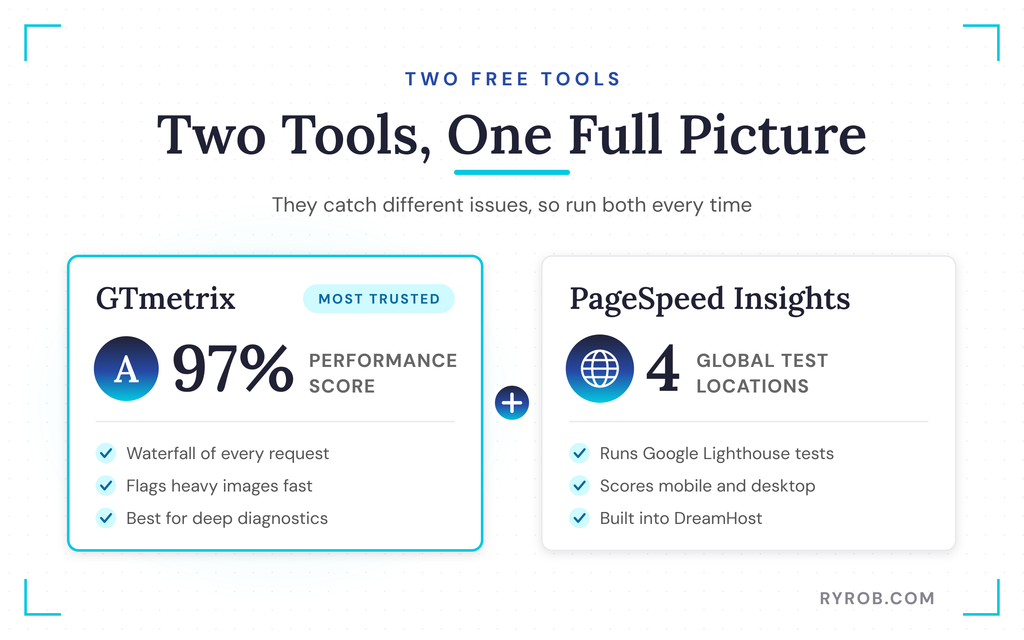
GTmetrix is my personal favorite, mostly because I spend a lot of time in the performance weeds across multiple sites. My test came back with an A-grade 97% performance score, which is honestly really good.
There might be a little extra juice to squeeze, but that’s a strong starting point. Alternatives like WebPageTest, Pingdom, and Yellow Lab Tools are solid too. Though, GTmetrix’s waterfall chart breaks down every single request so you can see exactly what’s dragging your Speed Index down.
GTmetrix is the tool I trust most for digging into what’s actually slowing a site down, and it’s the one I reach for whenever I’m stress-testing performance. When two tools tell slightly different stories, it helps to know which one you trust more and why.
Running Google PageSpeed Insights From Multiple Locations
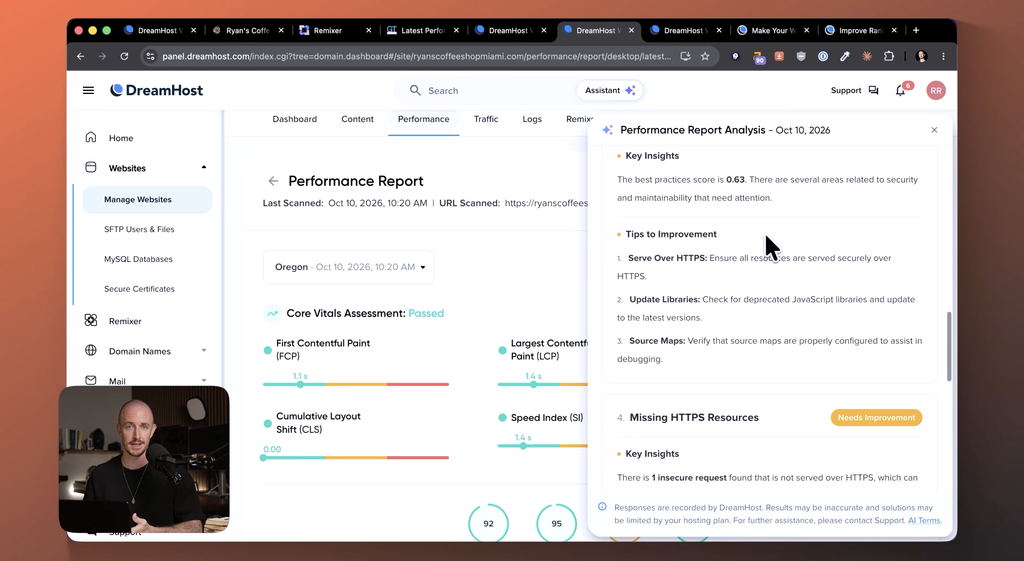
For the second test, DreamHost has a built-in way to run Google PageSpeed Insights right from the performance tab of my dashboard, and it runs Google’s Lighthouse tests under the hood. I ran a fresh scan, and the numbers looked good on both mobile and desktop, with a little room to improve on performance.
One thing worth pointing out is that this scan is synthetic monitoring from four different locations around the world. That’s great if people reach your site from countries beyond where you’re based, and it’s how I make sure my site loads quickly for everyone no matter where they are.
If the raw report reads like gibberish, DreamHost has a “create AI summary” button that translates the whole thing into plain English. It confirmed my performance overview was in good standing and accessibility looked fine, while best practices was the area to focus on.
Looking at the details, desktop was doing well while mobile wasn’t quite passing every test I’d want. That mobile gap is exactly what I wanted to close.
Reading Your Speed Report Like a To-Do List
A score on its own is useless if you don’t know what it’s telling you, so let me translate. These tools grade a handful of things, and here’s what each one is really measuring.
- Server response. How fast your server answers, known as Time to First Byte.
- Asset weight. How big and heavy things like images are.
- Render-blocking code. Whether code is stopping the page from showing right away.
- Caching. Whether repeat visitors load instantly instead of starting over.
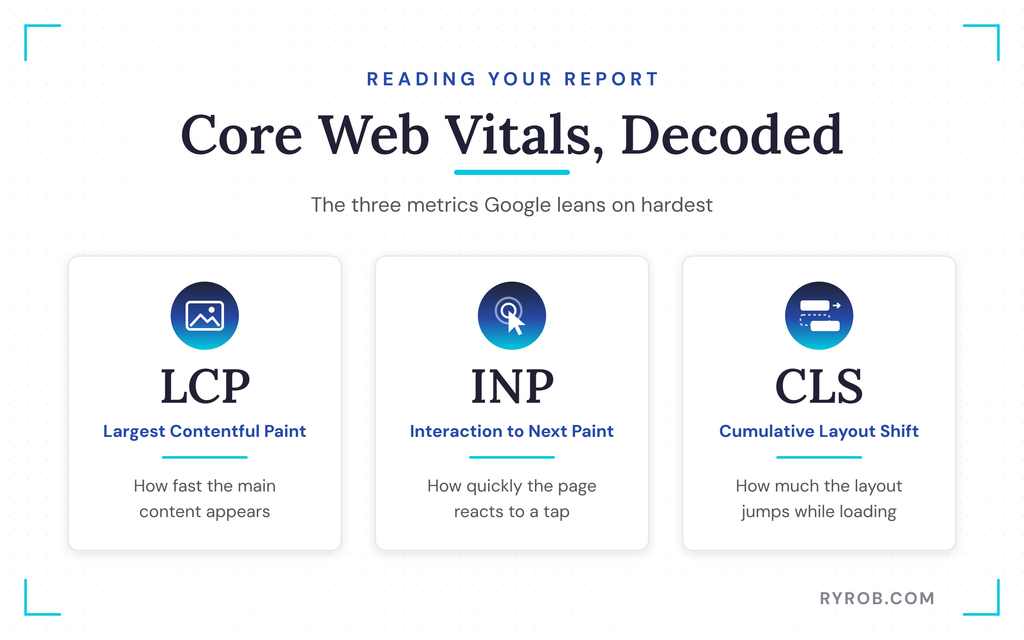
Google leans hardest on its Core Web Vitals, which are worth knowing by name.
- Largest Contentful Paint. How fast the main content appears.
- Interaction to Next Paint. How quickly the page reacts when you tap or click.
- Cumulative Layout Shift. How much the layout jumps around while loading.
There’s also Speed Index, which measures how quickly the visible part of the page fills in.
The part that actually matters is the needs improvement list. That’s the tool literally handing you a ranked to-do list, and it’s exactly what we focused on.
Inside GTmetrix, the equivalent lives in the medium to low impact area, which was mostly flagging large images that could be compressed. That’s a super easy fix.
A score is a starting point, not a finish line. The flagged issues underneath it are where the real work lives.
Fixing What the Speed Reports Flagged (No Code Needed)
Now for the fun part, actually fixing the site. I’ll be upfront that I partnered with DreamHost for this build, and what won me over is that Remixer gave me real controls for every one of these fixes without a single line of code.
We went after four things the reports flagged.
- Oversized images
- The built-in CDN and caching
- Lazy loading for content below the fold
- Trimming anything heavy we didn’t actually need
Here’s how each one went.
Checking the HTTPS Warning That Wasn’t Real
The first fix was the easy one. PageSpeed Insights flagged a single insecure request that wasn’t being served over HTTPS.
If you’re not sure where to even look for something like that, DreamHost’s AI assistant will point you to the right spot. That’s exactly what happened for me, and it sent me straight to the security tab.
There I confirmed automatic HTTPS was enabled and the certificate looked good. Nothing to report, in other words.
I’m going to call this a quirk in Google’s PageSpeed Insights tool, because I checked the certificate myself and everything was enabled. This is exactly why I run two tools. GTmetrix didn’t flag any HTTPS issue at all, so I knew we were in a good spot.
Compressing Oversized Images for Faster Loading
Image optimization was the one GTmetrix flagged as the biggest potential issue. The report linked directly to the culprit, and it turned out to be the background hero image on my homepage. It was the heaviest single piece of page weight on the whole site.
The fix took minutes. I downloaded the image, dropped it into Crush Image (my favorite free tool for optimizing images), and watched the file shrink from 159 KB down to about 90 KB.
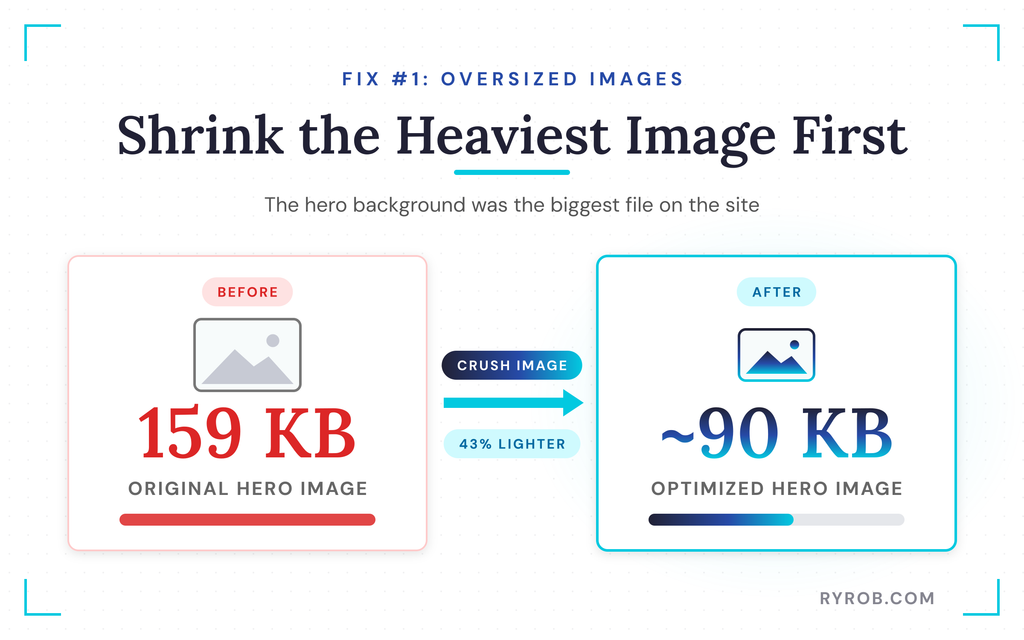
Then I re-uploaded it through Remixer’s AI chat with a quick instruction, and a few seconds later the optimized hero background was live. That knocked out the biggest image file on the entire site, which was the whole goal.
Everything else was already under 100 KB, which is solid. If you want to go deeper here, my guide to best practices for using images on your blog covers compression and formatting in more detail.
Verifying CDN, Caching, and Lazy Loading
Next, I checked that the CDN and caching were enabled so my site gets served in its most optimized form. The performance tab in the DreamHost dashboard showed the CDN was active.
That’s DreamHost’s built-in CDN, and it stores my site across servers around the world so it loads as fast as possible from the one nearest each visitor. CDN and caching were good to go.
Then I asked Remixer directly whether lazy loading was on. It confirmed the homepage below-the-fold images and menu photos all use it, and it flagged a few other pages to check, so I had it check those too.
Now every image on the site is verified for lazy loading, which means the page doesn’t try to load everything the moment someone lands on it.
Finally, I scanned the rest of the GTmetrix report for anything else dragging performance down, and everything looked clean. This site is about as optimized as it could reasonably be.
GTmetrix does differ a little from PageSpeed Insights on a few findings, but I go with GTmetrix because I’ve used it most and trust it a bit more.
When a vague insight like “document request latency” popped up with savings I didn’t fully understand, I asked the assistant for a plain-English explainer, and again it looked like something PageSpeed Insights handles less reliably than GTmetrix.
Why You Shouldn’t Chase a Perfect 100 Speed Score
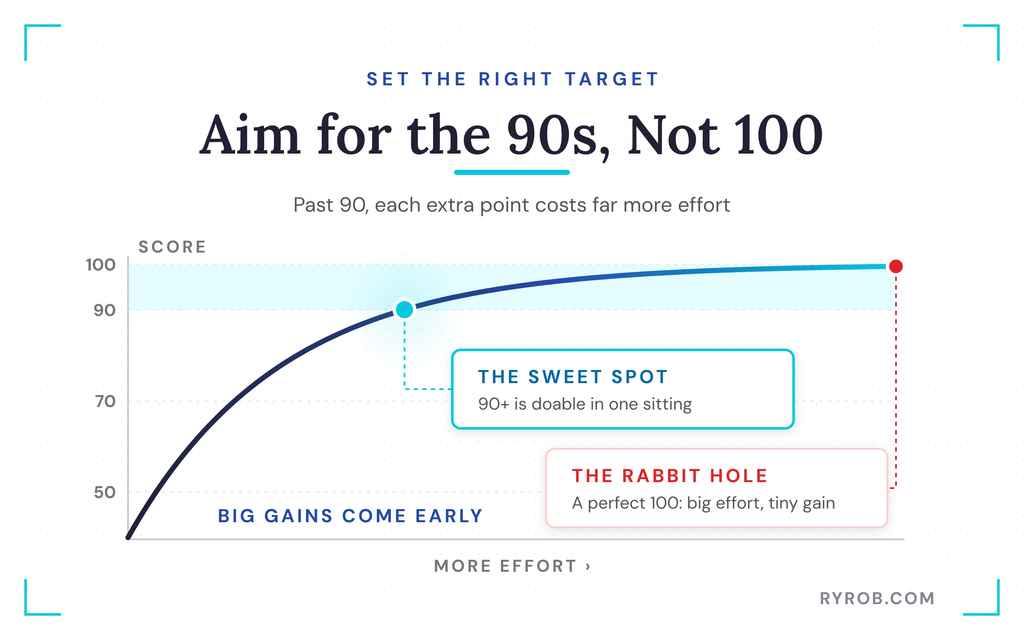
For my fellow perfectionists out there, I’m not going to promise you a perfect 100. Chasing the last few points of load time is rarely worth it, and it can turn into a rabbit hole with very marginal gains after a certain point.
But going from meh yellows to solidly in the green? That you can do in one sitting. Aim to stay in the 90s on your GTmetrix score and you’ll be in a good spot.
It helps that this site was already scoring high because I built it on Remixer and I’m using DreamHost’s CDN to speed up loading across locations. That really highlights the importance of building your site in the right place to begin with.
I’ve built sites on tons of platforms, and it’s not always this pretty a picture. Remixer builds fast sites out of the box, so depending on what you’ve made, you might open these tools and find there’s not much to fix at all. That’s a huge win.
No builder tool gives you the deep control of a hand-coded site, but for most creators and business owners I know, what’s here gets you the speed that actually matters. Try not to overengineer it.
For more on squeezing points out of Google’s tool, my guide on how to score 100 in PageSpeed Insights covers the technical side.
Managing an AI-Built Site With a Business Assistant
Once your site is fast and live, keeping an eye on it gets a lot easier with the right assistant. DreamHost recently added a personal business assistant inside Remixer called Remy.
It’s basically an AI agent connected to your site that you reach by chatting through Telegram. That means you can push changes straight from your phone without ever logging into the platform.
You can also set up routines for daily snapshots of your traffic, leads, and order volume, get timely alerts, and chat back and forth with it. Support for WhatsApp, iMessage, and Discord is on the way too.
FAQs About Testing an AI Built Website’s Speed
A few quick answers to the questions I get most about speed testing a new site.
Are free speed test tools accurate?
They’re useful, but they have limits. Free tools like PageSpeed Insights run on lab data under controlled conditions, which may not match what a reader on an older phone with a weak signal actually experiences.
That’s why cross-checking with a second tool like WebPageTest or Pingdom matters, and why I put together a full walkthrough of the speed fixes that cut my own load time the most. Lab data means synthetic test conditions, while Real User Monitoring pulls field data from actual visitors through the Chrome User Experience Report.
Run the tools, but treat them as a starting point rather than the final word.
What speed score should I aim for?
Stay in the 90s. A score of 90 or above sits in good territory, and the jump from there to a perfect 100 usually delivers marginal gains for a lot of effort.
Getting from the yellow range into solid green is the realistic, worthwhile target.
What should I fix first in a speed report?
Start with the biggest bottleneck, which is almost always oversized images and missing caching. In my case, the hero background image alone was the single largest file on the site, so compressing it was the highest-impact fix of the whole process.
How often should I retest my site?
Retest after every meaningful change, and run a fresh scan whenever you update content or rebuild pages. It takes minutes, and it’s how you catch a new heavy image before it quietly slows things back down.
For a broader toolkit beyond speed, my roundup of the best free SEO tools for bloggers is a good next stop.
Final Thoughts on Testing an AI-Built Website’s Speed
Here’s the whole process in one pass. Test your site with two free tools, read the report like a to-do list, then fix your images and confirm caching and lazy loading are on. After that, retest until you’re in the green.
Do that before you send people to your site, and you’re ahead of almost all your competitors.
If you want to build a site like this yourself, DreamHost’s free 30-day trial needs no credit card. And if this walkthrough helped, go run a speed test on your own site today. It takes five minutes, and you might be surprised by what it flags.
Launch Your Own Fast AI Website With DreamHost Remixer
I keep coming back to Remixer because it builds genuinely fast sites out of the box, then lets me fix anything the speed tests flag just by describing it in plain English. No developer, no code, no messy setup on my end, and you can try it free for 30 days with no credit card.
Want it for free instead? I’m giving away a full year of Remixer to one reader, so drop your name in the giveaway, no purchase needed. Entries close 11:59 PM ET on November 5th, and I’ll draw the winner on the 6th!
