I asked Claude to find one moment in a recent podcast and turn it into a vertical clip with captions. That request ran through the Riverside Claude integration, and I never opened an editing timeline or even logged into Riverside. A minute later? The clip was just sitting in my project.
And the part that still gets me… I hadn’t even edited that episode yet. I just told Claude what I wanted and it came back done.
That’s what this whole workflow feels like now. Claude handles the slow, repetitive production work, and I still review everything before it goes live.
Here’s a video walkthrough of my exact workflow in action:
Key Takeaways for the Riverside and Claude Integration
- Four recurring jobs. This workflow covers planning, editing, repurposing, and publishing inside one Riverside project.
- Planning from your own catalog. Claude works across your Riverside recordings and transcripts, so ideas come from what you’ve already covered.
- Editing by description. You describe the cut you want, like dead time, filler words, long pauses, or bad takes, and Claude drafts it in Riverside.
- Repurposing in minutes. One long recording can become vertical captioned clips, YouTube descriptions with chapters, and newsletter drafts in your voice.
- Publishing with a review step. Claude drafts and schedules social posts to your connected accounts, but nothing goes live until you approve it.
- You stay in the director’s chair. The workflow removes tedious tasks, not your judgment, and recording and final polish still happen in Riverside.
Connect Claude to Your Recordings With Riverside
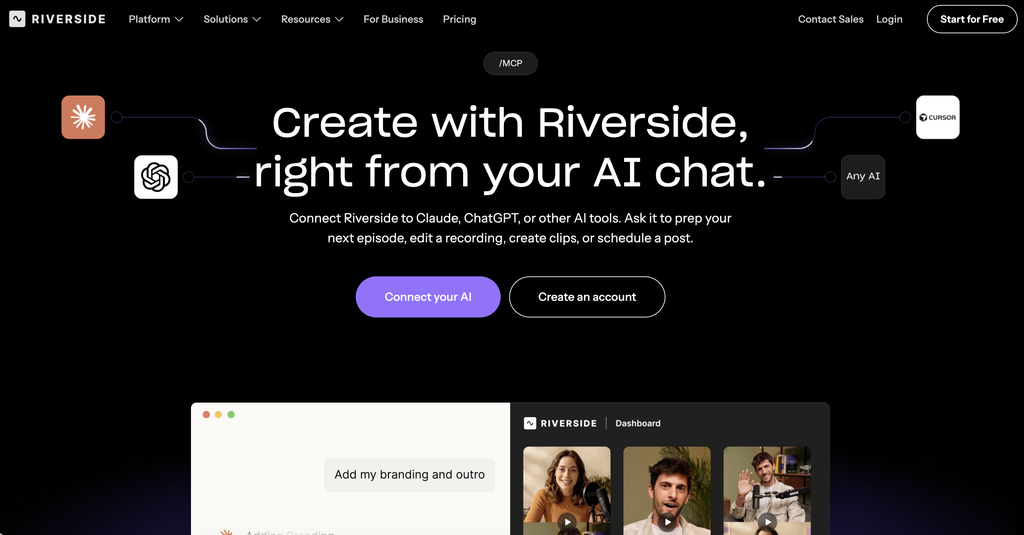
Riverside is where all my recordings, edits, and clips live, and the Claude connection lets me run the whole thing from one chat. I’ve used it for years, and this update made it the smoothest setup I’ve had. I worked out a reader deal too, so you can try the Grow plan free for 30 days with code RYAN2👇
What the Riverside Claude Integration Does
Riverside now connects directly to Claude through the Model Context Protocol, or MCP. It lets Claude reach into an approved Riverside account and actually work with what’s there. It can read transcripts, create edits, cut clips, write copy, and queue social posts.
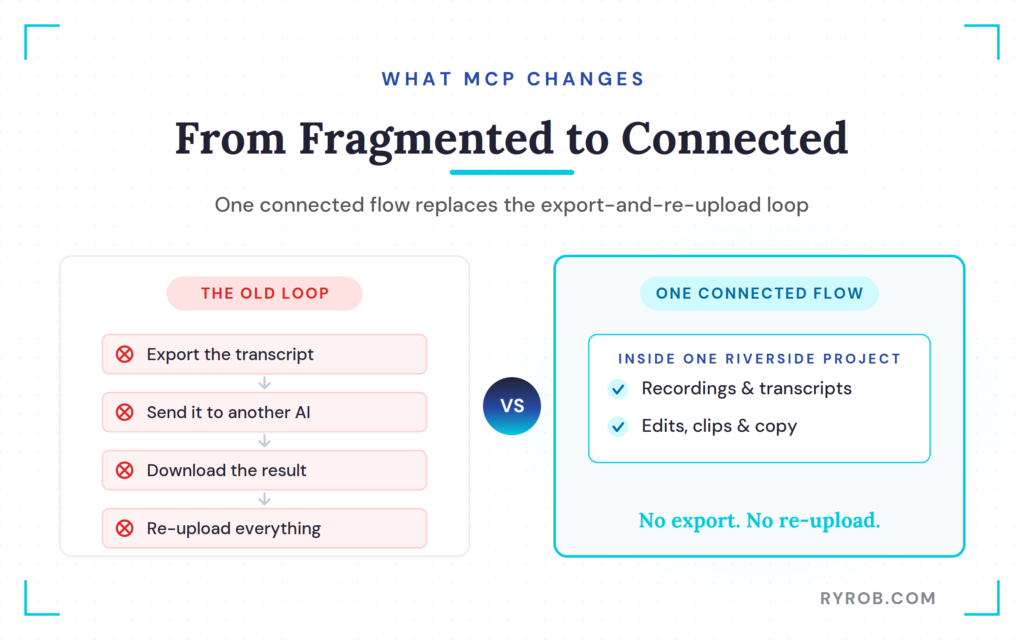
Everything stays inside one connected flow, so you skip the old routine of exporting a transcript, sending it to another AI tool, downloading the result, and uploading it all over again. The whole point is that your recordings and the work happen in the same place.
For video creators, interviewers, and podcasters, Riverside stays the home base where recordings live and where your team reviews the final work.
It’s the same podcast setup I already use to record every interview, just with a new door into it. It also fits neatly into the broader set of AI tools I keep in my marketing stack.
How to Connect Claude to Your Riverside Account
Setup is quick. Open Claude connectors in Claude web or the Claude desktop app, choose Riverside, and finish the authorization prompts.
From there, review the data sources you’re approving and pick the project you want to work in. The connection only reaches what you approve, not your entire account.
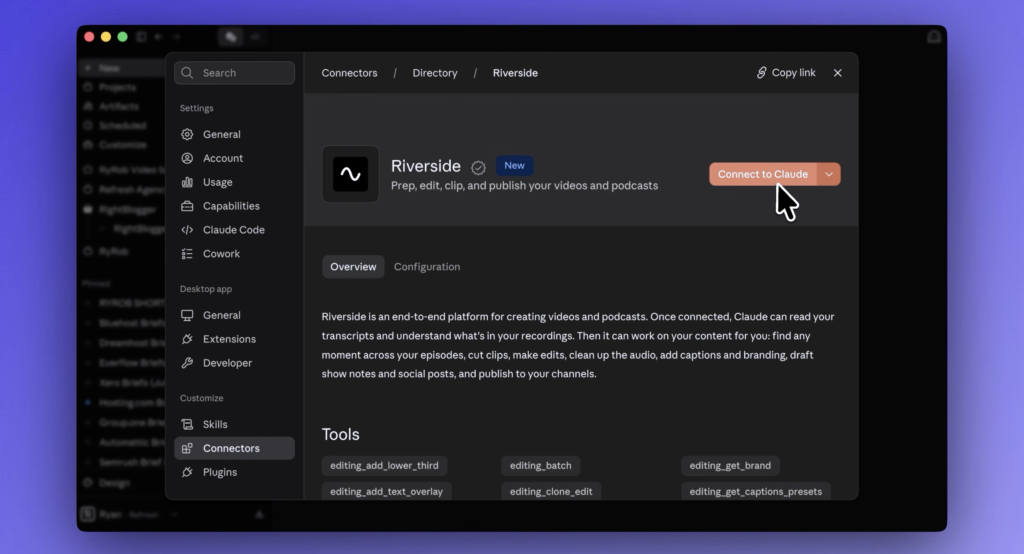
I’d test it with a simple transcript-reading request before asking Claude to make edits or schedule anything. And since interface names and plan requirements can change, it’s worth checking the current Riverside and Claude docs if something looks different.
If you want to follow along, I worked out a reader deal on this one, so you can try Riverside’s Grow plan free for 30 days with code RYAN2.
Planning Content Around Your Existing Catalog
With an authorized connection, Claude can compare two things it usually can’t see side by side, which are your video library and your transcript archive. Planning starts from what you’ve already covered, not a generic list of trending topics.
That works whether you’re deep into a show or still figuring out how to start a podcast.
Here’s a prompt I lean on:
“What popular YouTube topics haven’t I made a video on yet in the AI and marketing space that would actually fit my channel?”
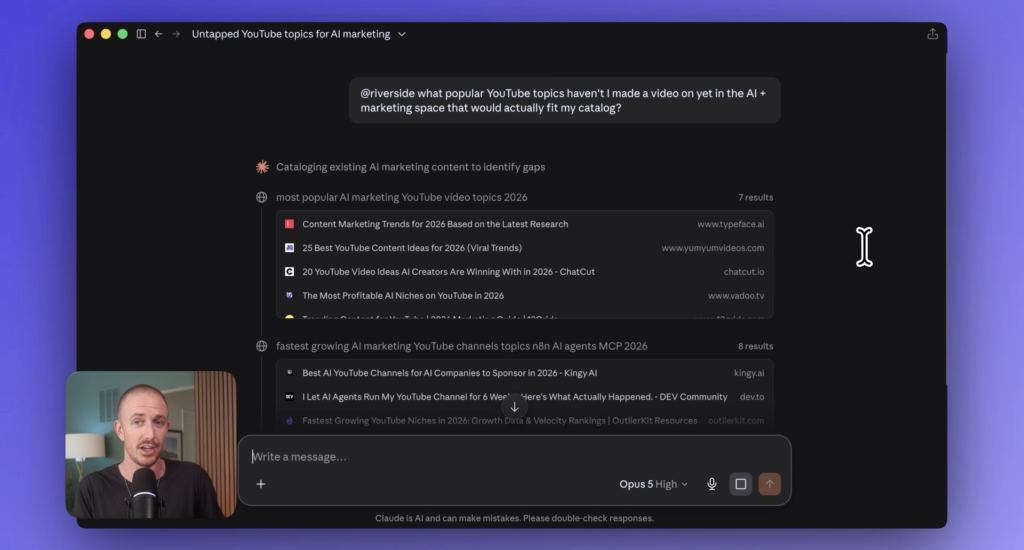
Claude researches online the same way I would when I’m using AI for SEO, then compares those findings against my Riverside catalog and tells me where the real gaps are.
It doesn’t just hand me a topic list, it explains why each idea fits and where it adds something new. I still decide what actually suits my audience.
Finding Podcast Episode Ideas in Your Past Advice
The same connection can surface patterns across every interview you’ve recorded. One prompt I like on the podcast side is short:
“What’s the most common piece of advice I give to my guests?”
Claude handed back a full episode idea plus real clips I could lift from my library as supporting B-roll. I didn’t even realize that was my most common recommendation lately, so it doubled as a genuine discovery. No other tool reads across all my transcripts like that.
Editing Recordings by Describing the Cut
Describing an edit is faster than making it cut by cut, and this is where the workflow saves my team the most time. You describe the cut in plain language, and Claude turns it into a draft inside Riverside.
I recorded an income report video last week where the first few minutes were just us messing with the setup. Instead of scrubbing through the footage, I typed a single instruction:
“Cut the beginning all the way up until we get started with the Ryan intro.”
Claude removed six full minutes of dead time, and the rough cut appeared in my Riverside project for immediate review, so I could review it right away.
It wasn’t a finished edit, but it was a far cleaner starting point than raw footage.
Removing Filler Words, Pauses, and Bad Takes
Long recordings are full of filler, awkward pauses, and takes that miss the mark. Claude can return a cleaner draft from one prompt:
“Remove all the filler words, long pauses, and bad takes from this recording.”
In my workflow, Claude clears out roughly 80% of the tedious, time-consuming work. That’s my experience rather than a universal benchmark, and my team still handles the important creative decisions.
What the Editing Team Still Owns
The final edit still needs a person. After Claude creates a draft, my team opens Riverside, watches the affected sections, and fine-tunes the result.
Editors still own transitions, motion graphics, B-roll, and pacing. Your ears are still the best tool for the last layer of polish.
Repurposing Long-Form Recordings Into Clips and Copy
Repurposing is where one long recording becomes a whole stack of smaller assets, much like one good recording can turn into clips, a blog post, and a newsletter. The clip you picture in your head is the clip you get, without scrubbing a single timeline.
I recorded a 45-minute interview with a friend who had pivoted their business and launched a breath-work app. Buried in that long file was a one-minute segment about burnout before the pivot.
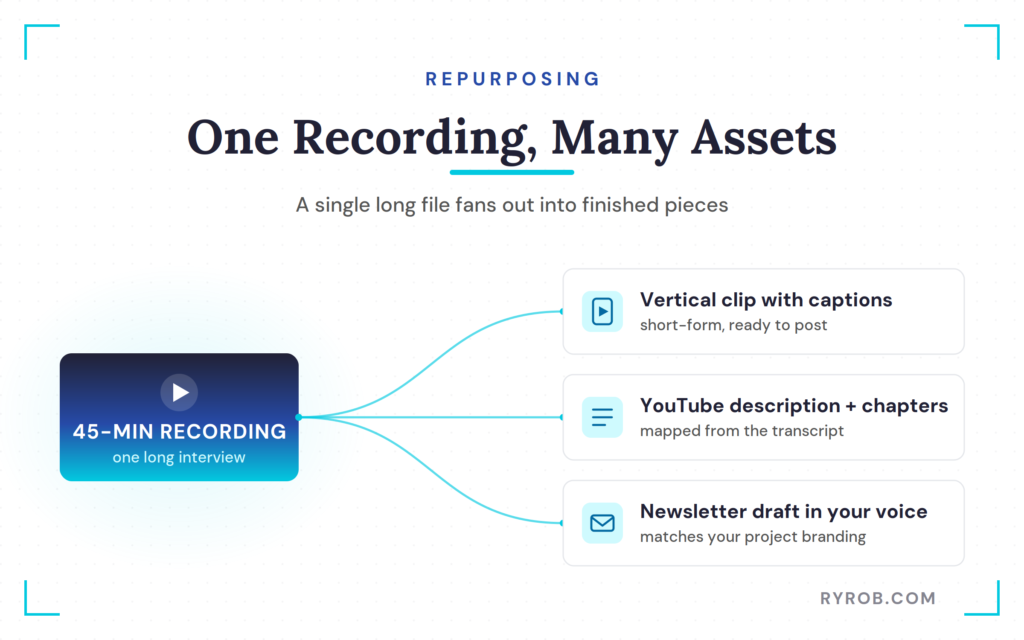
Normally, finding it, trimming it, captioning it, and exporting it might eat ten minutes. Here’s what I typed instead:
“Find the part where my guest talks about burnout before pivoting and make me a vertical clip with captions.”
Claude found the segment, cropped it vertically, added the captions, and dropped the finished clip inside my Riverside account. It stayed connected to the original recording and edit, so nothing ended up stranded in a separate download folder.
Turning a Long Interview Into a Ready Clip
This works across long-form YouTube videos, podcast episodes, and interviews recorded in Riverside. You describe the moment you want, and the finished short-form clip comes back in the format you asked for, captions included.
That lifts a repetitive task off the editing team’s list and keeps the original recording, edit, and clip together. It’s a nice unlock for anyone building out a YouTube channel alongside a podcast.
Drafting YouTube Descriptions and Newsletters
The same recording can also become written assets. I’ll ask for both at once.
“Write the YouTube description with chapters and draft me a short newsletter from this recording.”
Claude drafts the description, maps the chapters, and writes the newsletter straight from the transcript, following the voice and branding I’ve built into the project. That voice match is exactly why Claude has become one of my go-to AI writing tools.
If a draft isn’t quite right, I just chat back and forth to sharpen it, because this works best as a conversation, not a one-shot prompt.
Scheduling Social Posts With a Review Step
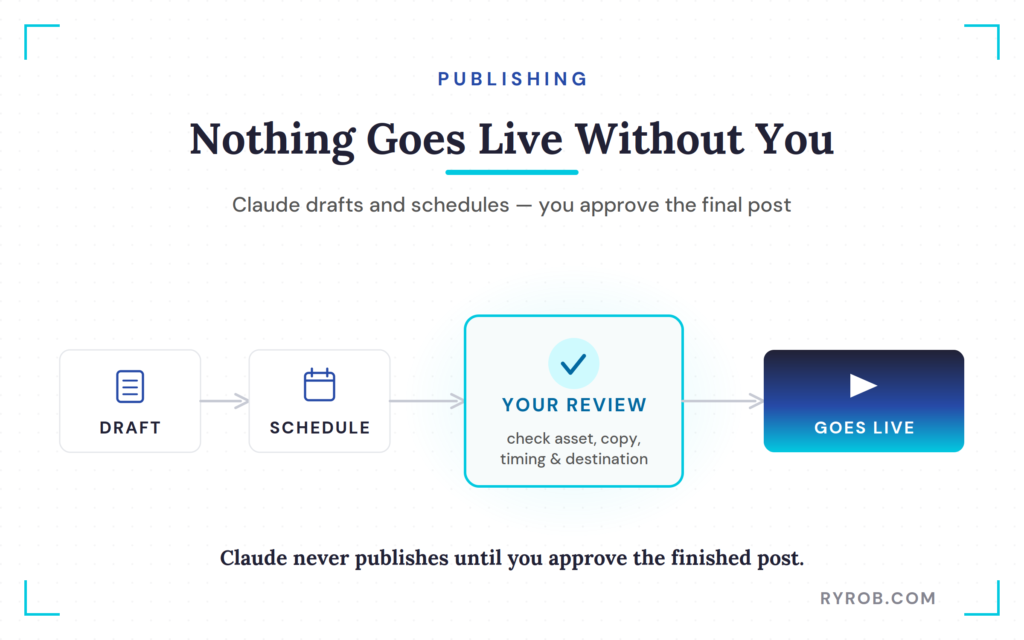
Once the clips and copy exist, Claude can queue social content to the accounts connected to your Riverside project. Here’s the kind of request I’ll make:
“Schedule the income report clip we made in this session to be shared on my Ryan Robinson LinkedIn account this Friday at the best time.”
Riverside’s planner then shows the prepared post before it goes live, so I can check the asset, copy, timing, and destination in one place. Claude never gets permission to publish until I’ve reviewed the finished post.
Where This Workflow Still Needs You
This connector is a new way into Riverside, not a reason to stop using it. Recording, review, and final refinement still happen there with your team.
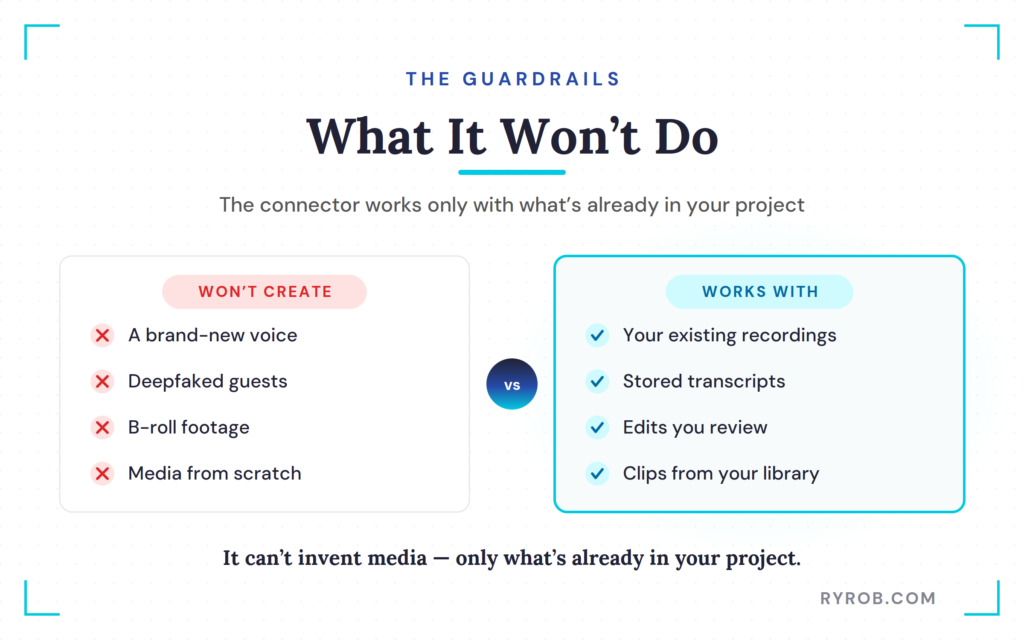
Every edit, clip, and scheduled post gets a human review before it goes anywhere, which keeps you in the director’s chair. Claude works only with the recordings and materials already in your project, so it can’t invent media.
It won’t create a new voice, generate deepfakes, produce B-roll, or make video and audio from scratch.
FAQs About the Riverside Claude Integration
Here are quick answers to the questions I get asked most about this workflow.
Can Claude Read My Riverside Transcripts?
Yes. An authorized connection through Claude connectors lets Claude read transcripts stored in your Riverside account. It can find specific moments, identify recurring ideas, and compare new topics with existing content.
Can Claude Edit a Riverside Recording?
Claude can create an edit from a written request. For example, it can remove an opening section, filler words, long pauses, and bad takes, then save the draft to your Riverside project.
Your team still needs to review the edit and handle the final polish.
Does the Riverside Claude Connector Generate New Video or Audio?
No. The connector doesn’t create voice content, deepfake guests, or B-roll footage. It works only with recordings and other assets already stored in your Riverside project.
Can Claude Create Vertical Clips With Captions?
Yes. Claude can find a requested moment in a long recording, crop it vertically, add captions, and place the draft clip in Riverside. Review it before downloading or sharing.
Can Claude Write a YouTube Description From a Recording?
Yes. It can draft a YouTube description with chapters directly from the transcript. It can also write a short newsletter from the same recording. You can revise either draft with follow-up prompts.
Can Claude Publish Social Posts Without Review?
No. Claude can draft and schedule posts for your connected accounts, but each post should be reviewed first. Publishing permissions and account settings still apply, and nothing should go live without your approval.
Final Thoughts from Riverside and Claude Integration
Claude and Riverside together turn your existing recordings and transcripts into a faster loop for planning, rough editing, repurposing, and scheduling. The workflow stays directed by you, not autopiloted by AI, which is exactly how it should be.
Whether you record videos, interviews, podcasts, or all three, the tedious production work shrinks while the storytelling and final call stay yours. That’s the trade I’ll take every week.
Connect Claude to Your Recordings With Riverside
Riverside is where all my recordings, edits, and clips live, and the Claude connection lets me run the whole thing from one chat. I’ve used it for years, and this update made it the smoothest setup I’ve had. I worked out a reader deal too, so you can try the Grow plan free for 30 days with code RYAN2👇
