Video to Blog AI Converter Free AI Tool to Convert YouTube Videos to Blog Posts
Want to convert your YouTube videos into blog posts? Use my free video to blog AI generator tool, to quickly create a detailed (AI-powered) blog post outline from any YouTube video URL. Repurpose any YouTube video into a blog post by pasting in the link to your video and instantly get an actionable blog outline with my video to blog AI tool.

Delivered Straight to Your Inbox
"*" indicates required fields
Instant YouTube Video to Blog Post without ChatGPT: Convert Videos into SEO Blog Posts in One Click with this Free Tool
IIf you’ve got great content on your YouTube channel, don’t just leave it there! Repurposing your video content by turning those videos into blog posts can speed up your content creation process and generate more SEO traffic.
I built this free video to blog AI converter tool to solve my own problem of wanting companion blog posts to go along with my videos—without having to query ChatGPT every dang time. Copy. Paste. Boom. Instant AI content that gets me started with a solid blog post draft.
Repurposing your video content for blog posts with a tool like this not only saves time, but makes your content accessible to people who prefer to read instead of watch—and can provide a massive boost to your SEO (search engine optimization).
Content creators and small businesses of all types can benefit immensely from this foundational content marketing best practice—and I’ve designed this tool for everyone from beginners to seasoned pros. This has even become a core functionality of my favorite blog automation tools.
Ultimately, there are 3 main ways you can turn videos into blog posts:
- Using the video to create a summary blog post, giving readers a taste of the content and encouraging them to watch the video—which you can easily include as an embedded video in your blog post.
- Using the video as the basis for a full piece of standalone longer-form blog content, which might not even link to or mention the original video. This could be content for your own blog, a guest post for a different site, a synthesis of a podcast episode, or even simply social media content to share on your social channels.
- Using the video to create a short series of linked blog posts. This works well if you have a long, in depth video that covers a range of different points, which you could turn into engaging blog posts.
Whichever option you choose, you can use my free YouTube video to blog post tool to help make it happen.
How to Use the YouTube Video to Blog Post Generator to Create High-Quality Blog Content (for Beginners)
Ready to give the blog post generator a try? It’s really easy to use—and you can run it as many times as you like, completely free. You’ll be amazed how fast the AI (artificial intelligence) algorithm can “watch” your video and turn it into a piece of content for your blog.
Here’s what to do to get the most out of this powerful AI tool today.
Step 1. Enter the URL of Your YouTube Video
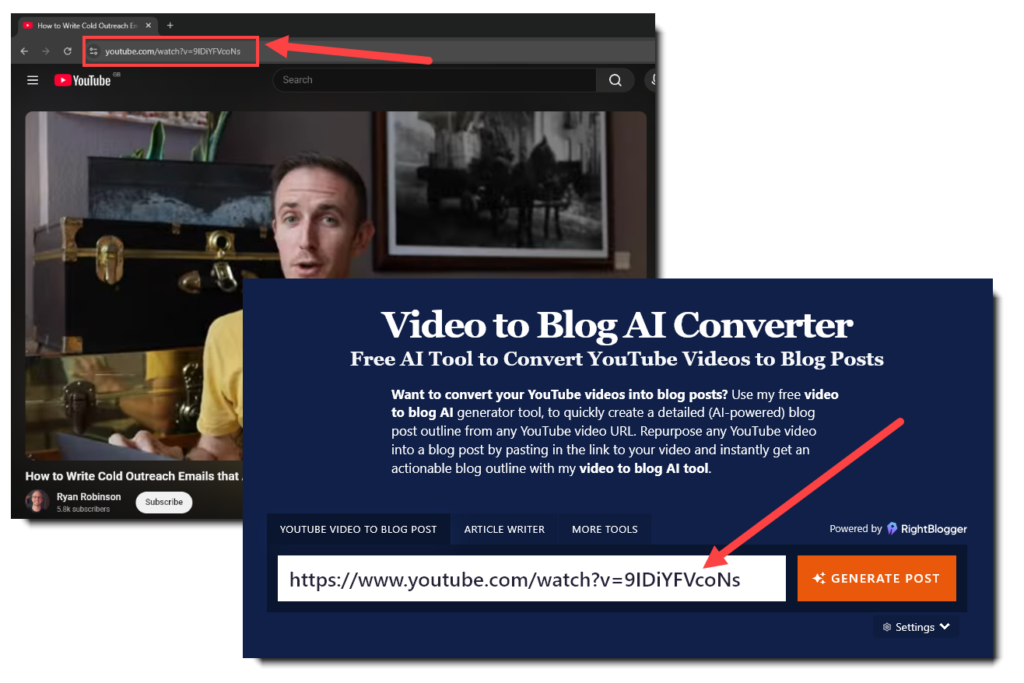
First, you’ll need to find the video on YouTube that you want to convert into a blog post, and copy & paste the URL into the video to blog AI generator field above. That’s how the generator “reads” your video content—from the video transcript that’s automatically generated by YouTube (and then our AI automation gets to work).
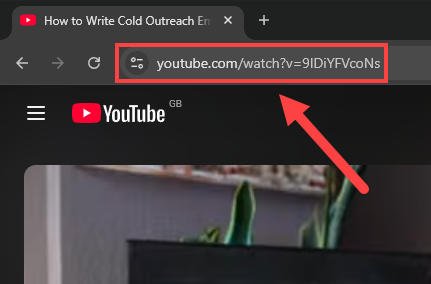
Tip: If you’ve got a lot of videos to convert, you might want to create a document with a list of the titles and their URLs, to save you from having to keep going back and forth between YouTube and this tool.
Step 2. Choose Your Tone and Writing Style
By default, this free YouTube video to blog AI converter uses an informal, conversational writing style.
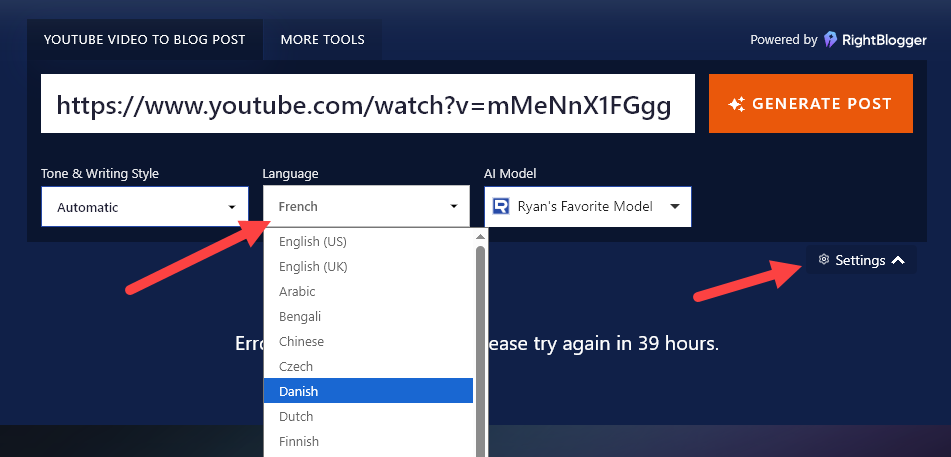
But you may have a distinct voice for your blog. If so, open up the Settings for the tool, then select your preferred AI voice from the dropdown list.
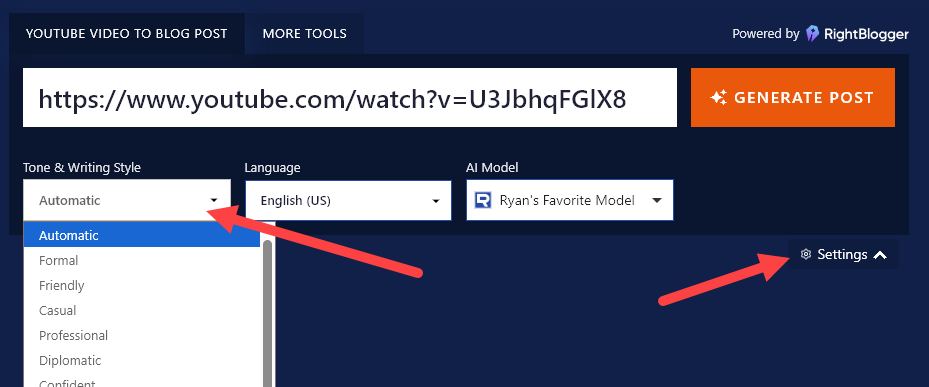
Want even more tone & style options? Try the fully-featured version of this tool for a spin inside RightBlogger, where you can create up to 2,000 words of content per month—or subscribing unlocks unlimited access to every single one of our tools.
Upgrading to RightBlogger not only gives you 80+ tools but also lets you use unique features like MyTone, which trains the AI on your writing style for truly personalized content.
Inside the fully-featured version of this tool on RightBlogger, you can choose from a wide range of tones & writing styles from the dropdown menu (or upload your own writing sample to activate MyTone and convert YouTube videos to blog posts in your own voice).
Step 3. Choose Your Language
This free tool can understand videos—and write blog posts—in 75 different languages. And the fully-featured version of this video to blog AI converter tool inside RightBlogger can handle over 100 languages.
The AI will automatically detect the language your video is in. With the language dropdown, you’re selecting the output language for your blog post. So, if your video is in English but you want a blog post in Danish, go ahead and select that option in the settings:
Step 4. Generate One of the the Best AI Blog Post Drafts You’ll Find in 1-Click
Ready to go? Click the “Generate” button and the tool will start work on your blog post right away.
The coolest thing about this, is that the tool doesn’t need to watch your whole video in real-time, like a human would! Instead, it can extract content from the YouTube video transcript behind-the-scenes in just seconds—and structure all that information into a pretty blog post. You’ll be amazed to see the post appear before your eyes—saving you a lot of time.
Step 5. (Optional) Rewrite Your Blog Post as Standalone Content
This free YouTube to blog AI converter will give you a detailed summary of your post, split into separate subsections. If you want to create a full standalone blog post, you’ll likely need to do some rewriting.
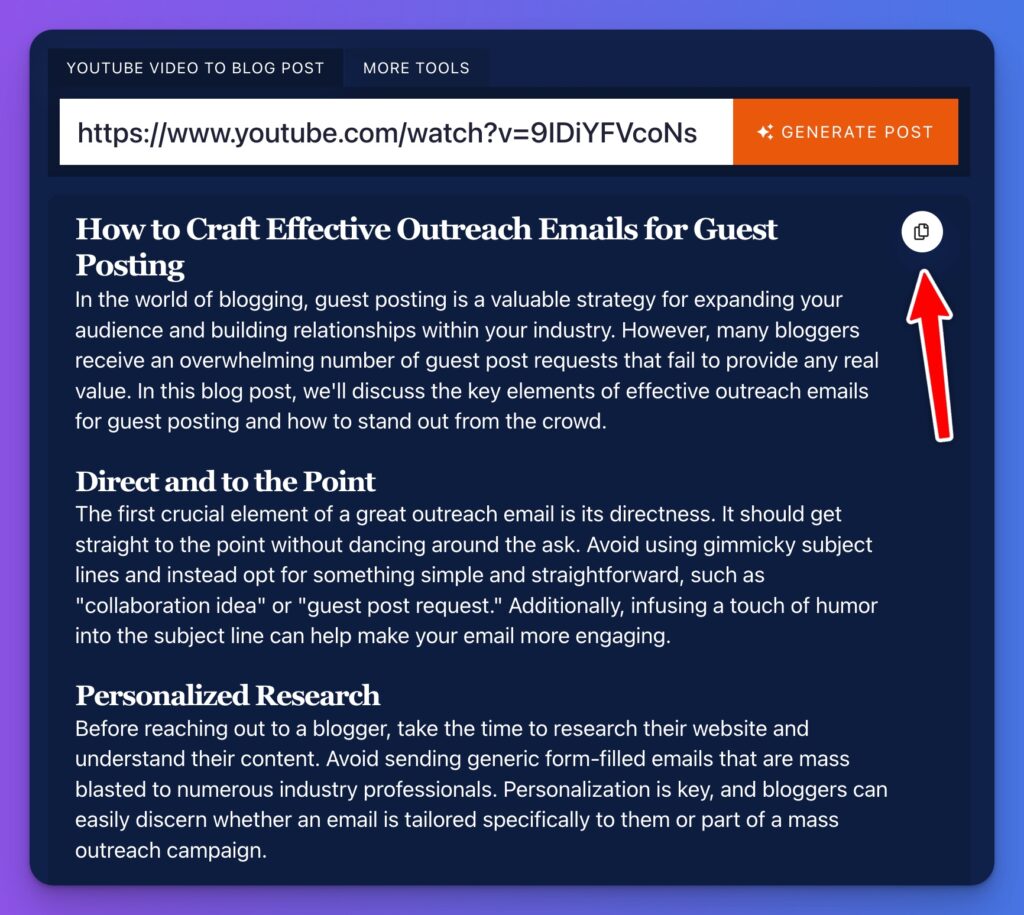
Behind the scenes, we use the OpenAI API to send our detailed prompt templates. These then use all the content from your video in order to generate a fantastic first draft blog post using AI. It may not be perfect. Just like when using ChatGPT, there can sometimes be mistakes, particularly if the YouTube transcript wasn’t 100% accurate to what you said. That’s where you come into the workflow.
You might want to add more examples or even screenshots from your video, especially if it’s a tutorial. You could also include more headings, expand on different points, or tweak the phrasing if the blog post talks about your video. For one of my videos, the introduction included the sentence “In this video, Ryan from RyRob.com shares 78 niche ideas that have high profit potential” … which wouldn’t quite work in a standalone blog post.
You’ll also want to take some time to make sure your AI blog post is properly SEO-optimized before publishing, if you want to maximize your chances of ranking high in organic Google search results.
Bonus: Use My Free Step-by-Step SEO Checklist for This Free YouTube Video to Blog AI Generator
Publishing high-quality blog articles based on your YouTube videos can dramatically improve your SEO… but only if you do it right, and turn blog content into an authentic way of delivering value to your readers.
Here’s my personal step-by-step checklist to keep you on track as you convert blog posts into real traffic drivers for your website.
- Make sure you’re using the Yoast SEO WordPress plugin
- Always optimize your article for a relevant keyword phrase
- Make the most of your headers for rich snippets and faster indexing
- Only have a single H1 header (the title at the top of your post)
- Use correct header hierarchy, with H2 subheaders, then H3 sub-subheaders if needed
- Don’t repeat your primary keyword excessively, just use it naturally within the text
- Add plenty of internal and external links (go for 3–5 or more external links)
- Craft a keyword-rich meta description that’s engaging for potential readers
- Include keywords in your image alt descriptions where possible
- Add content if needed to make your post the right length—aim for 1,500+ words for a standalone post
- Craft a meta title (SEO title) that’s going to work well in search engines (the meta title tool can help)
- Make sure your primary keyword is in your blog post’s permalink (aka the slug or URL)
By using these best practices, you’ll give your blog post the best possible chance of ranking well in Google search over time. If you have lots of videos to convert to blog posts, go through the checklist for each one and you’ll soon see your organic search traffic start to rise.
The Features of this Free YouTube Video to Blog AI Converter (Using AI Automation)
The YouTube video to blog post generator is designed to be as user-friendly as possible. You might be wondering how it works, though, or you might not be quite sure about all the different options. Let’s take a deeper look at its key features.
YouTube Video URL (Use AI on Any Video from YouTube)
The YouTube video to blog post generator is designed to work with literally any YouTube video. That means that you need to enter a YouTube URL here.
If you have videos hosted on a different platform like Vimeo, you’ll need to add them to YouTube first, before using this tool. We use YouTube’s automatic video transcripts to craft your blog post, through the power of AI.
Here’s a snap shot of the fully featured version of this tool inside RightBlogger:
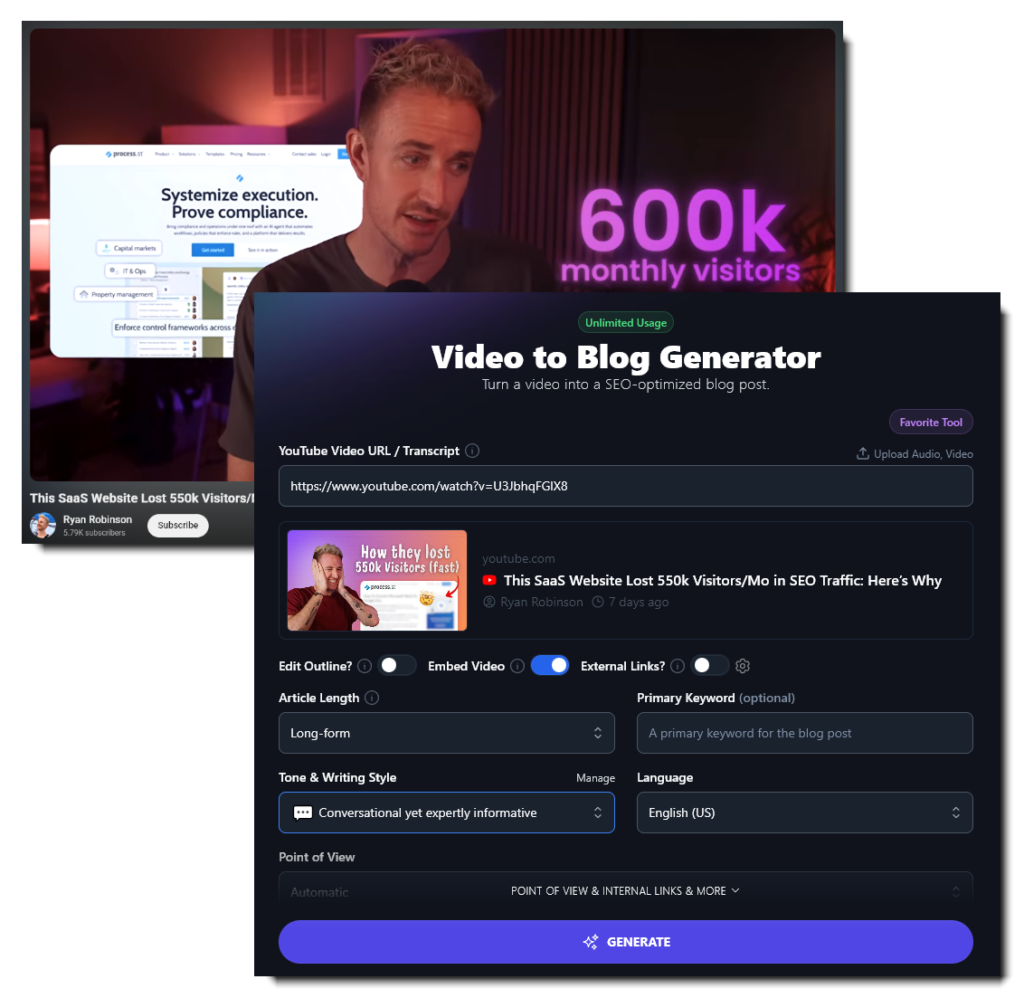
You can even upload a video from your phone or computer directly to the premium version of the tool inside RightBlogger. If you want to use the free tool here instead, you’ll need to add the video to YouTube first.
Tip: You don’t have to make your YouTube video public. Instead, publish it as “Unlisted”. You can then get a shareable link to use in the tool by going to Your Videos, finding the video, and clicking the Options dots then “Get Shareable Link”. Paste this link into the tool.
Tone & Writing Style (Choose a Tone That Fits Your Brand)
If the blog post that this AI tool writes doesn’t quite sound like “you”, try adjusting the tone & writing style. There are 23 options built into the free version, and inside RightBlogger you can go further with MyTone:
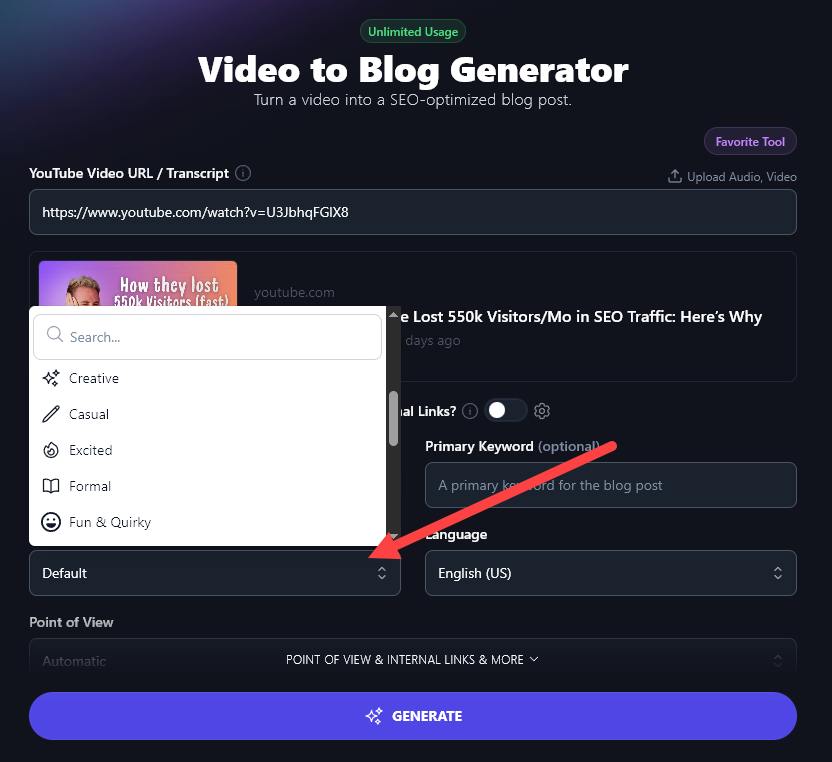
You might find that “Casual” or “Humorous” is a good fit for your laid-back approach to your topic. Or, if you’re writing a blog post for a business or academic blog, you could go with the “Formal” or “Professional” option.
If you love this tool as much as I do, I highly recommend subscribing to RightBlogger to unlock unlimited access to this tool (and 80+ more).
Every plan includes MyTone, which builds a custom writing style from a video or a sample of your writing. The free plan gives you 1 custom style, Solo gives you 5, Pro 15 and Agency 50. Once you’ve created a MyTone, you can use it across all our tools.
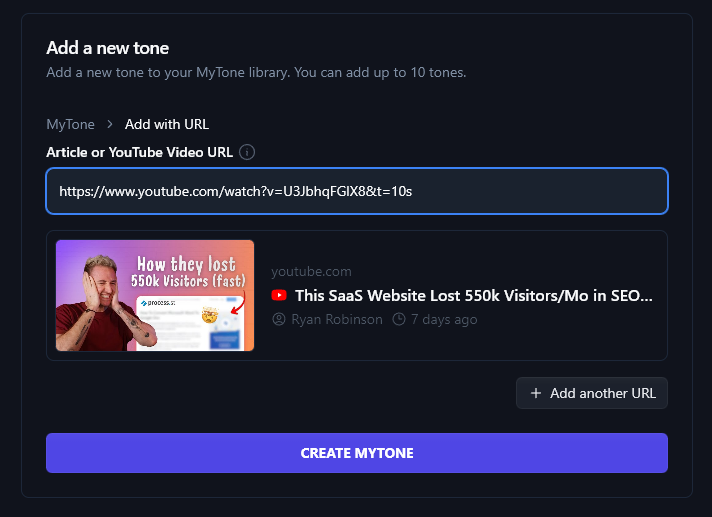
Either way, try out different tone & writing style options until you find something that’s a good match for your brand. That way, you won’t need to do so much editing of your post.
Language (Doesn’t Need to Match Your Video’s Language)
The fully-featured YouTube video to blog AI generator inside RightBlogger can handle 100+ different languages, both for the input and the output.
By default, the free version of my AI video to blog generator here outputs text in English (US)… but if you want UK spellings, or content in any of 75 languages, just use the Language dropdown.
For more languages, hop over to RightBlogger and make sure you select that option there.
Note: This tool won’t automatically adjust the output language based on the video’s language.
If you want a rough translation of a video that’s not in your native language, you can use this tool as a translator. Be aware that the AI may summarize longer videos or add content to shorter ones, so you can only use the text as a rough guide to the content of the video.
YouTube Video to Blog Post Generator FAQs (Frequently Asked Questions)
Got questions? Here are a few common frequently asked questions that come up about this free AI tool—hopefully yours are answered here too 🤘
Should I start a blog or a YouTube channel first?
Plenty of would-be bloggers or YouTubers struggle with this question. If you want to build an online presence, it might seem like a good idea to have both a blog and a YouTube channel—that’s what I do here on RyRob and on my Ryan Robinson YouTube channel, and that may well be a good fit for you too.
Essentially, you have 3 options here. You can start your blog first, build up an audience, then launch a YouTube channel. Or, you can start a YouTube channel first, gather subscribers there, then launch a blog. Or you could start both at the same time.
The one option there that I always advise against is starting both at the same time. It’ll take you much longer to gather momentum. Instead, I’d recommend you pick whichever one you prefer. It’s as simple as that! If you love writing, start a blog first. If you’re a keen video creator, start a YouTube channel first.
For lots more help deciding, check out my video on whether to start a blog vs YouTube channel.
Should I use my YouTube videos as blog posts?
As you might guess from the fact that I created a YouTube to blog post converter… yes, I think you absolutely should repurpose your YouTube videos as blog posts! And if you’re familiar with YouTube already, you know you can instantly download video transcripts of any YouTube video for free—hence why this tool structures the output into a blog post format.
Depending on your blog and the overlap between its audience and your YouTube channel’s audience, you could either use your videos as the basis for full posts, or you could create posts that act as summaries or teasers for the full videos.
Even if you’ve already covered the same topics on your blog as you have on YouTube, you can still draw on your video content for guest blogging.
Always remember that the goal of repurposing your videos into blog content is to reach a wider audience—you don’t just want to slap a few blog posts up that don’t move the needle for your business.
Why is this YouTube video to blog AI tool free?
I’m so glad you asked. This free video to blog AI converter tool is just one of the many free blogging tools I’ve built here for my readers.
I’ve been in this blogging game for well over a decade now, and one of the most frustrating things I’ve experienced throughout my career, is how absurdly expensive good blogging tools tend to be. I couldn’t afford tools like these when I first started blogging… they were simply out of my budget, so I had to do things the hard way. For that reason, I want to be a part of empowering those of you who are just getting started with your own content creation journey—by hooking you up with solid free versions of every single tool I use today.
And if you love these free tools, you can come join my fully-featured platform of 80+ powerful tools for bloggers inside RightBlogger. We have crazy simple, straightforward pricing for unlimited access to all of our tools inside RightBlogger without any gimmicks. Think of my free tools as your way to get started, and once you’re making real progress with your blog, unlocking everything inside RightBlogger can help you soar.
Is it plagiarism to use AI tools like this YouTube video to blog converter?
Aha, now this is a timely question. Is AI content plagiarism? The short answer is no, because no original work is being directly copied by this free video to blog AI tool (or any of my free blogging tools).
To be fair though, there’s an ongoing public debate over whether AI-created content should be considered plagiarism. Rational people can fall on both sides of this debate.
Here’s my take— I don’t feel AI-generated content constitutes plagiarism, because no original work itself is being copied. The language processing models that power these tools (like OpenAI and ChatGPT) are gathering insane amounts of information from across the Internet, to uniquely write the content you get when you generate content with tools like this one.
Now, I do believe it’s important for content creators to use AI tools like this responsibly. Always be transparent and ethical in your use of powerful tools.
What’s lost when I convert YouTube videos to blog posts using AI?
With the current version of this free video to blog AI tool, the OpenAI-powered language learning models running behind-the-scenes doesn’t actually watch your YouTube video. It’s working with the video transcript generated by YouTube, to create a well-structured blog post.
So what does that mean exactly? Any sort of visuals, animations, subtitles, voiceover work (that isn’t captured in the video transcript) won’t make it’s way into your blog post using this free tool. We’re working on a more robust version of this tool that can incorporate things like custom graphics and take screen shots from your video, to weave into the blog post… but for the time being, you’ll have to take those screen shots and add in visuals yourself. We’re also working towards chatbot style features that’ll allow you to request edits from this tool, but we’ve got a lot on our plate so stay tuned!
I recommend thinking through what the blog post will eventually look like, during your video creation process. And you can work with your video editor (or during your own editing process) to capture important screen shots, graphics, and such—to make sure you’ve got nice visual assets for your blog post.
How do I embed a YouTube video in WordPress?
One of the great things about WordPress is that it’s super easy to embed a YouTube video. All you need to do is paste your video URL into the block editor and YouTube will automatically embed the video as a YouTube block. (It may take a few seconds to embed, so don’t worry if your video looks blank at first.)