

I’ll admit something a little embarrassing. One of my own WordPress sites was loading in 3.6 seconds with a C grade, and I had no idea until I tested it. If you’ve been wondering how to speed up a WordPress site, that honest test is where it starts.
The site is Hike with Ryan, packed with big, beautiful hiking photos and a handful of plugins. Nothing on it was tuned for speed… and it showed.
That’s the part that gets most site owners. Nobody ever looks at what’s slowing their pages down, so problems like oversized images sit there for years.
Here’s the video walkthrough of the full before and after test on my live site.
Key Takeaways to Speed Up a WordPress Site
- My test site jumped from a C to an A. GTmetrix went from 74% to 99%, and fully loaded time dropped from 3.6 seconds to 1 second flat after installing WP Rocket, a caching plugin, and clicking a few buttons.
- The whole process is four steps. Test your most important page, install WP Rocket, turn on the Rocket Insights recommendations, then retest the same page with the same settings.
- A tenth of a second can move real sales. A Google-commissioned Deloitte study found that a 0.1 second improvement in mobile site speed lifted retail conversions by 8.4% and travel conversions by 10.1%.
- Slow sites pay for it in search, too. They have a harder time ranking in Google, and they get fewer citations from AI tools.
- Caching won’t shrink oversized images. Compressing huge image files is a separate job for an image optimizer like Imagify.
Speed Up Your Site in a Few Clicks With WP Rocket

WP Rocket is the plugin I used to take my hiking site from a C to an A without touching code. Caching switched on the moment I activated it, and Rocket Insights showed me exactly what to turn on next. You can try it free for 14 days, and there’s a Black Friday deal running right now!
Why Site Speed Affects Your Sales
Before fixing anything, here’s why I care so much about speed. It’s not just about pretty scores.
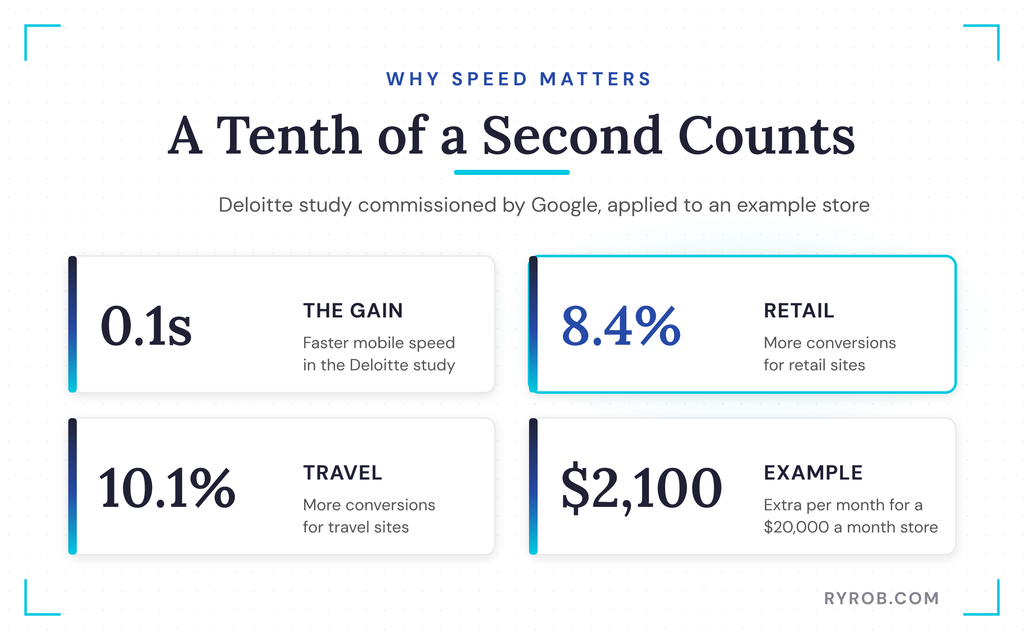
A Google-commissioned Deloitte study, Milliseconds Make Millions, found that a 0.1 second improvement in mobile site speed lifted conversions by 8.4% for retail sites and 10.1% for travel sites. A tenth of a second is faster than a blink, and it was enough to boost real sales figures by more than 8%.
Now imagine you paid for the ad click that brought someone to your site. When your pages load slowly, a lot of those people are gone before your business even shows up on their screen. You’d probably never know it happened, and the problem grows along with your traffic.
There’s a ranking angle here too. Because Google runs its own speed test, a slow site implies a harder time ranking in organic search, which also means fewer citations from AI tools like ChatGPT and Gemini. I dig into that second part in my guide on how to check your AI visibility.
Let’s put the Deloitte number to work with a store bringing in $20,000 a month. Apply that 8.4% lift in conversions, and that’s roughly $2,100 more per month from the same visitors you’re already paying to get. If you’re still building toward that kind of revenue, my guide on how to make money blogging is a good place to start.
One important note though. That study measured speed and sales in general and didn’t test WP Rocket or any other plugin, so plug in your own numbers and see what it could mean for you.
How to Test Your WordPress Site Speed
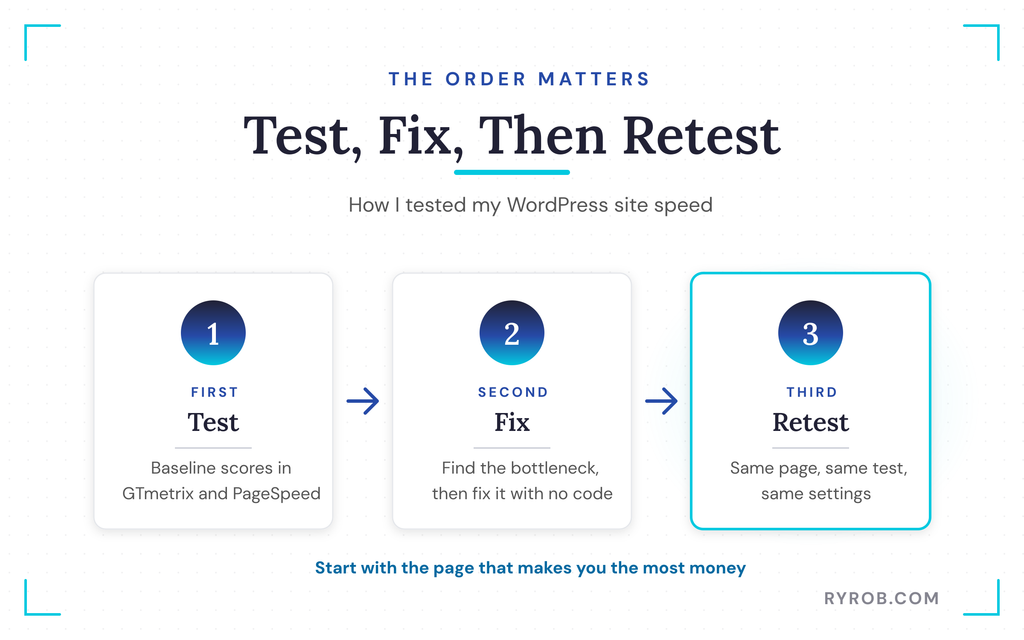
The order here matters. Test first, fix second and retest third, starting with the page that makes you the most money, which isn’t always your homepage.
1. Run GTmetrix and PageSpeed Insights
GTmetrix is my go-to for performance testing and benchmarking. I dropped my URL in, and Hike with Ryan scored a C, 74% out of 100, with a fully loaded time of 3.6 seconds and a largest contentful paint of 2.9 seconds. Most of the critical factors came back yellow, with a few reds mixed in.
Then I ran PageSpeed Insights, Google’s own testing tool, and my site failed the test on mobile. Because that test comes from Google itself, it’s a strong signal about how your site will perform in search, which makes speed part of any solid blog SEO strategy.
If you want to go deeper on running accurate tests, my GTmetrix speed test walkthrough breaks the whole process down. It’s a good companion to the steps here.
2. Read Your Core Web Vitals
Those three-letter acronyms sound super technical. Here’s what each of the Core Web Vitals means for an actual visitor.
- LCP, or Largest Contentful Paint, is how long it takes the main thing on the page to show up.
- INP, or Interaction to Next Paint, is how quickly the page responds when someone taps a button.
- CLS, or Cumulative Layout Shift, is that annoying jump when the page moves right as you’re trying to click something.
Google’s Chromium team found that when a site meets the Core Web Vitals thresholds, users are 24% less likely to abandon the page while it loads. That says a lot about our attention spans these days.
3. Find the Real Bottleneck
Back in GTmetrix, the Structure tab ranks your performance problems by impact. Right at the top of my list was “avoid enormous network payloads.” One thing I like about GTmetrix compared to Google’s tool is that it explains what every issue means, with links to guides and tools for fixing them.
Expanding that item showed the problem clearly, and it was large, unoptimized image files. High resolution images are big, and they transfer a lot of data from your server to every visitor. The Waterfall tab told the same story in order, showing every file the page loads one after another with images holding everything up.
Most of what’s on these lists is stuff site owners never see. That’s exactly why it goes unfixed for years.
How to Speed Up a WordPress Site With WP Rocket
Once you know your bottleneck, the fix is refreshingly boring. Here’s exactly what I did, in order.
1. Install and Activate WP Rocket
I uploaded this WordPress caching plugin to my site and hit activate. That’s it.
The moment it’s switched on, WP Rocket applies a batch of speed optimization best practices across the entire site automatically. That includes page caching, a browser cache for repeat visitors and gzip compression, all without opening a single settings window. The makers say that covers about 80% of web performance best practices right out of the box, and you don’t need a developer for any of it.
2. Turn On Rocket Insights Recommendations
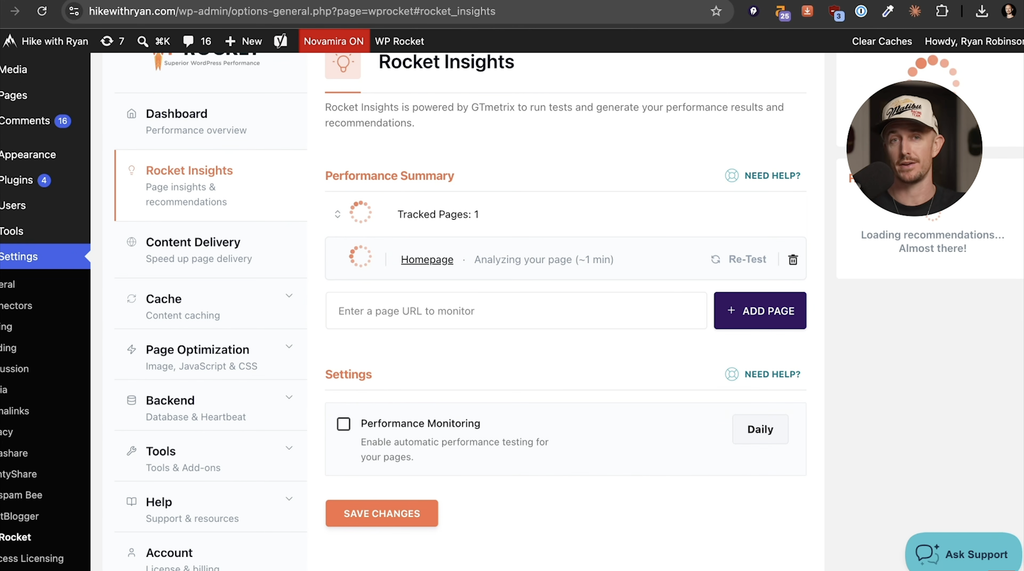
Next, I opened Rocket Insights, the performance hub inside the plugin. It tracks the pages you care about and tells you which features to turn on next. For my site it recommended three things, and I turned them on one at a time.
- Remove unused CSS, which optimizes the page better.
- Load JavaScript deferred, which loads the page in sequential order as someone scrolls through it.
- Lazy load CSS background images, which handles the image side almost entirely because images don’t load until someone reaches that part of the page.
Enabling one at a time means you know what changed what. All of these added up made quite a difference. If you’d rather hand this kind of tuning to AI, I also tested connecting WordPress to Claude on another site.
3. Check That Nothing Broke
This is the part that always scared me about speed plugins, so I did a sanity check before retesting. Same theme, same other plugins, and the site still works the way it always did. The menu opens, the pages look right and the photos load where they should.
The plugin is built to play nicely with the rest of the WordPress ecosystem, so you can keep the setup you already have instead of rebuilding around a speed tool. That ease is a big reason I teamed up with WP Rocket for this test. If you want to run it on your own site, WP Rocket’s Black Friday deal is live right now.
My Speed Results Before and After WP Rocket
Same page, same test, same settings. GTmetrix first, and the numbers moved in a big way.
| Metric | Before | After |
|---|---|---|
| GTmetrix grade | C | A |
| Performance score | 74% | 99% |
| Fully loaded time | 3.6 seconds | 1 second |
An A at 99% is about as high as any site realistically needs to be. LCP, TBT and CLS all moved in the right direction too, and as long as your LCP is under 1 second and in the green, you’ve got a really fast site.
That “avoid enormous network payloads” item now looks much better, and I never changed my image file sizes. They’re just being served in a more compressed, optimized way.
All of that came from literally clicking a few buttons. Some of it switched on automatically, some came from Rocket Insights, and one item is a separate job entirely, which I’ll cover next.
What to Know Before You Try This
A few honest caveats before you run the same experiment on your own site. Every way to speed up a WordPress site depends on what you’re starting with.
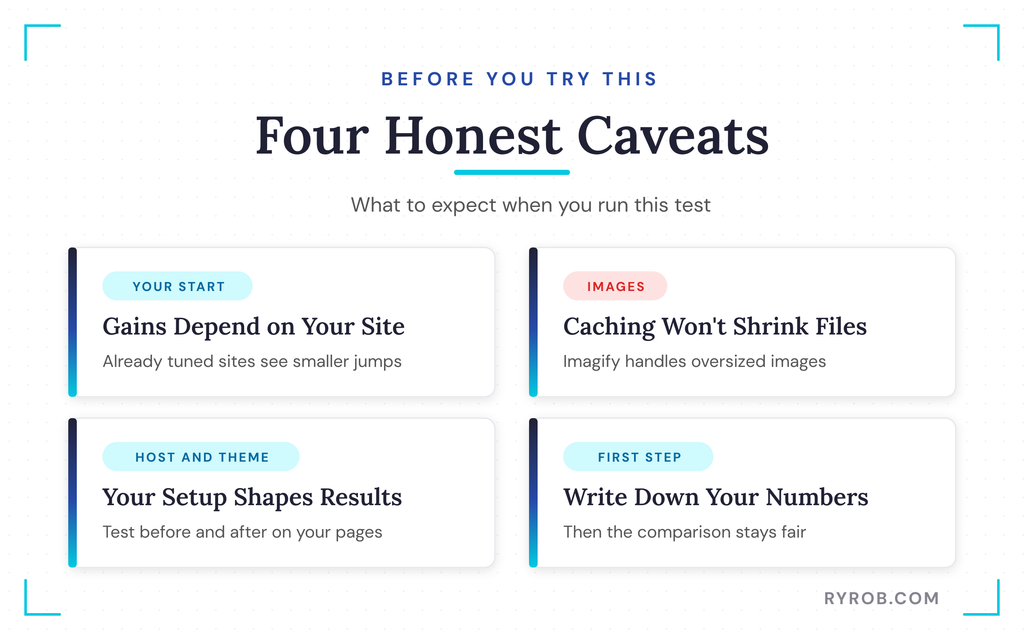
My test site has a lot of big photos, so your gains might be smaller in some areas if your site is already tuned for that. That’s a good sign, because it means you’re ahead. If you’re still setting up your site, my guide on how to start a blog covers the foundation decisions first.
The plugin speeds up how your pages load, but it doesn’t compress oversized image files. If your images are huge, that’s a separate fix worth doing, and the good news is it recommends Imagify right inside its dashboard for exactly that kind of image compression.
Results also depend on your hosting provider and your theme. Test your own pages before and after, exactly like I did, so you’re comparing apples to apples. If you’re weighing hosts, my WordPress hosting comparison shows how the big options stack up.
When you’re ready to run it yourself, WP Rocket offers a 14-day free trial. Write down your starting numbers first so the before and after is easy to compare.
FAQs on Speeding Up a WordPress Site
Here are the questions I hear most about this kind of test.
Is WP Rocket Good for Beginners?
Yes. Installing and activating it applied page caching, browser caching and gzip compression automatically, with no code and no settings windows. The Rocket Insights hub then tells you exactly which features to turn on next, so you’re not guessing.
How Fast Should a WordPress Site Load?
In my test, an LCP under 1 second and in the green meant a really fast site. My page finished fully loading in 1 second flat, and an A grade at 99% was as high as it realistically needed to be.
Do I Still Need Image Optimization If I Use a Caching Plugin?
You do. Caching and lazy loading made my images load much faster without changing their file sizes, but compressing oversized image files is a separate job. The plugin recommends Imagify for it.
Will a Speed Plugin Break My Site?
In my test, no. Same theme, same plugins, the menu works, the pages look right and the photos load where they should. It’s designed to work alongside the rest of the WordPress ecosystem.
Final Thoughts on a Faster WordPress Site
Here’s the whole WordPress speed optimization process in four steps. Test your most important page in GTmetrix and PageSpeed Insights and write the numbers down, then install WP Rocket and turn on what Rocket Insights recommends. Finally, retest the same page with the same settings so the comparison is fair.
The payoff for me was 3.6 seconds down to 1 second, and a C up to an A, with zero code changes. Once your site’s fast, the next question is whether people can actually find it, including inside ChatGPT and Gemini. That’s exactly what I’m testing next, so drop your own before and after scores in the comments.
Speed Up Your Site in a Few Clicks With WP Rocket
WP Rocket is the plugin I used to take my hiking site from a C to an A without touching code. Caching switched on the moment I activated it, and Rocket Insights showed me exactly what to turn on next. You can try it free for 14 days, and there’s a Black Friday deal running right now!
