

My site Creator to Company outgrew its web host months ago, and I still kept putting off the move. I knew I needed to migrate WordPress to a new host, but a live site felt like the one job where a small mistake could mean downtime for the whole thing. So it just sat there.
That fear turns out to be the myth worth busting. Migrating WordPress isn’t technically complex or time consuming when you do it in the right order… and one simple check keeps the whole thing safe.
This week I finally made the switch. The scariest part of it happened somewhere no visitor could ever see. Here’s the video walkthrough of my move, from support ticket to speed test.
Key Takeaways on How to Migrate WordPress to a New Host
- Let a migration team do the heavy lifting. A free hosting.com migration only needs a login for your old host or a backup of your site. Most moves land between 30 minutes and 48 hours, and mine took about a day.
- Proof the copy on a preview URL first. Your real site keeps running untouched on the old host while you test.
- Change the A record instead of your nameservers. That one choice is what protects your custom email.
- Benchmark your speed before you switch. A GTmetrix test on the old host gives you an honest number to compare against.
- Keep the old host for a week or two. Cancel only after the new setup has proven itself.
Get a Done-for-You Site Migration With hosting.com
I already run several sites and apps on hosting.com, so moving this one there was an easy call. Their migration team did the move for free while I did the testing. Use code RYROB through December 4, 2026 for my Black Friday discount!
Signs Your WordPress Site Has Outgrown Its Host
Most of us pick a web host when a site is brand new, and then the site keeps growing, at least if things go well. Pages get heavier, more visitors show up, and more customers start transacting on your site.
At some point, the plan that was fine on day one starts to feel slow. That’s exactly where I was with Creator to Company, and I’d known it for months without doing a thing about it.
Black Friday pricing is usually what finally gets people to switch, but the deal is rarely what holds them back. It’s the belief that a WordPress migration is technically complex or time consuming. If you’re still choosing where to land, my WordPress hosting comparison lines up four popular hosts side by side.
The good news is that learning how to migrate WordPress to a new host takes far less effort than living with a slow one. Once you see the steps laid out, the move stops feeling like a gamble.
Where a WordPress Migration Usually Goes Wrong
A website migration tends to break in one of three places. Every step I took was built to close them, much like the WordPress hosting mistakes I’ve learned to avoid the hard way.
- Something gets left behind. A database, an uploads folder or the settings behind a contact form go missing, and you might not notice right away.
- The domain switches before anyone checks the copy. Visitors find the problems before you do, and a broken live site means downtime while you scramble.
- Custom email records get wiped. Your inbox goes quiet without a single error message to warn you.
That third one is the sneakiest, because nothing looks broken on the website itself. You only notice when the replies you were expecting never show up.
Migrate WordPress to a New Host With a Free Migration Team
Below is the WordPress migration process I used, start to finish. The new home is hosting.com, a platform I already knew and liked going in.
I’d been running several sites there already, plus a few AI-built apps. I’m on the Pro plan, which they tag as their most popular, with room for up to 10 websites and staging environments built in for testing changes before they go live.
What I Handed Over to Start the Move
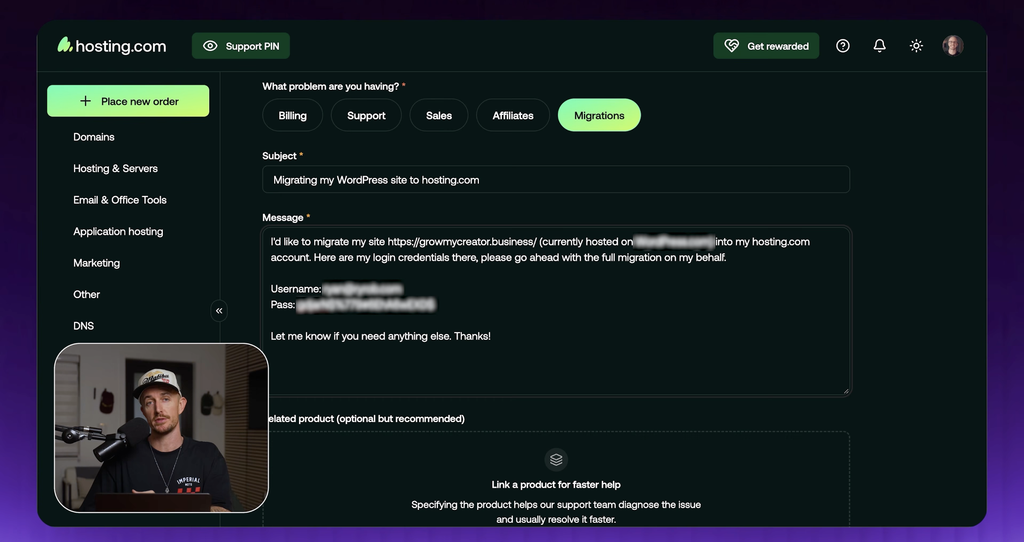
The whole request went through hosting.com’s support ticket system. I opened a new ticket, clicked the migrations tab to flag it for the right team, and linked it to my WordPress hosting plan.
Then I gave them two things, the login credentials for my old hosting provider and the domain I was moving. They’ll also accept a full backup of your site instead, but I didn’t want to deal with backups, so I just handed over a way in.
The migration is free with the plan, and the ticket gives you a clean interface for tracking updates. That really was my whole job at this stage.
My move did hit one snag. Login credential issues on my old host slowed the transfer, so mine took about a day. Hosting.com says most migrations land somewhere between 30 minutes and 48 hours.
Proofing the Site Copy on a Preview URL
This is the check that makes the whole move safe. Before the domain points anywhere new, the copy of your site lives on a preview URL, which is a temporary address that isn’t linked from anywhere.
Your real site stays untouched on the old host the entire time. If something’s wrong in the new setup, visitors simply never see it. SEO teams lean on the same idea before big launches, and this list of pre-launch migration checks is worth a skim.
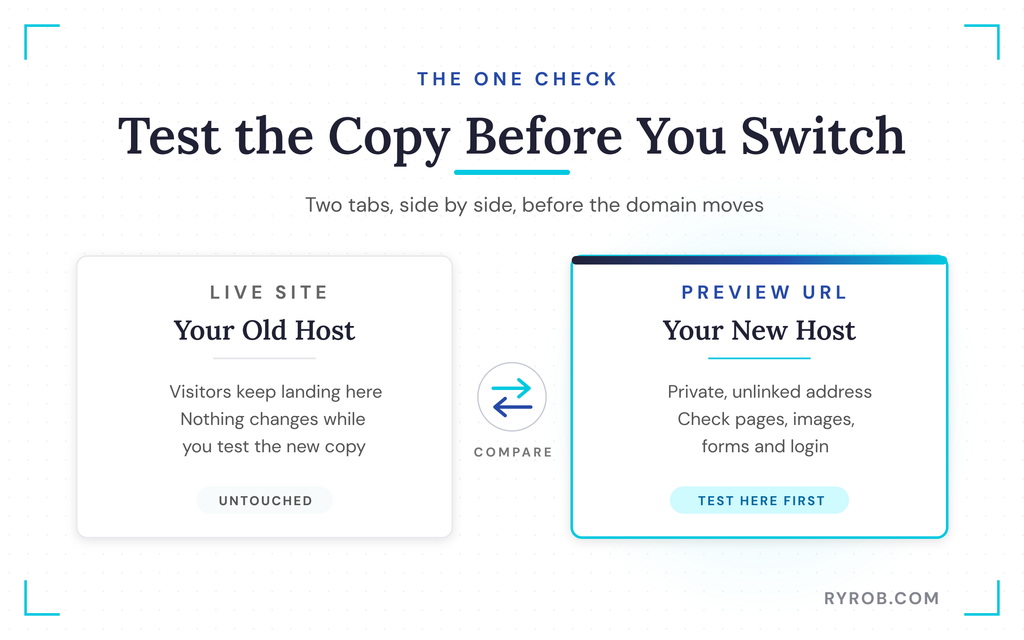
I opened the preview link in one tab and my live site in another, then clicked through both like a real visitor would. I was hunting for broken images, missing fonts and layouts that shifted, starting with the homepage and then my most visited pages.
A few things needed attention.
- Keyboard emoji. The original site used emoji straight from the emoji keyboard, and those didn’t carry over. They’re easy to recreate in the new editor.
- My email signup form. The form for joining my list and community disappeared, since form builders rarely translate between builders.
- One broken graphic. A graphic in my “how I work with people” section came through broken and knocked the formatting off with it.
- The premium page. It looked right, but since it’s a paid membership page, I had payments to reconnect before launch.
Rebuilding the form is a quick job, and I’ll double check it connects to where I keep my email list. Everything else checked out, including footer links, blog posts, formatting and even the WordPress comments.
The last check was logging into the WP admin area to confirm my credentials worked. Everything passed, minus a couple of small formatting items to clean up before launch.
One heads up if your site runs on WordPress. On a temporary preview address, a link or two can jump back to your live domain because the site still thinks that’s where it lives. Hosting.com’s help docs mention this, and it clears up after the switch.
Doing It Yourself With a Backup Plugin
You can absolutely migrate WordPress to a new host yourself. The usual route is taking a full backup of your files plus your database, uploading both to the new host, connecting the two back together and testing.
On WordPress, backup plugins package all of that into a single file. Hosting.com’s migration team accepts those backup files too, so it’s a handy middle ground.
A migration plugin like Duplicator is a common pick for this. It packages your whole site, database included, into one archive plus an installer.php file that you run on the new server.
If you go fully manual, you’ll usually export your database through phpMyAdmin, which most hosts keep inside cPanel. Then you upload your files over FTP or a file manager, import the database on the new server and update wp-config.php with the new database details.
Once the site loads, re-save your permalinks in the WordPress dashboard so your links don’t break. If you hit a database connection error, the fix is almost always in wp-config.php.
Doing it yourself makes sense if you like knowing every step or you’ve only got one small site. With a site that earns money, I’d rather pay for managed hosting with a team that does this every day, while I handle the testing.
Pointing Your Domain Without Breaking Email
Once the site copy checks out, there are two jobs left. You need to point the domain at the new host, then find out whether the move actually made anything faster.
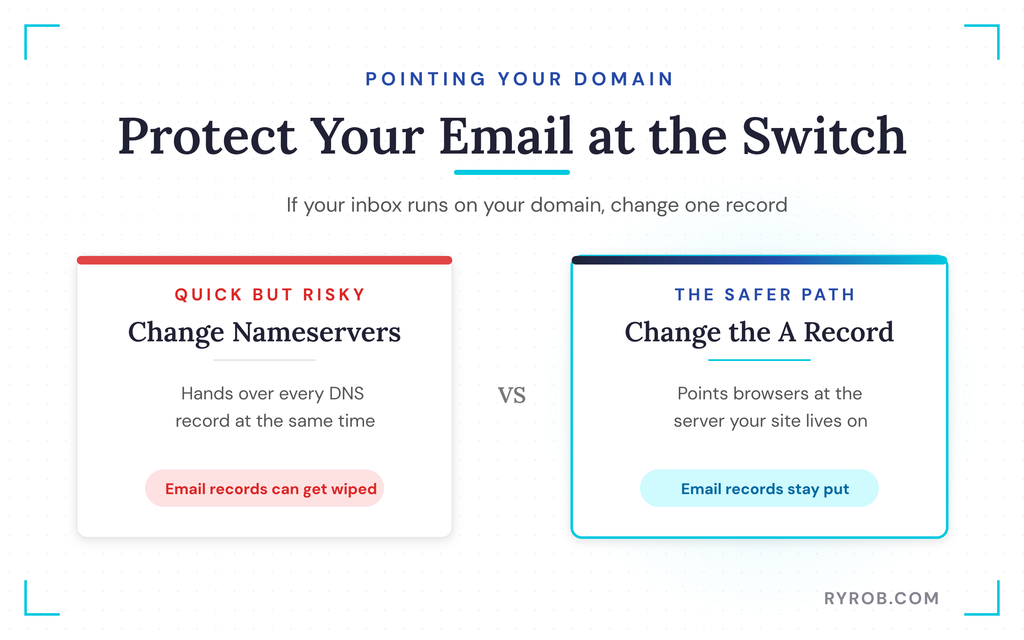
My domain is registered somewhere else, so I had two ways to point it. Changing the nameservers hands over every single record at once, which is quick but can wipe out your email records.
That’s a real problem if your email runs on your custom domain through Google Workspace or your hosting provider. The safer path is changing one record instead, called the A record, which points browsers at the IP address of the server your site lives on.
In my hosting.com dashboard, a “ready to go live” prompt walked me through the switch. I moved the site from the temporary preview URL to my real domain, then copied the CNAME record and the TXT records for SSL and the hostname.
I pasted those DNS records into the DNS area at my old host, deleting the old entries and adding the new ones. Then the waiting began.
DNS propagation isn’t instant, and hosting.com says a change like this can take 15 minutes to 48 hours to reach everybody. I’d lowered my domain’s TTL setting the day before, so mine was through in about 20 minutes.
After the switch, I checked for the padlock in the address bar. Hosting.com installs a free SSL certificate automatically, so if yours takes a little while to show up, give it some time before you worry.
While I waited, I also tried Orbi, the AI support agent hosting.com recently rolled out inside your account. I asked it to confirm my migration was done, and it confirmed the copy, handed me the preview link and offered to walk me through the DNS change.
Having that kind of help on hand is a big part of why I teamed up with hosting.com for this move. Their Black Friday sale runs through December 4, 2026, and code RYROB adds my discount to hosting.com’s Pro plan.
Speed Test Results Before and After the Move
This was the question I cared about most. Did moving this site actually make it any faster?
Before I switched anything, I tested my homepage on the old host with GTmetrix, the free speed testing tool I’ve used to benchmark sites for years. Then I ran the exact same test on the same page once the domain pointed at hosting.com.
| Metric | Old Host | New Host |
|---|---|---|
| GTmetrix grade | B | A |
| Performance score | 82% | 98% |
| Fully loaded time | 2.8 seconds | 1.1 seconds |
The old host wasn’t terrible, but the LCP, or Largest Contentful Paint, sat in the red at 2.6 seconds. That’s how long the main content took to show up for visitors.
On the new host, the whole page fully loads in 1.1 seconds, right on par with what benchmarks say a fast website should hit. LCP is one of Google’s Core Web Vitals, and heavy images often drive it, so it’s worth watching after any move.
That matters beyond bragging rights. Page speed feeds into Google’s page experience signals, so a faster site helps your search traffic as well as your user experience.
Keep in mind this is one page on one site, so I can’t promise you the same result. Run the test before and after you migrate WordPress to a new host, and clear any caching first so you’re not measuring stale pages.
A new host also won’t fix a heavy site. Huge images will still be huge on the new server. The upside is that’s a fix you can knock out in an afternoon, and I walk through how to speed up WordPress in a separate guide.
My Checklist for Any WordPress Host Migration
I’d run this exact list any time I migrate WordPress to a new host. The order matters as much as the steps.
- Take your own full backup first. Keep it somewhere safe that you control, even when a team handles the move.
- Lower your TTL a day ahead. That setting decides how fast a DNS change spreads, so lowering it early speeds up the switch.
- Proof the copy on the preview URL. Test pages, images, forms, login and any interactive elements, and click through internal links to catch 404 errors before they hurt your SEO.
- Flag what needs rebuilding. Note anything you’ll need to recreate or tweak before going live.
- Change only the A record. Leave your email records alone unless your email is moving too.
- Run your post-migration testing. Purge any caching, look for the SSL padlock, then run the same speed test again.
- Keep the old host running for a week or two. That buffer is your safety net before you cancel.
Once the switch is done, a fresh SEO audit after the migration helps catch anything the move quietly knocked loose. One pass is usually enough to know you’re in the clear.
For speed tuning beyond the host itself, my Google PageSpeed optimization guide picks up where step six leaves off. It covers the fixes I’d tackle next.
A couple of practical realities before you move. Sale prices cover your first term and renewals go to the regular rate, so put the renewal date in your calendar.
Don’t start a migration the night before a big launch, either. Mine took about a day from request to live site, which is quick, but it’s still a day of waiting.
FAQs About Migrating WordPress to a New Host
These are the questions I hear most from people about to make the same move.
How Long Does a WordPress Migration Take?
Hosting.com’s team says most migrations finish between 30 minutes and 48 hours. Mine took about a day, mostly because of credential issues on my old host. The DNS switch afterward can take another 15 minutes to 48 hours to fully propagate.
Will I Lose Traffic When I Switch Hosts?
Your domain stays the same, and you test the full copy on a preview URL while your live site keeps running. That keeps problems away from visitors while you fix them. I checked my blog posts, menus, links and comments on the preview before switching.
Can I Move My Site for Free?
Yes, in my case it cost nothing extra. WordPress hosting with free migration means you hand over a login for your old host or a backup of your site, and the team does the move.
Do I Need to Change My Domain Name?
No. Your domain stays registered exactly where it is, and you’re only pointing it at a new server. The safest way to do that is changing the A record rather than the nameservers.
What Happens to My Email During a Migration?
This is the step that can quietly break things. Changing nameservers hands over every record at once and can wipe your email records. Changing only the A record points your site to the new server while your email records stay untouched.
What If Something Goes Wrong After the Move?
All three hosting.com plans come with a 30-day money back guarantee. If the migration doesn’t work out, there’s a way back, and keeping your old host for a week or two gives you a second safety net.
Final Thoughts Before You Migrate WordPress to a New Host
The move I put off for months turned into a day of mostly waiting. The migration team handled the heavy lifting, and the preview URL let me catch a missing form and a broken graphic before a single visitor saw them.
The speed result was the cherry on top, going from a B with 2.8 second loads to an A at 1.1 seconds. Your real job when you migrate WordPress to a new host is testing, so proof the copy, protect your email with the A record and keep your benchmark numbers honest.
If you’ve been putting off a move like I was, my hosting.com Black Friday deal runs through December 4, 2026. Code RYROB adds my discount at checkout.
Once your site is fast, the next step is getting more people to see it. My guide on driving traffic to your blog picks up right there.
Get a Done-for-You Site Migration With hosting.com
I already run several sites and apps on hosting.com, so moving this one there was an easy call. Their migration team did the move for free while I did the testing. Use code RYROB through December 4, 2026 for my Black Friday discount!
