
So you’ve set up WordPress on your website — and now you’re scratching your head: how do I log in? If you visit your site, there’s no obvious “login” button anywhere. Welcome to the most common stumbling block for new WordPress users in 2026.
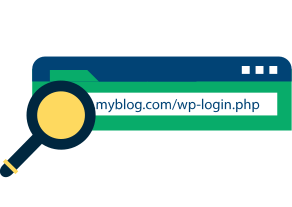
Fear not, here’s exactly how to login to WordPress. For almost all WordPress sites, your default login URL looks like this: yoursitename.com/wp-login.php which means adding /wp-login.php to the end of your blog’s homepage URL and hitting enter. You’ll be taken straight to your WordPress admin login page. If that doesn’t work, keep reading on for a deeper dive into getting your WordPress login situation dialed in.
As the WordPress admin, you’ll need to log in to your site in order to do things like:
- Add new posts or pages to your WordPress site.
- Update details like your contact information or About page.
- Moderate comments on your posts.
- Keep your WordPress plugins up to date.
- …and much more.
Trust me, I know… logging into your WordPress website can be a bit confusing when you’re a beginner. Don’t worry, though, it’s really easy when you know what to do. I’ll show you exactly how to log in to your WordPress admin area.
Important: These instructions are for self-hosted blogs using WordPress.org as the CMS, not for WordPress.com-managed websites. For the difference between those, check out my guide to WordPress.org vs WordPress.com.
How to Log in to WordPress Admin (Find Your WordPress Login URL)
- Where to Find Your WordPress Login URL
- What if That WordPress Login URL Doesn’t Work? (Troubleshooting)
- Common WordPress Login Problems (and How to Fix Them in 2026)
- What is Your WordPress Dashboard?
- What is Your WordPress Admin Area?
- Staying Logged In On WordPress (Remember Me)
- Adding a Login Link to Your WordPress Site
- How to Log Out of WordPress (in 1 Click)
- Making Your WordPress Login More Secure (2026)
- WordPress Login FAQ
- Final Thoughts
Disclosure: Please note that some of the links below are affiliate links and at no additional cost to you, I’ll earn a commission. Know that I only recommend products and services I’ve personally used and stand behind. When you use one of my affiliate links, the company compensates me, which helps me run this blog and keep my in-depth content free of charge for readers (like you).
Want My Free Blog Business Plan Template?
Grab my free blog business plan template in both Google Doc and PDF format (that’s helped me build a six-figure blog) and reach 500,000+ monthly readers today.
"*" indicates required fields
Where to Find Your WordPress Login URL
When you set up WordPress, you should have received an email letting you know your WordPress login URL. But don’t worry if you can’t find that message.
For almost all WordPress sites, your login URL looks like this:
yoursitename.com/wp-login.php
So if your site’s domain name is johngrahamdaniels.com then your WordPress login is johngrahamdaniels.com/wp-login.php
If your domain name is lovelondonlovelife.com then your WordPress login is lovelondonlovelife.com/wp-login.php
If your domain name is earthmomsunited.org then your WordPress login is earthmomsunited.org/wp-login.php
I’m sure you get it! To get to your WordPress admin login page, just:
- Type the domain name of your website into your browser’s address bar
- Add /wp-login.php at the end
- Hit enter
…and you should be taken straight to your WordPress login page. It’ll look like this:
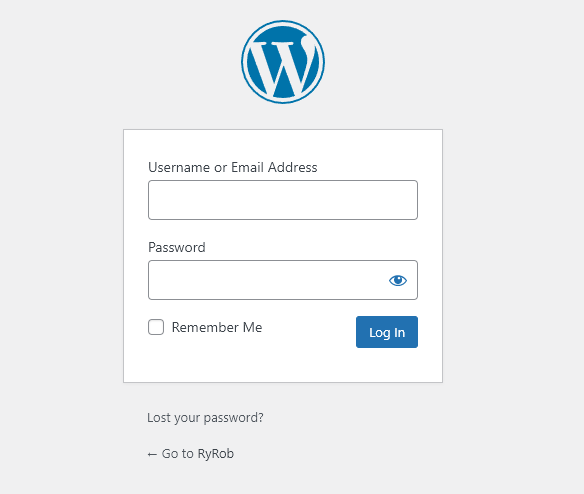
All you need to do now is enter your login details. That’s your email address (or WordPress username) along with your password.
(Note that your login credentials for your WordPress admin are not necessarily the same as your web hosting or cPanel username and password.)
If you’ve forgotten your WordPress password, use the “Lost your password?” link below the login box. This will send you an email with a special link to create a new password.
Tip: Is the login URL hard to remember? You can also get to yoursitename.com/wp-login.php by using the shorter and simpler URL yoursitename.com/login – this redirects to the login page.
Once you’ve logged in, you’ll be taken to your WordPress admin dashboard—the homepage of your WordPress admin area. The URL for this is example.com/wp-admin in most cases.
What if That WordPress Login URL Doesn’t Work? (Troubleshooting)
In a small number of cases, typing yoursitename.com/wp-login.php into your URL bar may bring up a page like this:
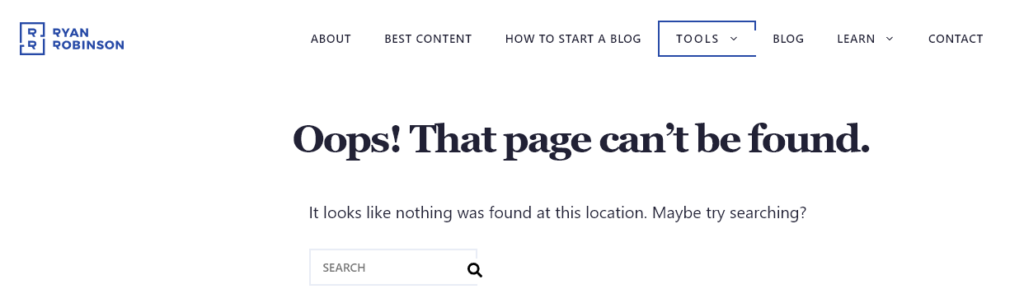
The login URL doesn’t work: you see an error message instead of the login screen. So what can you do next?
There are a couple of possibilities to try out here. WordPress may have been installed in a subdirectory or on a subdomain of your website.
WordPress in a Subdirectory
A subdirectory or subfolder is a folder within your website. You’ll see your website’s URL, a forward slash, then the subdirectory name.
For instance, a subdirectory might be called “blog” or “WordPress” like this:
- yoursitename.com/blog
- yoursitename.com/wordpress
If only part of your website runs on WordPress, then WordPress may be installed in a subdirectory.
In this case, your WordPress login URL will include the subdirectory. It will look something like this:
yoursitename.com/blog/wp-login.php
WordPress in a Subdomain
If you still can’t access your WordPress login page, then perhaps WordPress is installed on a subdomain.
A subdomain is another way to separate parts of a site. It goes before the URL. It might look like this:
blog.yoursitename.com
Subdomains are sometimes used for WordPress installations if several people are sharing a main domain. For instance, you might have subdomains like this:
jennifer.yoursitename.com
david.yoursitename.com
alex.yoursitename.com
If WordPress is installed on a subdomain, you need to use the whole URL of your subdomain before adding /wp-login.php, like this:
jennifer.yoursitename.com/wp-login.php
Tip: You may be able to check your site’s subdirectories and subdomains from cPanel or whatever system your web host uses for your hosting account’s admin.
Still Can’t Find Your WordPress Login URL? Get Help from Your WordPress Hosting Company
What if you’ve tried all the above options but none of them are your WordPress login URL?
It’s time to get help from your web hosting company. The support team there should be able to find your WordPress login URL for you and help you with the login process.
If you’re with Bluehost or Dreamhost (my top recommended web hosting providers), then you can find their support contact details here:
- Bluehost support (live chat and phone support)
- Dreamhost support (you’ll need to log in to your Dreamhost account to access this)
Common WordPress Login Problems (and How to Fix Them in 2026)
Beyond the wrong-URL issue covered above, there are a handful of login problems I see come up regularly in 2026. Here’s how to diagnose each one fast.
“Too Many Failed Login Attempts” Lockout
If you’ve typed your password wrong a few times, many security plugins (Wordfence, Solid Security, Limit Login Attempts) will temporarily block your IP address from the login page. You’ll see a message like “You’ve tried to log in too many times. Please try again later.”
Wait 15–20 minutes and try again. If you’re truly locked out, log into your hosting account and either temporarily disable the security plugin via FTP/file manager, or have your host whitelist your current IP address.
Cloudflare or Firewall Blocking the Login Page
If your site sits behind Cloudflare or a host-level firewall, login requests can sometimes be flagged as suspicious traffic, especially if you’re on a VPN or in a location far from your usual IP. You’ll see a Cloudflare challenge page or a “403 Forbidden” error before you can even reach the login form.
Disable your VPN if you’re using one. If the block persists, log into your Cloudflare dashboard (or contact your host) and add your current IP to the firewall allowlist for /wp-login.php and /wp-admin/.
Browser Password Manager Auto-Filling the Wrong Credentials
This one’s sneaky. If you have multiple WordPress sites, browsers like Chrome and Safari sometimes auto-fill the wrong stored password without you noticing. The login fails, you blame your memory, and you spiral.
Open your browser’s saved passwords list (Chrome: chrome://settings/passwords), find the entry for your site’s domain, and verify it’s the right password. Or use a dedicated password manager like 1Password or Bitwarden, which is more reliable across multiple sites.
“This Site Can’t Be Reached” on the Login Page
If the login URL won’t even load (not a 404, but a connection error), the issue is usually DNS or hosting-level. Test your homepage yoursitename.com first. If the homepage works but the login URL doesn’t, your site’s WordPress installation may be corrupted or there’s an .htaccess issue. Contact your host’s support team.
Stuck in a Login Redirect Loop
You enter your credentials, the page reloads, and you’re back at the login screen instead of the dashboard. This is almost always a cookie or site-URL mismatch issue.
- Clear your browser cookies for the site (or open the login URL in a private window)
- Check that your site’s WordPress Address (URL) and Site Address (URL) settings match — if your site is at www.example.com, both fields need to use that exact format including
www - If you can’t reach the dashboard to fix this, edit
wp-config.phpvia FTP and add:define('WP_HOME','https://www.example.com');anddefine('WP_SITEURL','https://www.example.com');
The site URL mismatch is the single most common cause of redirect loops, and it’s often triggered by switching between www and non-www, or by a recent 301 redirect change.
What is Your WordPress Dashboard?
Your WordPress dashboard is the page you see when you log in to WordPress. It includes quick links to key features and also has information about any recent WordPress updates.
You can customize your dashboard (and some themes show different options), but it should look something like this:
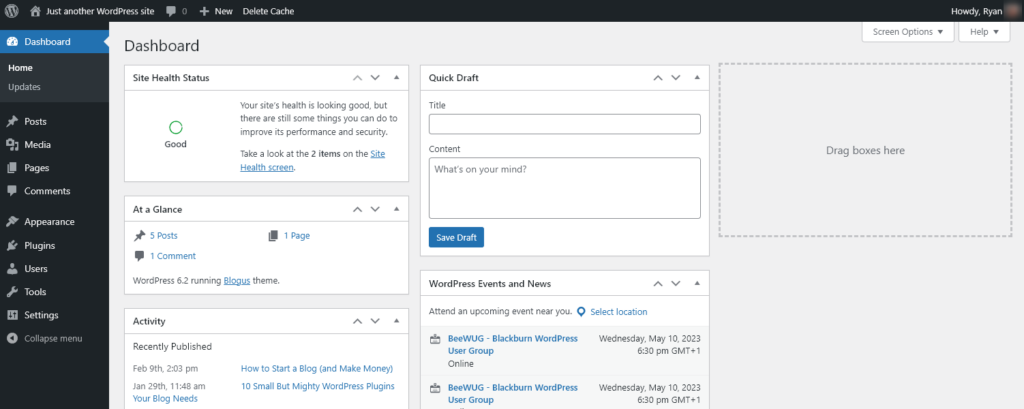
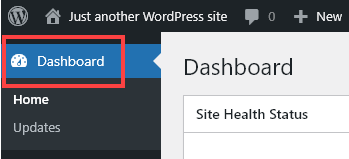
You can get back to your dashboard at any time by clicking the Dashboard link on the top right:
What is Your WordPress Admin Area?
Your WordPress admin area is the whole back end of your site. It’s everything you see when you’re logged in, with links to various options down the left-hand side of your screen. The admin area includes the dashboard page and every other page you can access here.
For instance, your admin area lets you add posts and pages, change your theme, install plugins, carry out maintenance tasks like updates, add new users to your site, change your WordPress settings, and much more.
Staying Logged In On WordPress (Remember Me)
It can be annoying to have to fill out the login form every single time you want to publish a blog post or make a quick change to your site.
You can get WordPress to remember you when you log in by checking the “Remember Me” box before you click the “Log In” button. That way, you’ll stay logged in on your computer.
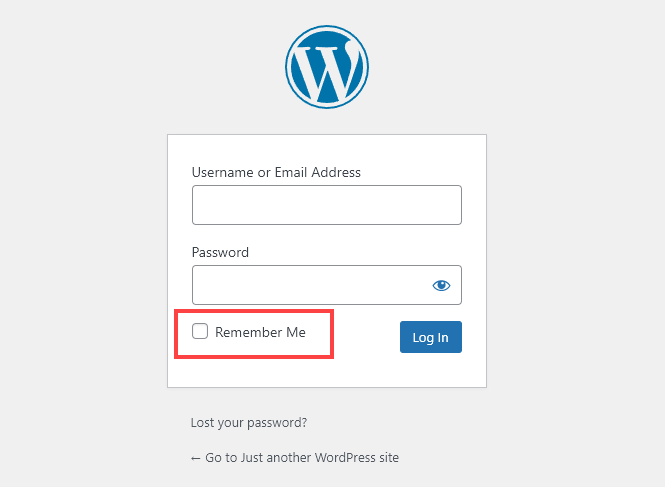
Important: Don’t use this checkbox if you’re accessing your site from a public or shared computer.
Adding a Login Link to Your WordPress Site
Maybe you’re struggling to remember your WordPress login URL. One option is to bookmark the login page on your browser. But what if other writers, editors, or assistants need to access your site?
You can add a login link to your WordPress site. The simplest way to do this is to add the built-in “Meta” widget to your sidebar or footer.
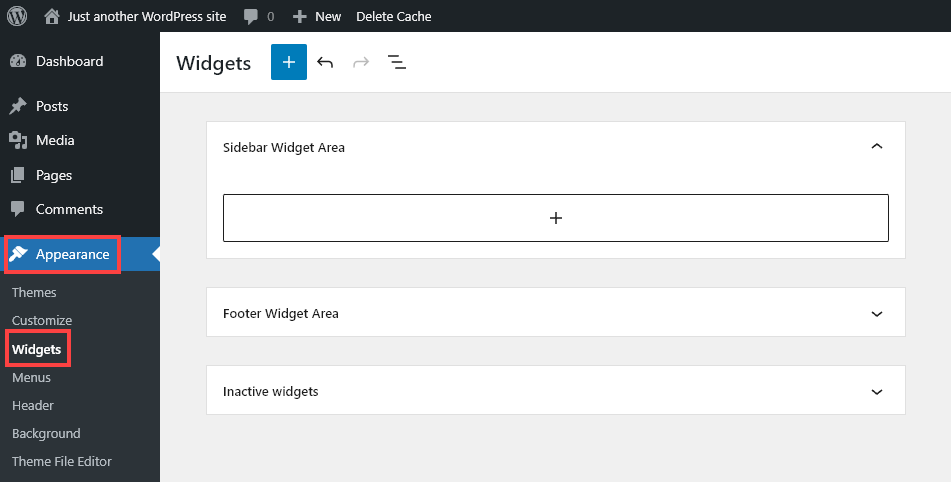
Go to Appearance→Widgets, then click the “Add Block” button for either your Sidebar Widget Area or your Footer Widget Area.
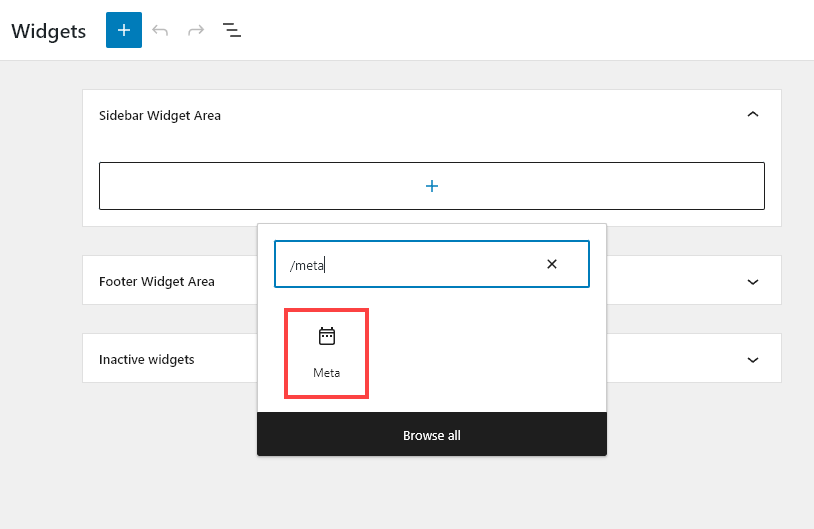
Next, select the “Meta” widget. You can do this either using the “Browse All” option or by typing /meta into the search bar.
You can then give your widget a title, e.g. “Admin Links”. Make sure you hit the “Update” button on the top right to save your changes.
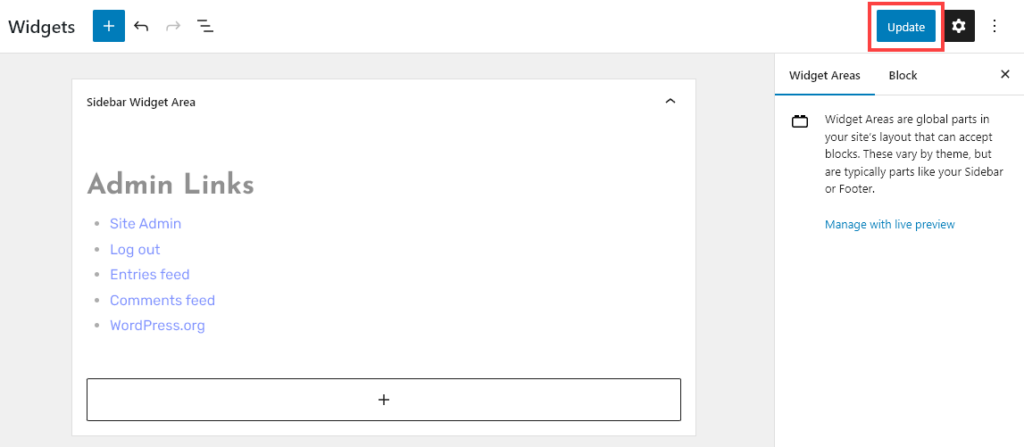
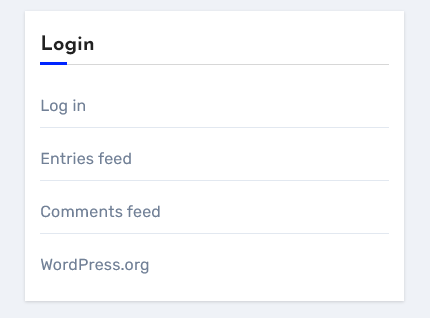
When you’re logged out, your meta widget will display like this, with the “Log in” link at the top:
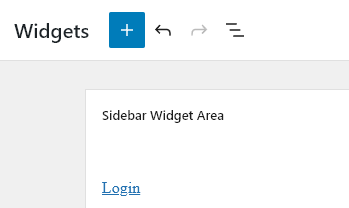
If you don’t want to have multiple different links, another option is to add a “Paragraph” widget to your sidebar or footer. Type in “Login” and make that word a link to your login page:
How to Log Out of WordPress (in 1 Click)
You’ve logged in … but how do you log back out again?
In many cases, it’s fine to leave your admin account logged in to WordPress. If you’re using your own computer or device, there’s generally no need to log out – especially if your computer/device is password-protected.
If you’re using a public computer or shared computer, however, it’s important for your WordPress security to log out once you’re done.
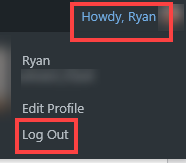
Many WordPress users get stuck trying to find the log out link. It’s not at all obvious! To get to it, you need to hover your mouse over the “Howdy, Name” link at the top right of your WordPress admin area.
You’ll then see a small dropdown menu with the “Log Out” option.
Tip: You don’t need to log out in order to see how your website looks to a regular visitor. Just use an Incognito browser window instead to view your site.
Making Your WordPress Login More Secure (2026)
WordPress login forms are constantly hammered by brute-force attacks — bots trying common username/password combinations to break in. The good news: locking down your login is one of the easiest security wins you can make. Here’s the modern 2026 stack I recommend.
1. Use a Strong, Unique Password
Generate a 16+ character random password using a password manager (1Password, Bitwarden, or even your browser’s built-in generator). Never reuse a password across sites. WordPress’s default “strong password” generator on the user-edit screen is also fine if you store the result properly.
2. Enable Two-Factor Authentication (2FA)
2FA adds a second login step (a code from your phone’s authenticator app) so even if a password leaks, attackers can’t get in. Solid recommendations:
- WP 2FA (free) — supports any TOTP authenticator app
- Two-Factor (free, by core WP contributors)
- Wordfence Login Security — if you already use Wordfence for general security
3. Use Application Passwords for API Access (Not Your Main Login)
If you connect WordPress to anything via REST API (Zapier, content tools, deployment scripts, RightBlogger), use Application Passwords rather than your real password. WordPress 5.6+ has them built in: go to Users → Profile and scroll to the Application Passwords section. Each app gets its own revocable token.
4. Limit Login Attempts
Block IPs after too many failed logins. Most security plugins do this automatically:
- Limit Login Attempts Reloaded (free, lightweight, focused)
- Wordfence or Solid Security (free + paid; broader feature set including 2FA, firewall, file scanning)
- Sucuri Security (free version available; the paid CDN+WAF is excellent for high-traffic sites)
5. Always Run HTTPS
An SSL certificate encrypts the connection between your browser and your site, so login credentials can’t be intercepted on public Wi-Fi. In 2026, every reputable host (including Bluehost and Dreamhost) provides free SSL certificates with one-click setup. There’s no excuse not to.
6. Advanced: Move or Restrict the Login URL
If you want to make your login page harder for bots to find, you can:
- Use a plugin like WPS Hide Login to change the login URL from
/wp-login.phpto something custom (e.g./secret-door). Note this is security-through-obscurity, not a real defense, but it does cut bot traffic. - Restrict
/wp-admin/access to specific IP addresses via your.htaccessfile or your host’s firewall rules. Best for single-author sites with a static work IP. - Put the login page behind Cloudflare’s Turnstile CAPTCHA — free, lightweight, and effective against most bot traffic.
WordPress Login Frequently Asked Questions
How do I log in to my WordPress website?
Add /wp-login.php to the end of your domain name (so yoursitename.com/wp-login.php) and hit Enter. Type in your WordPress username or email and password. That’s it. If the URL doesn’t work, see the troubleshooting section above for subdirectory and subdomain installs.
Why can’t I log in to my WordPress site?
The four most common reasons in 2026: (1) wrong login URL (try the troubleshooting section above), (2) wrong password (use the “Lost your password?” link), (3) IP locked out by a security plugin after too many failed attempts (wait 15–20 minutes), or (4) site URL mismatch causing a redirect loop (check the “Stuck in a Login Redirect Loop” fix above).
What is the login URL for a WordPress site?
For 95% of WordPress sites, it’s yoursitename.com/wp-login.php or the shortcut yoursitename.com/login. If WordPress is installed in a subdirectory (like yoursitename.com/blog/) or subdomain (like blog.yoursitename.com), include that in the URL before /wp-login.php.
What is my WordPress username and password?
Your WordPress username (and password) was set when WordPress was installed on your site. If you used a one-click WordPress install through your hosting provider, the credentials should have been emailed to you. If you can’t find that email, use “Lost your password?” on the login page — it sends a reset link to the admin email on file.
Is the WordPress.com login the same as my WordPress site login?
No. WordPress.com is the hosted, managed service — different from self-hosted WordPress (the WordPress.org software you install on your own host). If your blog runs on your own domain via Bluehost, Dreamhost, Kinsta, etc., you’re self-hosted and the login URL is yourdomain.com/wp-login.php, not anything on wordpress.com.
How do I log out of WordPress?
Hover over the “Howdy, [Name]” link in the top right corner of your admin area, then click “Log Out.” There’s no big visible logout button by default — it’s tucked into that hover menu. See the “How to Log Out of WordPress” section above for screenshots.
Final Thoughts
Logging into WordPress is genuinely simple once you know where the login URL lives — and the troubleshooting steps above will get you out of 99% of the situations where it doesn’t work the first time. Bookmark yoursitename.com/wp-login.php in your browser and you’ll never have to think about it again.
Once you’re logged in, the next step is making your blog actually look and work the way you want. I’ve got step-by-step WordPress tutorials to help you change your WordPress theme, install plugins, set up SEO-friendly permalinks, manage 301 redirects, and generate great blog post ideas to write about.
And if you’re still in the early stages, check out my complete guide on how to start a blog — it walks through the full WordPress setup including the install, hosting, and first-post workflow.
Want My Free Blog Business Plan Template?
Grab my free blog business plan template in both Google Doc and PDF format (that’s helped me build a six-figure blog) and reach 500,000+ monthly readers today.
"*" indicates required fields

This blog is an amazing one, the contents here are always very educative and useful, the reason I make it my regular blog of visit so as to widen my knowledge every day, thanks for always sharing useful and interesting information, you can checkout this I’ve always wondered about this! Loved your advice!! Thanks so much for sharing your expertise 🙂
Regards
Thank for sharing this informaton
This blog one of the mind opening blog related to WordPress information. Thanx for sharing valuable content.
This is an absolutely brilliant instruction – I accessed my website in seconds. Thank you very much.
I’d love some help with making my site more secure and with setting up a contact form. Can you do that, too?