Free Alt Text Generator: AI Image Alt Text for Accessibility & SEO
Still writing image alt text yourself? Come join us in the future with my free AI image alt text generator tool, to instantly write relevant, descriptive, SEO-friendly alternative text to go along with your online images. Outsource this repetitive task to artificial intelligence and help your content rank higher in organic search, as a result. Upload any image and get SEO-optimized image alt text from AI, in just one click.

Delivered Straight to Your Inbox
"*" indicates required fields
Use This Free Image Alt Text Generator to Instantly Write Descriptive, Keyword Rich Alt Text for Images on Your Blog or Website
This free AI-powered image alt text generator can instantly come up with alt text for any image. You don’t need to prompt it, just upload your image and the AI will do the rest.
If you’re here, you probably know you need alt text for your images … but you might not be quite sure why. So let’s quickly take a look at what alt text is and why it matters.
What is Alt Text … and Why is it Important?
Alt text is short for “alternative text”. If someone is visiting your website using a screen reader (usually because they’re visually impaired), then the screen reader will read out the alt text for the image. The alt text will also display if the image fails to load (e.g. because the image link is broken or because the user is on a very slow connection).
This means that alt text is really important for accessibility. If someone can’t see the images on your site, having a clear description in the alt text lets them know what that image shows—adding much-needed context.
But alt text is also important for SEO (search engine optimization). That’s because search engines can’t yet “read” images in the way they can read text. Having good, keyword-rich alt text is part of good blog SEO.
Good alt text will clearly describe the image and use keywords if appropriate.
How to Use the AI Alt Text Generator
It’s fast and easy to generate alt text with this tool. Here’s how.
Step 1. Upload Your Image
You’ll need a copy of your chosen image on your computer or device (you can’t link to it live on your website). It needs to be in .jpg, .png, or .gif format.
Tip: Got an image in a different format? Use this online converter to change it to a .jpg.
Once you have your image ready, go ahead and upload it to the tool.
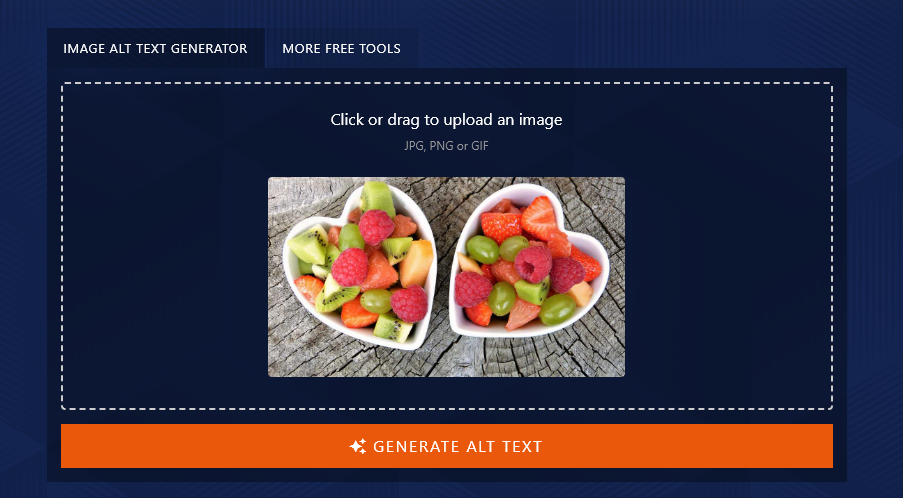
Step 2. Generate Your Alt Text
After you’ve uploaded your image, click the orange “Generate Alt Text” button. The AI will create a line of descriptive alt text for your image.
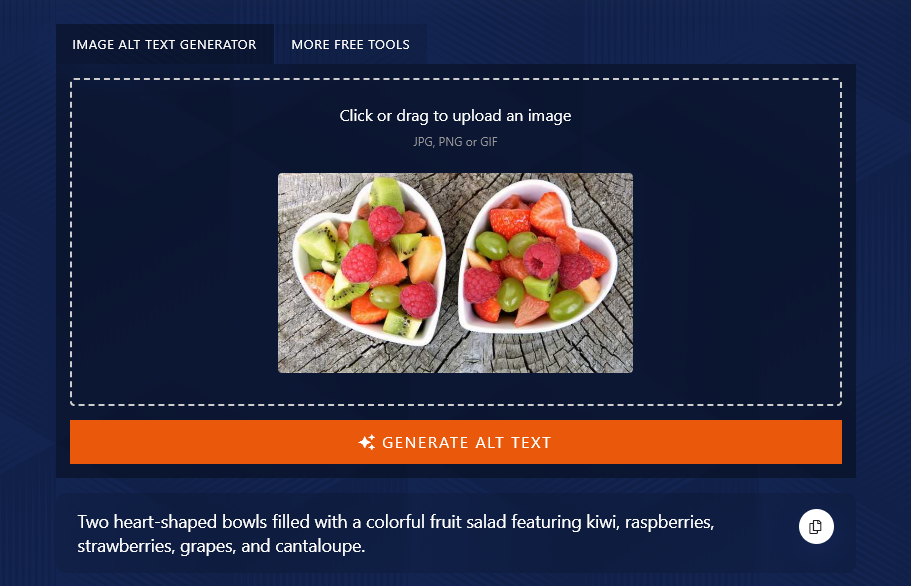
You can use the copy button to copy your alt text to your clipboard. Just click the button, then paste the alt text into your blog post (or a doc, if you want to edit the text).

Step 3. (Optional) Tweak Your Alt Text to Add Keywords
Sometimes, your alt text may already use your keywords. Other times, you may need to make some tweaks.
If you want, copy your AI-generated alt text into a blank document, and then change it to add your keyword. For instance, if we were optimizing for “easy fruit salad”, we might tweak the alt text like this:
Two heart-shaped white bowls filled with a colorful, easy fruit salad featuring kiwi, raspberries, strawberries, grapes, and cantaloupe.
Step 4. Add the Alt Text to Your Image
Finally, you just need to add the alt text to your image in WordPress (or whatever blogging/website platform you’re using).
In the block editor, click on your image. In the “Block” section on the right-hand side, you’ll see a box for “Alternative Text”. This is where you can paste in your alt text.
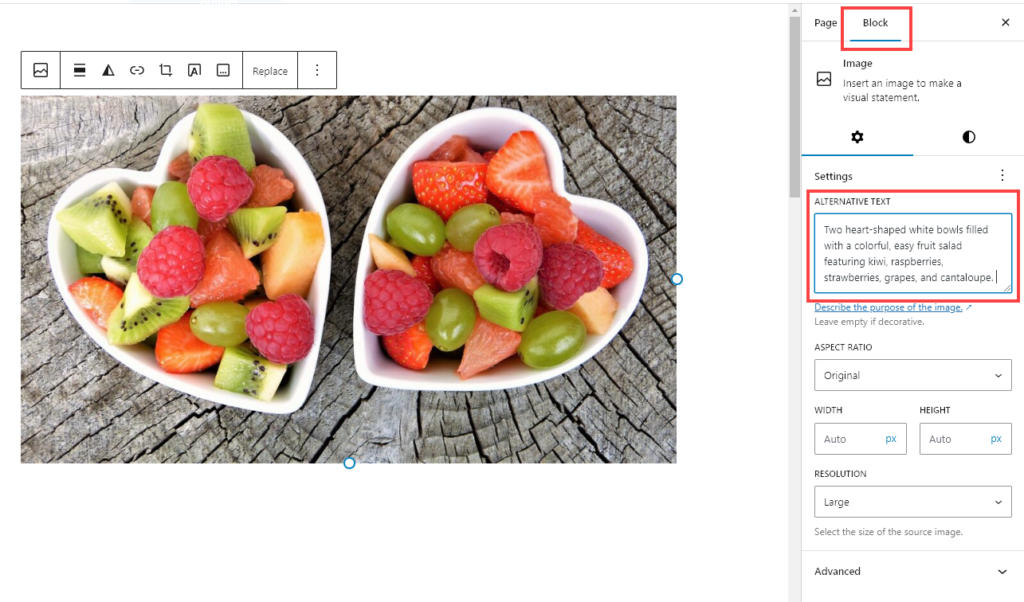
In other platforms and apps, you’ll follow a slightly different process—but there’ll be a way to do it! In Shopify, for instance, you can add alt text to your products from the product details page, by clicking to “preview media”.
Alt Text and Accessibility: WCAG, Screen Readers, and the ADA
Alt text started as an accessibility feature, and that is still its most important job. The SEO benefit is real, but it is a side effect. Understanding the accessibility side will make your alt text better at both.
What Screen Readers Actually Do With Alt Text
When someone uses a screen reader, the software reads your alt text aloud in place of the image. If the alt attribute is missing, the reader may announce the file name instead, which turns your carefully chosen photo into “IMG underscore 4471 dot jpg.” If the alt text is stuffed with keywords, that is what gets read out loud too. Write it as though you were describing the image to someone on the phone, because functionally that is what is happening.
The WCAG Standard (Success Criterion 1.1.1)
The Web Content Accessibility Guidelines are the international benchmark for accessible web content. The rule covering images is Success Criterion 1.1.1, Non-text Content, and it sits at Level A, the most basic conformance level. It requires that non-text content have a text alternative serving an equivalent purpose. In plain terms: every meaningful image needs alt text that conveys what the image conveys.
There is one useful exception. Purely decorative images (a divider, a background flourish, an icon that repeats adjacent text) should carry an empty alt attribute, written as alt="". That tells a screen reader to skip the image entirely rather than announce noise. Leaving the attribute off completely is not the same thing and is a common mistake.
Is Alt Text a Legal Requirement?
It depends who you are, and this is where a lot of blog posts get it wrong. The Department of Justice finalized a rule under Title II of the ADA that adopts WCAG 2.1 Level AA for web content, but Title II applies to state and local government entities, not to private blogs and businesses. In April 2026 the DOJ pushed those compliance dates back: entities serving populations of 50,000 or more now have until April 26, 2027, and smaller entities and special districts until April 26, 2028.
If you run a personal blog or a small business site, that particular rule almost certainly does not bind you. There is no equivalent federal regulation setting a WCAG standard for private websites. That said, WCAG is the benchmark that accessibility audits and lawsuits generally reference, and adding alt text is one of the cheapest, highest-impact accessibility wins available. I would not treat it as a legal question so much as a basic-quality one. (I am a blogger, not a lawyer, so if compliance genuinely matters for your organization, get proper advice.)
Use My SEO Checklist to Fully Optimize Your Blog Posts
Adding alt text is just one part of SEO optimization. Here’s my personal checklist to help you make sure every single post is designed to rank well.
- Make sure you’re using a good WordPress SEO plugin—I like the Yoast plugin
- Always pick a relevant, achievable keyword (search query) to write about
- Use keywords in your headers: good for rich snippets (and to get indexed faster)
- Only have a single H1 header on the page: that’s your title at the top
- Use correct header structure, with H2 subheadings then H3 sub-subheadings
- Don’t go overboard with keyword density—just use your keyword naturally in your text
- Make sure you have both internal and external links (3 or more external links)
- Craft a keyword-rich, engaging meta description to encourage readers to click through
- Add alt text to all your images, using keywords in this where possible
- Make sure your blog post is long enough to rank well: that usually means 1,500+ words
- Spend time creating an SEO meta title that’s likely to rank well and grab attention
- Use your primary keyword in your post’s permalink (URL)
AI Alt Text Generator FAQs (Frequently Asked Questions)
Got questions about the alt text generator? Here’s everything you need to know.
How long should alt text be?
Aim for roughly one clear sentence. A widely used rule of thumb is to stay near 125 characters, which comes from the way some screen readers handle long alt attributes, and it is a sensible ceiling even where it is not a hard limit. If an image genuinely needs more explanation than that (a detailed chart or infographic), put the full description in the surrounding text or a caption and keep the alt attribute to a short summary.
What is the difference between alt text and an image caption?
Alt text lives in the image’s HTML and is read aloud by screen readers or displayed if the image fails to load. Most sighted visitors never see it. A caption sits visibly under the image and everyone reads it. They serve different jobs, so do not just duplicate one into the other. The caption adds context or commentary for all readers; the alt text describes what the image actually shows for people who cannot see it.
What is Alt Text and How is it Used?
Alt text stands for “alternative text”. It’s used by screen readers (for users who are visually impaired) and it’s also displayed if the image fails to load.
Search engines can read alt text, so using keyword-rich descriptive alt text can help your posts to rank well.
What Are Examples of Good Alt Text?
Your alt text doesn’t need to describe the image in lots of detail. Google gives some examples of alt text like:
- “A stack of waffles on a plate with strawberries.”
- “Person looking into Google Cardboard viewer and smiling.”
Your alt text usually shouldn’t be longer than a sentence. If your image includes text, though, it’s helpful to reproduce this in your alt text.
How Does Alt Text Help With SEO?
Alt text can improve your SEO by giving Google more information about your post or page. It’s important not to stuff keywords into your alt text, though. It should read naturally and be a helpful image description for people using screen readers or people who can’t load the image, making for a better user experience.
Alt text also helps your images and visual content show up in Google’s image search.
What Other AI Tools Can I Use to Build My Business?
The alt text generator is just one of our 35+ free tools. Some others you’ll want to check out include:
- Article Writer: create full-length blog posts from a title or even just a keyword
- YouTube to Blog Post Generator: convert your videos into well-structured blog posts
- AI Image Generator: create high-quality .webp images for your site
- Outline Generator: improve your writing workflow with fast AI outlining
- Title Generator: come up with great blog title ideas
- Hook Generator: quickly write engaging hooks for your posts or web pages
If you want to go further, my AI platform RightBlogger has advanced versions of all these tools … and lots of other AI tools besides, across blogging, SEO, social media, sales, and more. You can sign up completely free, or for unlimited access, pricing is just $29.99/month ($24.99/month when paid upfront annually).
Who is the AI Alt Text Generator Tool Designed For?
The alt text generator can be used for alt text in any kind of web content that incorporates images. That includes things like blog posts, tutorials, technical docs, e-commerce sites, and more.
It’s a particularly good fit for bloggers, digital marketers, content creators, SEO professionals, and small businesses.