

If design tasks are holding your business (or blog) back, you’re not alone. Spending hours creating blog visuals is a common bottleneck, but using Adobe Firefly for blog graphics has completely transformed my own workflow.
High-quality visual content creation remains essential for attracting new leads, and with powerful AI design tools, you no longer need to be (or hire) a professional designer in order to produce impressive results. Polished graphics are now faster to create than ever.
So, I decided to try something ambitious… batching every graphic for my weekly content production process in one sitting, using a single platform. My goal was to replace a fragmented stack of design apps with an all-in-one AI workspace, Adobe Firefly. Watch the experiment:
By leveraging the generative AI power of Adobe Firefly, I was able to reduce my design time from hours to minutes without sacrificing quality. The results completely changed how I approach content creation.
Disclosure: Please note that some of the links below are affiliate links and at no additional cost to you, I’ll earn a commission. Know that I only recommend products and services I’ve personally used and stand behind. When you use one of my affiliate links, the company compensates me, which helps me run this blog and keep my in-depth content free of charge for readers (like you).
Key Takeaways from Using Adobe Firefly for Blog Graphics
- Consolidate your stack. Moving from a fragmented workflow to a single AI workspace reduces the switching costs that drain productivity.
- Prompt with precision. Including specific details about fonts, colors, and design styles within text to image prompts helps generate ready-to-use graphics in under 20 seconds.
- Leverage reference images. Uploading an existing image helps the AI mirror your brand’s visual identity with high precision using commercially safe models.
- Choose the right model. Using updated versions like Adobe Firefly Image Model 5 and Google’s Nano Banana helps eliminate common AI issues such as text rendering errors and visual artifacts.
- Batch for efficiency. Creating all your weekly assets in a single session helps maintain focus and keeps visuals consistent across your website and social platforms.
Create Professional Graphics Faster with Adobe Firefly
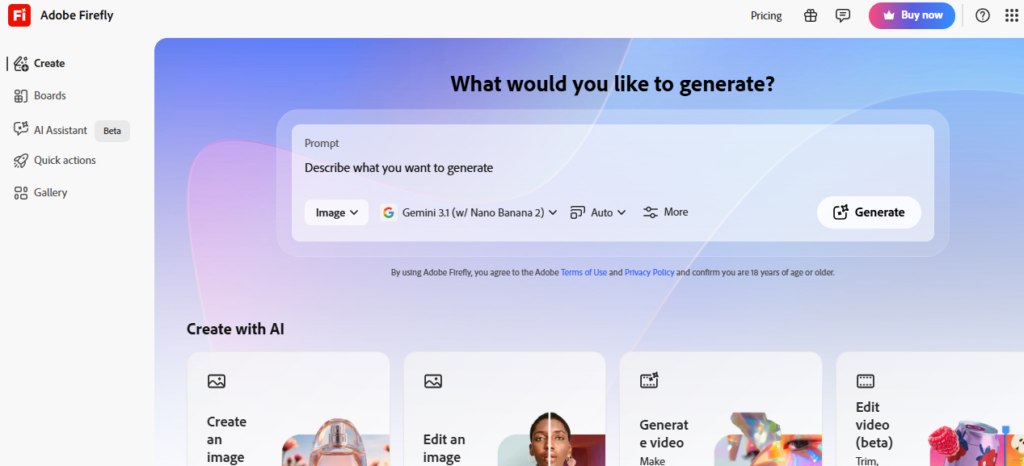
Speed up your content creation process with Adobe Firefly, the AI design platform that helps bloggers and marketers create custom graphics in minutes. Generate professional visuals while keeping your branding consistent across every channel.
How Adobe Firefly Speeds Up My Blog Graphics Workflow
My old creative workflow was a mess of open tabs and overlapping subscriptions. I used Photoshop and Illustrator for raw design elements, Canva for putting together the layouts, and then leaned on Claude or ChatGPT when I was totally stuck for ideas.
It was disorganized, slow, and frankly, not very much fun to manage.
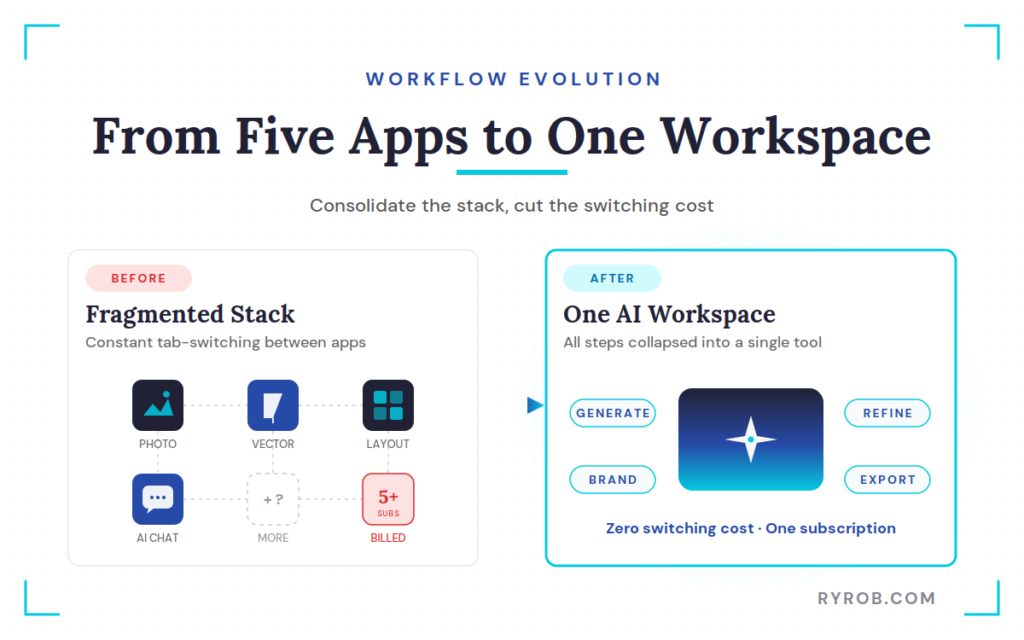
The promise of a tool like Adobe Firefly is that it collapses all those separate steps into one workspace. By operating within the Creative Cloud ecosystem, it functions as an all-in-one AI-powered creative space.
While it is important to note that using Adobe Firefly for blog graphics utilizes a credit-based system within your existing Creative Cloud subscription, it is significantly optimized for professional speed compared to manual design tools.
I wanted to see if it held up during a real work session, so I set out to create six specific graphics:
- Two featured images
- Two social media squares
- Two in-post visuals
The biggest shift here is not just the AI features; it is the move toward a batch-driven system. Instead of opening a standalone design app every time I need a single image, I can sit down once and use text prompts to knock out everything I need for the week.
This kind of consolidation is a huge win for any creator who feels like they are drowning in small, repetitive tasks. If you are looking for other ways to boost your efficiency, checking out helpful Chrome tools for bloggers creating visuals can help bridge the gap in your browser.
The Three-Part Strategy for Creating High-Quality Graphics Fast
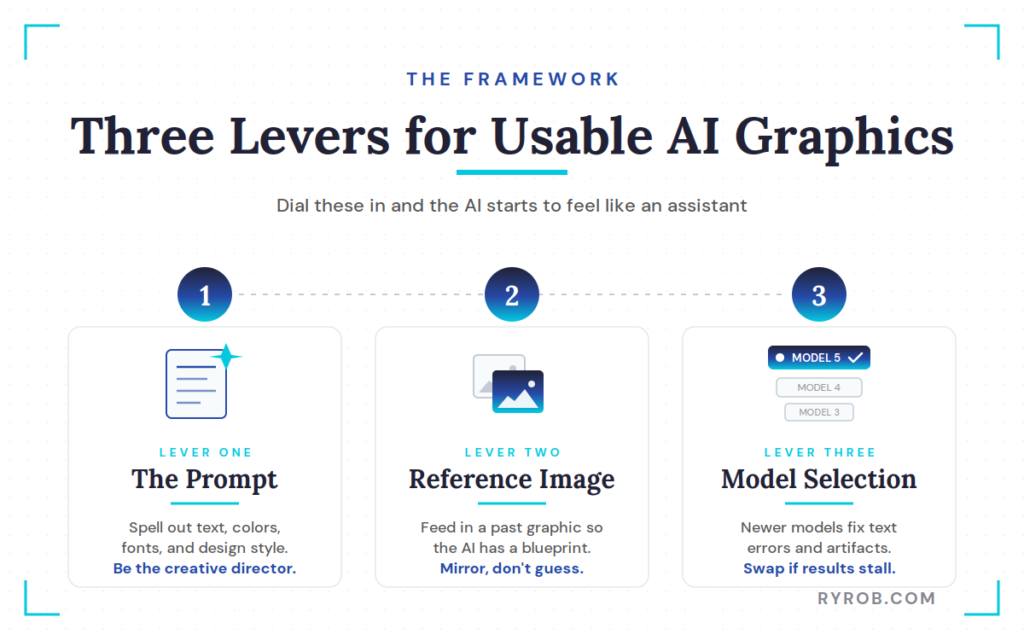
If you want to get results that do not look like generic AI junk, you need a framework. I found that the secret sauce for effective ideation and creation boils down to three things:
- The prompt
- The reference image
- The model selection
When you dial these in, the AI starts to feel less like a random generator and more like a talented assistant who actually listens.
The prompt is your most important lever. You cannot just say “make a cool blog image.” You have to spell out exactly what you want.
I talk to the tool about the text I need, the color palette, the font choices, and even the design direction like “flat illustration” or “clean modern style.” This level of detail, combined with powerful text to image capabilities, is what helps you get a usable image on the first try.
Using reference images is the second part of that strategy. I like to feed the tool one of my successful past images so it has a blueprint for my brand.
It is much easier for the AI to mirror an existing style than to guess what I think “modern” looks like. You can also utilize Firefly Boards to organize your favorite styles and assets, making it easier to maintain visual consistency across your posts.
You can even find creative tools to enhance blog visuals that offer similar style-matching features to keep your site’s aesthetic cohesive.
Using Text Prompts and Reference Images Effectively
When I was working on a post about FAQ pages, I gave Firefly a very specific set of text prompts. I asked for a clean, modern illustration with a 16:9 aspect ratio and a friendly, approachable style.
Because I provided a reference image to mirror my previous blog headers, the output felt like it belonged on my site immediately. Integrating this process into my Creative Cloud environment ensures that my design assets are always accessible and easy to manage.
I have found that describing the composition, like where the text should sit or how the icons should be spaced, makes a world of difference. It is about being the creative director rather than just a button pusher.
When the prompt is tight and the reference image is high quality, you spend way less time in the edit and refine loop. This significantly boosts your overall creative workflow.
Choosing the Right AI Model and One-Shot Success
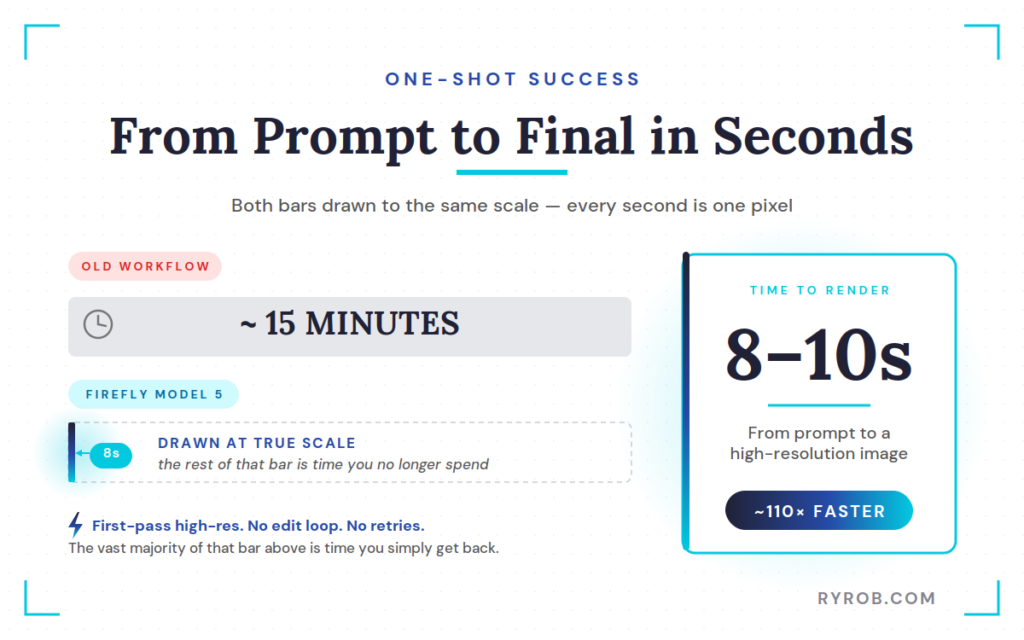
One of the coolest features in this workflow is the ability to swap models. I noticed that while early versions were helpful, switching over to the Adobe Firefly Image Model 5 often fixed issues like missing words or strange formatting.
It is incredibly fast, usually delivering high-resolution images in about eight to ten seconds.
Getting a one-shot success, meaning the first image the AI generates is the one you actually use, is the ultimate goal. It is a massive dopamine hit to see a perfect graphic pop up in seconds when it would have taken me twenty minutes to build from scratch.
Using Adobe’s AI text to image generator features allows for this kind of rapid experimentation and professional output.
Testing Adobe Firefly on Featured Images and Social Graphics
I put this to the test with two different blog posts, timing every single step. For the first post on FAQ traffic, my old Canva and Photoshop routine would have taken about 15 minutes for the header alone.
To make the comparison fair, I timed every graphic I created and scored the results on a scale of one to five. If the quality dropped too much or the time savings were not significant, I planned to return to my old workflow.
With Firefly, I had a brand-aligned hero image in about 15 seconds.
The social media squares were the real challenge. Social graphics usually need more of an emotional hook, often featuring human faces or high-contrast text to stop the scroll.
I was worried the AI might make things look a bit uncanny, but providing a reference image of myself helped the tool understand the composition I was looking for.
I ended up rating these images just like I would if I were critiquing a freelance designer. Most of them landed a solid five out of five on the first run.
The few that required a second attempt still only took an extra minute or so. That is a rounding error compared to the half-hour I would usually spend on one.
Creating Custom Infographics and In-Post Visuals Faster
Visuals inside a blog post are huge for engagement and for earning image snippets in search results. I used to dread making these because they require so much critical thinking.
You have to figure out how to represent a complex idea as a simple infographic, then spend forever in Illustrator using Text to Vector to generate professional vector graphics.
With this AI workflow, I can ask for an infographic that teases the big learnings from a specific section of my post. Firefly can generate these in about a minute.
These generative AI tools for bloggers are perfect for visual content creation. They help you build visual breaks in long-form content that keep readers scrolling and help your SEO.
Overall Results from the Adobe Firefly Workflow Test
After testing featured images, social graphics, and in-post visuals, the results were hard to ignore. What previously took several hours spread across multiple tools was completed in a single batch session lasting about 10 minutes.
| Metric | Old Workflow | Firefly Batch |
|---|---|---|
| Featured Images | ~15 min each | ~20 sec each |
| Social Graphics | ~20 min each | ~1 min each |
| Infographics | 20–30 min each | ~1 min each |
| Total Time | Several hours | ~10 minutes |
| Average Quality Score | — | 4.5/5 |
Even if the quality had been a wash, the time savings alone would have made this workflow worthwhile. Fortunately, the quality remained consistently high throughout the test.
Editing and Refining Your Content Without Leaving the Workspace
Even if an image is 90 percent there, you might want to tweak a small detail. The workspace has built-in features for things like:
- Upscaling
- Background removal
- Generative Expand
- Aspect ratio adjustments
If you need a square version of a horizontal image for Instagram, you can just tell the AI to expand the frame and fill in the blanks.
One feature I use constantly is Generative Remove. If the AI adds a weird little element I did not ask for, I can just brush over it and it vanishes.
I also rely on generative fill to touch up small details, which is much faster than opening a separate app for cleanup work. You can explore these generative AI tools for creatives to see how deep the editing features go.
Commercially Safe Visuals and Content Credentials
When you are integrating AI into your professional design routine, peace of mind regarding copyright is just as important as speed. Adobe Firefly is designed to be commercially safe because it is trained on Adobe Stock imagery, openly licensed work, and public domain content.
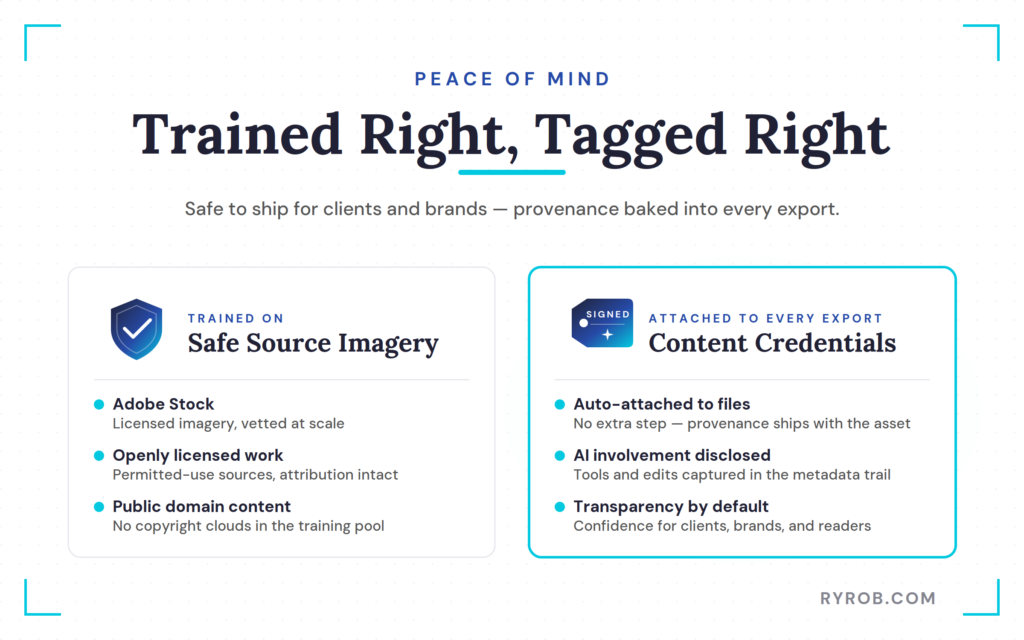
This commitment to ethical content use ensures that you can confidently use your visuals for business purposes.
Furthermore, the platform automatically attaches Content Credentials to your files, which provides transparency by acknowledging the use of AI in your creation process.
FAQs About Creating Blog Graphics with Adobe Firefly
Here are additional questions that might help you.
Is it really faster than using Canva?
Yes, it is often faster than using Canva because you are not searching through thousands of templates and manually swapping out elements. Once you have a prompt that works for your brand, you can generate unique graphics in seconds rather than minutes.
You can even use the Firefly mobile app to generate these assets on the go, keeping your momentum high no matter where you are working.
How do I keep my brand consolidated and consistent?
The key to keeping your brand consolidated and consistent is using the reference image feature. By uploading your own existing graphics as a style guide, you are training the AI to follow your specific color palette, font style, and overall vibe every single time.
By saving these assets within your Creative Cloud libraries, you ensure that every generated piece stays perfectly on brand.
Can the AI handle text correctly?
Yes, the AI can handle text correctly, and it is getting much better. While older models struggled with spelling, the newer models available in the Firefly studio are remarkably accurate.
As Adobe continues to expand their creative workflow with innovations like the Firefly Video Model, text rendering capabilities continue to improve. If a word is misspelled, you can usually fix it by switching models or simply brushing over that area and re-generating it.
Do I need to be a designer to use this?
No, you do not need to be a designer to use Adobe Firefly. You just need to be able to describe what you want.
If you can write a solid email, you can write a prompt that gets a great result. It is more about being a creative director than a technical illustrator, making professional design capabilities accessible to anyone with a vision.
Final Thoughts on the Adobe Firefly Workflow
Switching to a consolidated creative workflow powered by generative AI tools has been one of the best moves I have made for my business this year. Taking six visuals from idea to done in about 10 minutes is a level of efficiency I did not think was possible.
By integrating these tools directly into my Creative Cloud environment, I have effectively eliminated the switching cost of jumping between different apps. The quality of the output is high enough that I’m officially retiring my old stack.
If the average quality remains this consistent, the time savings alone make this approach a no-brainer for professional visual content creation. I’m also far more likely to include custom images in every post now because the barrier to creating them is so low.
I would recommend setting aside one hour to batch your graphics for the week. Use specific text prompts, lean on your past work as reference images, and do not be afraid to swap between different generation models.
Are you ready to stop pixel-pushing in five different apps? Try a batch session this week and see how much time you can reclaim in your schedule with simple AI prompts to generate your featured images.
Create Professional Graphics Faster with Adobe Firefly
Speed up your content creation process with Adobe Firefly, the AI design platform that helps bloggers and marketers create custom graphics in minutes. Generate professional visuals while keeping your branding consistent across every channel.
