Free YouTube Tag Generator Get SEO-Friendly YouTube Tags (Copy & Paste)
Who likes writing all those YouTube tags? Exactly. My free YouTube Tag Generator will instantly create a list of SEO-optimized tags for your videos. Just paste in the URL of your YouTube video (or type in the title or topic) and get a copy & paste list of the most relevant YouTube tags to add to your videos—and help them get more views.

Delivered Straight to Your Inbox
"*" indicates required fields
Get Highly Relevant YouTube Tags That Boost Your YouTube SEO: Use Our Free YouTube Tag Generator
Struggling to figure out the best YouTube tags for your videos? My YouTube Tag Generator will do all the hard work for you. Because of YouTube’s algorithm, the right tags can make a massive difference to your video’s visibility on YouTube and this tool could help your views, likes & subscribes skyrocket.
YouTube video tags are vital for good optimization, but how exactly do you pick good trending and relevant tags? It might be tempting to leave your tags off entirely, or to pick the specific tags that seem to be doing well … regardless of whether they’ve got anything to do with your content. Neither of those options will help you in the YouTube search results!
My AI YouTube tag generator comes up with lots of relevant tags, based on your video content. No matter if you’re entering a YouTube video URL or a video topic.
How to Use the Free YouTube Tag Generator
The YouTube tag generator is a completely free tool and it’s super simple to use. Here’s how.
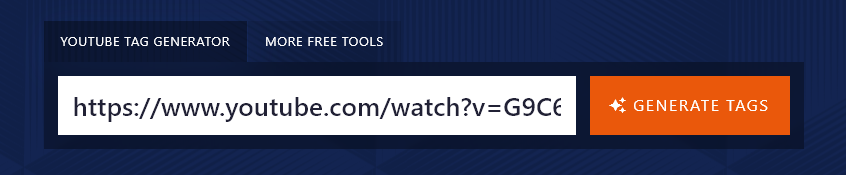
Step 1. Enter Your Topic or Paste in Your URL
You can use the AI tag generator in two ways:
- Enter your YouTube video’s URL to get tags for an existing video that you’ve already created.
- Type in your topic/title to get tags for a video you’re still working on.
We’re going to try it out with an existing video: one of my RightBlogger videos that offers a RightBlogger demo on how to write SEO blog posts fast.
Step 2. Generate a List of Comma-Separated Tags
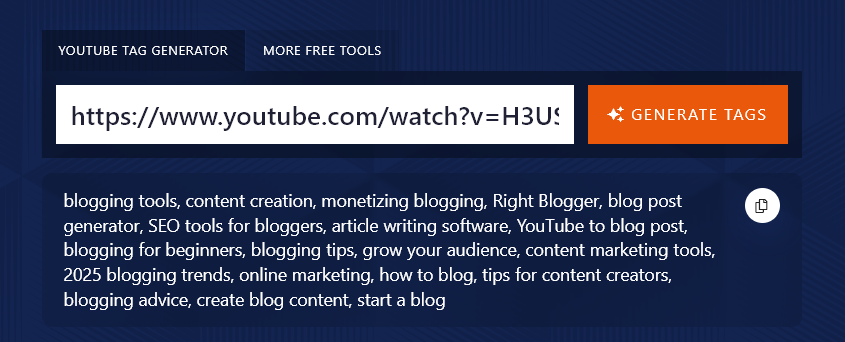
Once you’ve pasted in your URL or typed in your topic, just hit the “Generate Tags” button.
The AI will instantly come up with a list of comma-separated tags for you, ready for posting into the tags section of your video.
Step 3. Copy and Paste Your Tags for Your YouTube Video
Copy the full list of tags by clicking the Copy button to copy them to your clipboard.

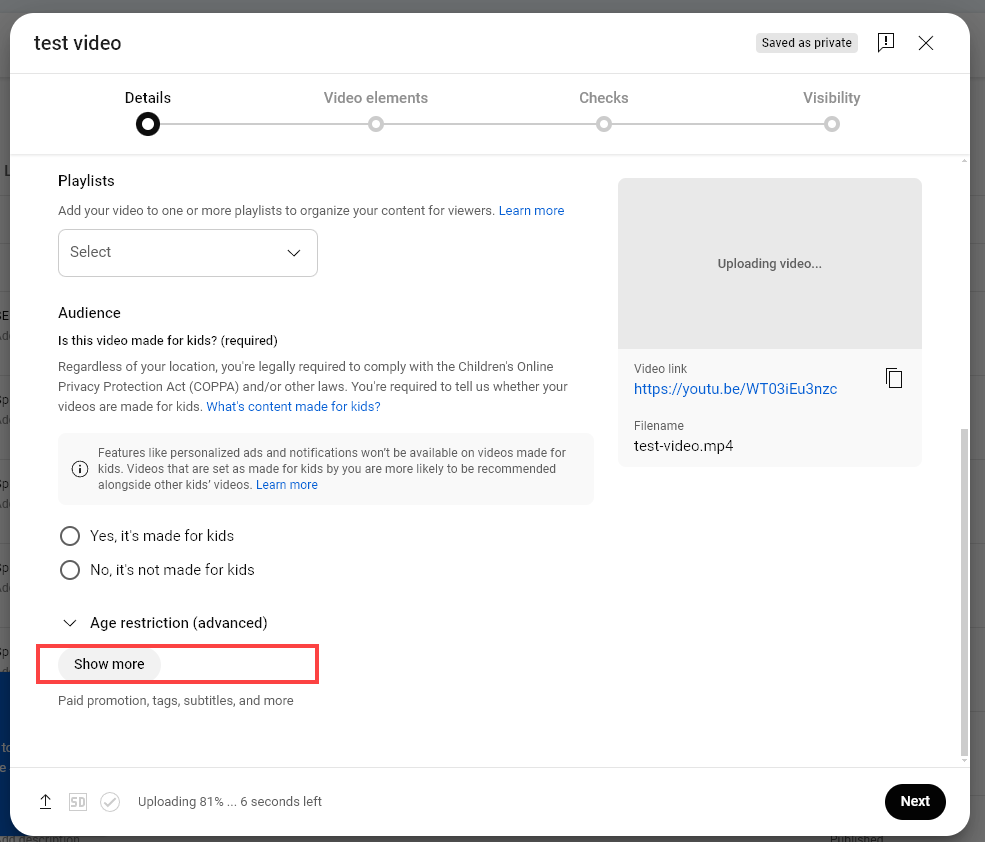
Then, paste these tags into the tag section of your video details when uploading or editing your YouTube video. You’ll need to click the “Show more” link.
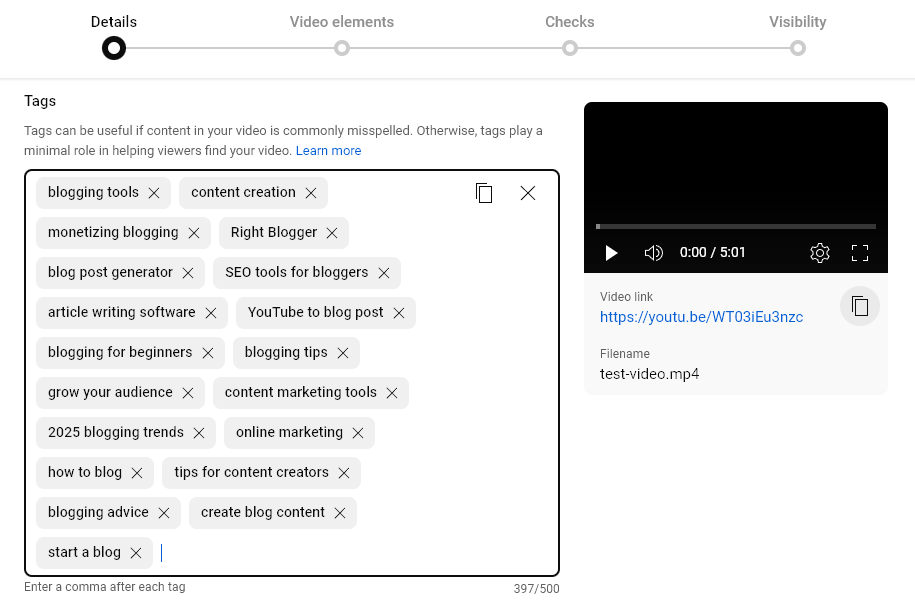
Then, you can simply paste the tags into the tags box. They’re already comma separated, so YouTube will be able to understand each individual tag, regardless of how many words long it is:
How to Get the Most from the YouTube Tag Generator
Want to get the most relevant tag suggestions possible from the YouTube tag generator? Here are some tips for going even further with it.
1. Be Specific About Your Topic (if You Haven’t Made Your Video Yet)
The AI’s suggested tags will only be 100% relevant if your topic is very clear. If you’ve got a video title or idea that doesn’t really convey the subject matter, then make sure you add more details for the AI.
Here’s a quick example, using the basic, general topic “Blog Writing Tips”.
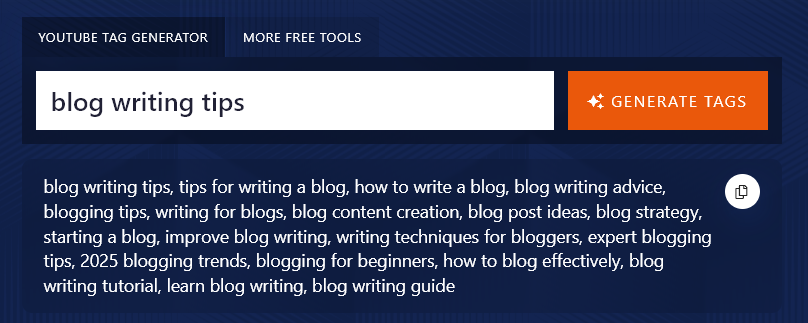
We then ran the generator using the more specific video’s topic “How to Structure a Blog Post Readers Will Love.”
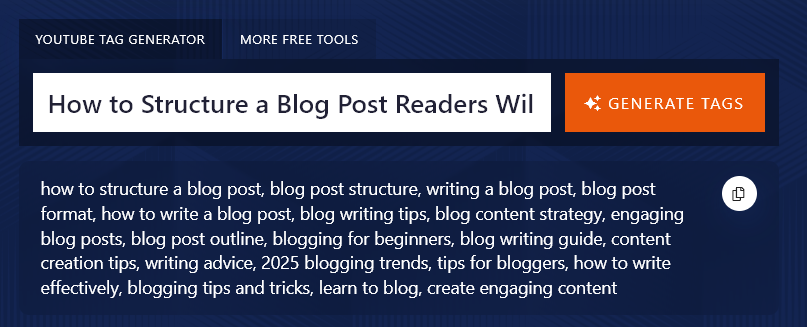
As you can see, the tags we got the second time are much more focused on structure and outlining.
Tip: You don’t need to use every single tag. You can always remove any that you feel aren’t fully relevant to your video, and you can add extra tags if you want to.
2. Understand the Difference Between YouTube Tags and YouTube Hashtags
A lot of content creators get confused about how to use these generated tags, muddling them up with hashtags.
Tags and hashtags are two separate things on YouTube—and both are useful for your discoverability and video SEO.
Tags are relevant search terms for your video, used in YouTube’s general search. They’re useful for YouTube SEO and they’re a type of metadata.
Hashtags are links in your video description that users can click to see other videos with the exact same hashtag.
Normally, tags will be 3–5 words. Hashtags are often just one or two words, as they need to be joined together.
Note: This free tag generator isn’t designed as a hashtag generator. If you’re looking for hashtags to use on your video, check out what other vloggers or content creators in your niche are doing. Using the same hashtags as them could help your videos get found.
What Are YouTube Tags? (Quick Definition)
YouTube tags are descriptive keywords you add to your video’s metadata to help YouTube’s algorithm understand what your content is about. Unlike hashtags, tags are private — they don’t appear on the public-facing video page. They live behind the scenes in YouTube Studio, where YouTube reads them to match your video to relevant search queries and recommended-video slots.
Tags are one of several signals YouTube uses to rank and recommend videos — alongside your title, description, thumbnail, captions, audience retention, and watch time. They’re a smaller signal than they used to be, but they still matter, especially for niche topics where YouTube has less context to work with.
Are YouTube Tags Still Worth Using?
Short answer: yes, but with realistic expectations.
YouTube has been clear for years that tags are not a major ranking signal. Google’s own documentation says “Your video’s title, thumbnail, and description are more important pieces of metadata for your video’s discovery.” That hasn’t changed in 2026 — if anything, the rise of AI-driven content understanding (where YouTube’s systems analyze your audio, visuals, and transcript directly) has made tags relatively less important.
That said, tags still earn their keep in three specific situations:
- Niche or technical topics. When your video covers something obscure, technical, or commonly misspelled (think: specific software versions, niche game playthroughs, or specialty equipment), tags give YouTube the extra context it needs to match you to the right viewers.
- New channels with limited signal. YouTube uses your past video performance, audience overlap, and topic patterns to recommend new uploads. New channels don’t have that history yet, so explicit tags help YouTube understand what your video is about while it’s gathering data.
- Branded and channel-identity tags. Including your channel name and consistent branded tags helps YouTube cluster your videos together in suggested-video carousels.
What tags won’t do: rescue a video with a weak title, poor thumbnail, or low watch-time. Tags are the cherry on top, not the cake.
How Many YouTube Tags Should You Use?
The sweet spot is 5 to 15 highly relevant tags. That’s enough to give YouTube real context without crossing into keyword-stuffing territory.
Here’s the rule I follow:
- Your first tag should be your exact-match focus keyword (the main phrase you want the video to rank for).
- Your next 3–5 tags should be close variants of that focus keyword.
- Your next 4–6 tags should cover broader topic categories the video sits inside.
- Your final 1–3 tags should include your channel name and any branded series identifiers.
YouTube enforces a 500-character total limit across all tags combined (not per tag). If you’re hitting that limit, you’re almost certainly stuffing — pull back.
YouTube Tags vs. Hashtags vs. Categories: What’s the Difference?
YouTube has three different metadata systems that bloggers and creators routinely confuse. Here’s the breakdown:
- Tags — private metadata in YouTube Studio. YouTube reads them; viewers don’t see them. Used to help YouTube’s algorithm classify and recommend your video. This is what our generator above produces.
- Hashtags — public clickable links in your video description (or above your title if you put one in the title itself). They link to a hashtag page where viewers can browse other videos with the same hashtag. Different system, different purpose.
- Categories — a single fixed category you select once per video (Education, Gaming, Music, Howto & Style, etc.). YouTube uses this to feed video recommendations and ad targeting. You can change it post-publish if you picked the wrong one.
You should use all three on most videos: relevant tags via this generator, 2–3 hashtags in your description, and the right category in YouTube Studio settings. Each does a different job.
5 YouTube Tag Best Practices
- Lead with your exact focus keyword. The first tag carries the most weight. If you want to rank for “beginner woodworking projects,” your first tag should be exactly that phrase.
- Use multi-word phrases, not single words. 3–5 word phrases reflect how viewers actually search and give YouTube more semantic context. Single-word tags (“cooking,” “fitness”) are too broad to be useful.
- Mix broad and specific. Combine niche tags (“how to outline a blog post”) with broader topic tags (“blogging tips”) so YouTube understands both the specific intent and the broader category.
- Always include a branded tag. Your channel name (or series name) should be one of your tags on every video. This helps YouTube cluster your videos together in suggested-video carousels.
- Match the tags to the actual content. Tags that don’t match what’s in the video can hurt your audience-retention scoring when viewers click expecting one thing and get another. Relevance > reach.
Common YouTube Tag Mistakes to Avoid
- Stuffing 30+ tags. More isn’t better — it dilutes signal and looks spammy. 5–15 relevant tags will outperform 30 thin ones.
- Hijacking trending tags. Adding “#shorts” or trending celebrity names to a video that has nothing to do with them used to be a low-effort traffic hack. Today it tanks audience retention (because viewers click and bounce), which hurts the video sitewide.
- Copying competitor tags blindly. Tools that scrape another video’s tags can be useful for inspiration, but pasting them verbatim only works if your video is genuinely similar. Otherwise you’re sending mismatched signals.
- Using only single-word tags. “Music” is too broad to help anyone. “Acoustic guitar fingerstyle tutorial” is specific enough to actually match real searches.
- Confusing tags with hashtags. They’re different systems. Tags belong in the “Tags” field in YouTube Studio (under Show More); hashtags go in your description with the # prefix.
- Forgetting to update tags on older videos. If a video has been live for a while and you’ve learned what it actually ranks for, update the tags to lean into those terms. It’s one of the easiest ranking refreshes you can do.
Where YouTube Tags Fit in Your Full Video SEO Workflow
Tags are a small piece of a bigger puzzle. Before you fire up this generator, think about the upstream and downstream pieces of your YouTube SEO:
- Start with keyword research. Use my free YouTube Keyword Tool to find high-volume, low-competition phrases your target audience is actually searching for.
- Generate ideas around those keywords. My YouTube Video Idea Generator will surface specific video angles you can shoot.
- Write a click-worthy title. The single biggest ranking factor for YouTube is your title. My YouTube Title Generator spits out 10+ options to A/B compare.
- Outline your video script. Higher watch-time = better rankings. My YouTube Script Generator drafts a structured outline in seconds.
- Generate your tags (you’re here). Use the tool at the top of this page.
- Repurpose into a blog post. Once your video is live, my YouTube to Blog Post Converter turns the video transcript into an SEO blog post in minutes — capturing search traffic that YouTube alone can’t.
AI YouTube Tag Generator FAQs (Frequently Asked Questions)
Still got some questions about using the YouTube tag generator, or not quite sure how to use tags? Here are the answers you need.
What Tags Are Best for YouTube?
There’s no single tag that’s going to work for every topic and target audience. Instead, it’s always best to tailor your tags to your video and the viewers you’re likely to have.
Ideally, you want to have SEO-optimized tags that are about 3 to 5 words long. These target long-tail keywords that your audience is typing in on YouTube.
Some YouTubers also add popular trending tags to try to reach a wider audience, but your video is unlikely to show up for those search queries if it isn’t actually relevant.
How Do Tags Help on YouTube?
Tags are one ranking factor used by YouTube’s search engine, though it’s worth keeping in mind that they’re not as important as your video’s title and description. Google (which owns YouTube) says:
“Your video’s title, thumbnail, and description are more important pieces of metadata for your video’s discovery. These main pieces of info help viewers decide which videos to watch.”
Using descriptive keywords for your tags can potentially boost your video so it ranks higher in YouTube’s search results.
Do I Need to Use Both Tags and Hashtags on YouTube?
You don’t have to use tags or hashtags on YouTube, though it’s a good idea to add both. Spending a few seconds adding these could make a difference to your video’s success … and it costs you nothing!
If you are using hashtags, most content creators put these at the end of their video’s description in YouTube studio.
What Other AI Tools Can I Use to Grow My YouTube Channel?
You’re in luck — I’ve built a whole suite of free AI tools for YouTube creators, and you can use any of them without signing up.
In particular, you’ll want to check out:
- YouTube Keyword Research Tool: come up with relevant and achievable keyword ideas in seconds
- YouTube Video Ideas: never get stuck for a video idea again: this AI tool works for any topic
- YouTube Channel Names: get a whole list of catchy channel names in just seconds
- YouTube Script Generator: write a script for your next video—effort-free
- YouTube Video to Blog Post Converter: repurpose your videos into well-written, formatted blog posts, without any effort on your part
- YouTube Title Generator: generate click-worthy YouTube video titles in seconds
- Hook Generator: come up with great hooks for your blog, video, or social media
- Blog Title Generator: cross-pollinate your video content with SEO-optimized blog post titles
Want more? My AI platform RightBlogger includes 80+ AI tools—including YouTube Video Tags, Video Title, Video Description, Video Script, and YouTube to Blog Post converters. You can try them out completely free, for as long as you want — or upgrade to a paid plan for unlimited words plus features built specifically for creators.
What’s the YouTube Tag Character Limit?
YouTube enforces a 500-character total limit across all tags combined (not 500 per tag). Individual tags can be up to ~30 characters each, but the running total of all your tags combined caps at 500. If you’re hitting that ceiling, you’re almost certainly stuffing — pull the list down to 5–15 of the most relevant tags.
Do YouTube Tags Work for YouTube Shorts?
Yes, you can add tags to Shorts the same way you add them to long-form videos in YouTube Studio. That said, Shorts have shorter retention windows and are surfaced primarily through the Shorts feed, where the algorithm relies more heavily on watch-completion rate, captions, and audio cues than on tags. Tags don’t hurt — but for Shorts specifically, your title, the on-screen text, and audience retention move the needle more.
Can I See Other YouTubers’ Tags?
Tags are private — YouTube doesn’t display them publicly on the video page. To see another creator’s tags, you’d need a third-party browser extension like vidIQ or TubeBuddy that surfaces tag data via YouTube’s API. Useful for competitive research and tag inspiration, but always tailor what you find to your own video’s actual content rather than copy-pasting verbatim.
Who is the AI YouTube Tag Generator Tool Designed For?
The YouTube tag generator is obviously a great fit for YouTubers … but it’s also suitable for anyone who posts occasional videos on YouTube, including bloggers, entrepreneurs, digital marketers, and small businesses.
Final Thoughts on YouTube Tags
YouTube tags aren’t the silver bullet some creators believe — they’re a small, supplementary signal that helps YouTube understand niche or technical content. But they’re also free, take 30 seconds, and they do move the needle for the right kinds of videos. Generate them with the tool above, place your exact-match focus keyword first, mix broad and specific phrases, and don’t stuff past 15.
If you got value from this generator, you’ll probably love the rest of my free YouTube creator stack: my YouTube Keyword Tool for upstream research, my YouTube Title Generator for click-worthy titles, my YouTube Script Generator for outlining your next video, and my YouTube to Blog Post Converter for turning your videos into SEO blog content. All free, no login.
And if you want the full creator workflow in one place — keyword research, scripting, tags, descriptions, thumbnails copy, repurposing into blog and social — that’s exactly what I built RightBlogger for. 80+ AI tools, free to start.